Advanced Guide
Troubleshooting
Contents
>
Scanning
> Saving Scanned Data to the Computer
C041
Saving Scanned Data to the Computer
You can save scanned data on the computer with the USB cable.
This section describes the procedure to detect the type of original automatically with Auto scan, and save
the scanned data on the computer connecting with the USB cable, according to the settings specified
Note
The machine can detect the following types of originals with Auto scan: photo, postcard, business
card, magazine, newspaper, text document, and disc (BD/DVD/CD, etc.). For other originals, select
Document or Photo for Document type and specify the scan size to scan them.
For details, refer to the on-screen manual:
.
Preparing for Scanning with the Operation Panel
Before scanning originals, check the following:
Are the necessary software applications (MP Drivers and MP Navigator EX) installed?
Install MP Drivers and MP Navigator EX from the Setup CD-ROM
when they have not been installed
or have been uninstalled. To install MP Drivers and MP Navigator EX, select MP Drivers and MP
Navigator EX in Custom Install.
Are the settings for saving data scanned with Auto scan specified in MP Navigator EX?
When you save scanned data on the computer with Auto scan using the Operation Panel, you can
specify the settings for saving scanned data in Preferences of MP Navigator EX.
For details on the settings, refer to the on-screen manual:
Advanced Guide
.
Does the original to be scanned meet the requirements for the original to be loaded on the Platen
Glass or in the ADF?
For details, see Originals You Can Load
.
Is the machine connected to a computer correctly?
Confirm that the connection with USB cable between the machine and the computer is physically
secure.
Saving Scanned Data to the Computer
1.
Select the scan operation.
(1)
Make sure that the power is turned on.
See
Operation Panel
.
(2)
Press the
SCAN
button.
(3)
If Save to is being displayed, use the
(-) or (+) button to select PC, and
press the
OK
button.
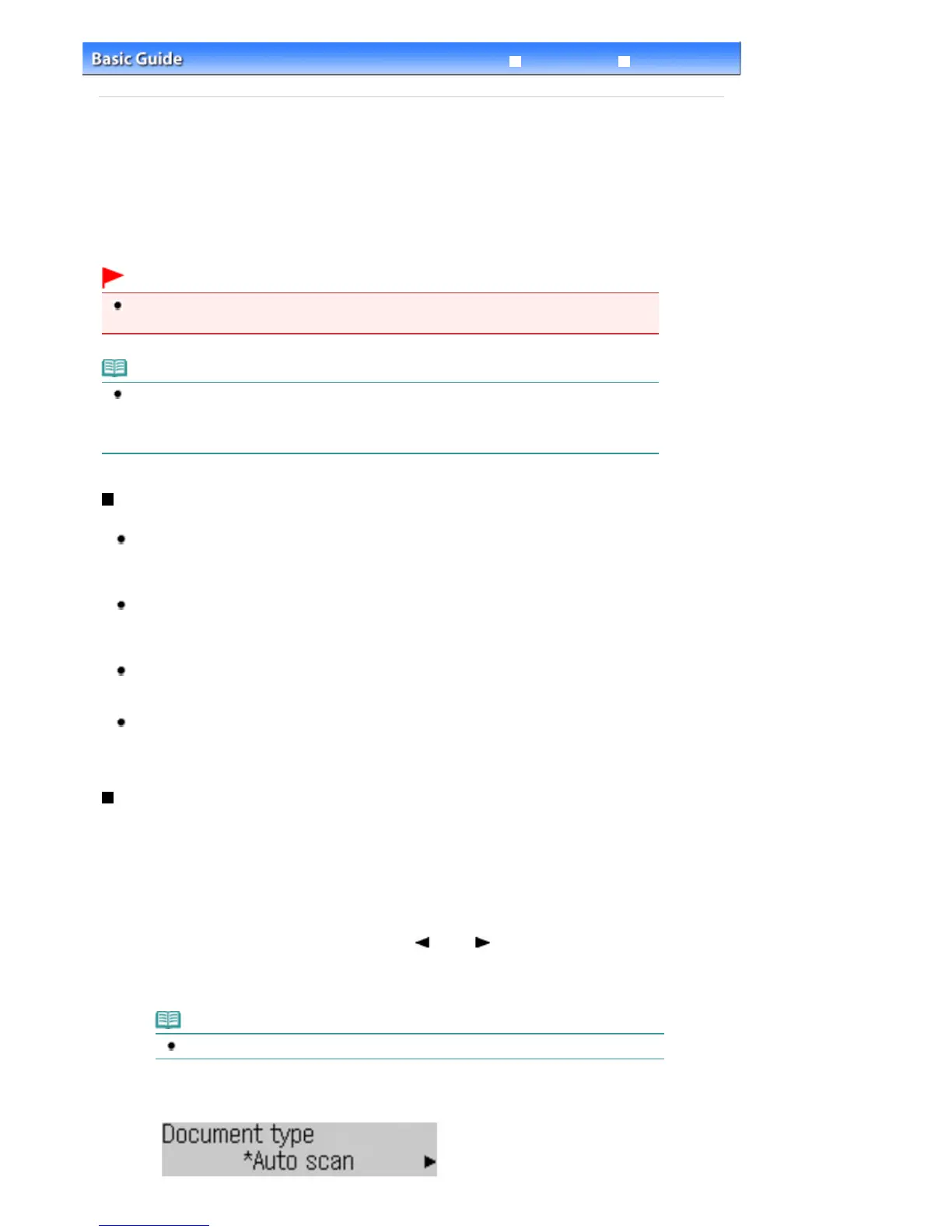
The Document type selection screen will appear.
Note
If Save to is not displayed, press the
Menu
button to display it.
(4)
Select the document type, and press the
OK
button.
Here we select Auto scan.
Seite 55 von 922 SeitenSaving Scanned Data to the Computer















 To Next Page