3.
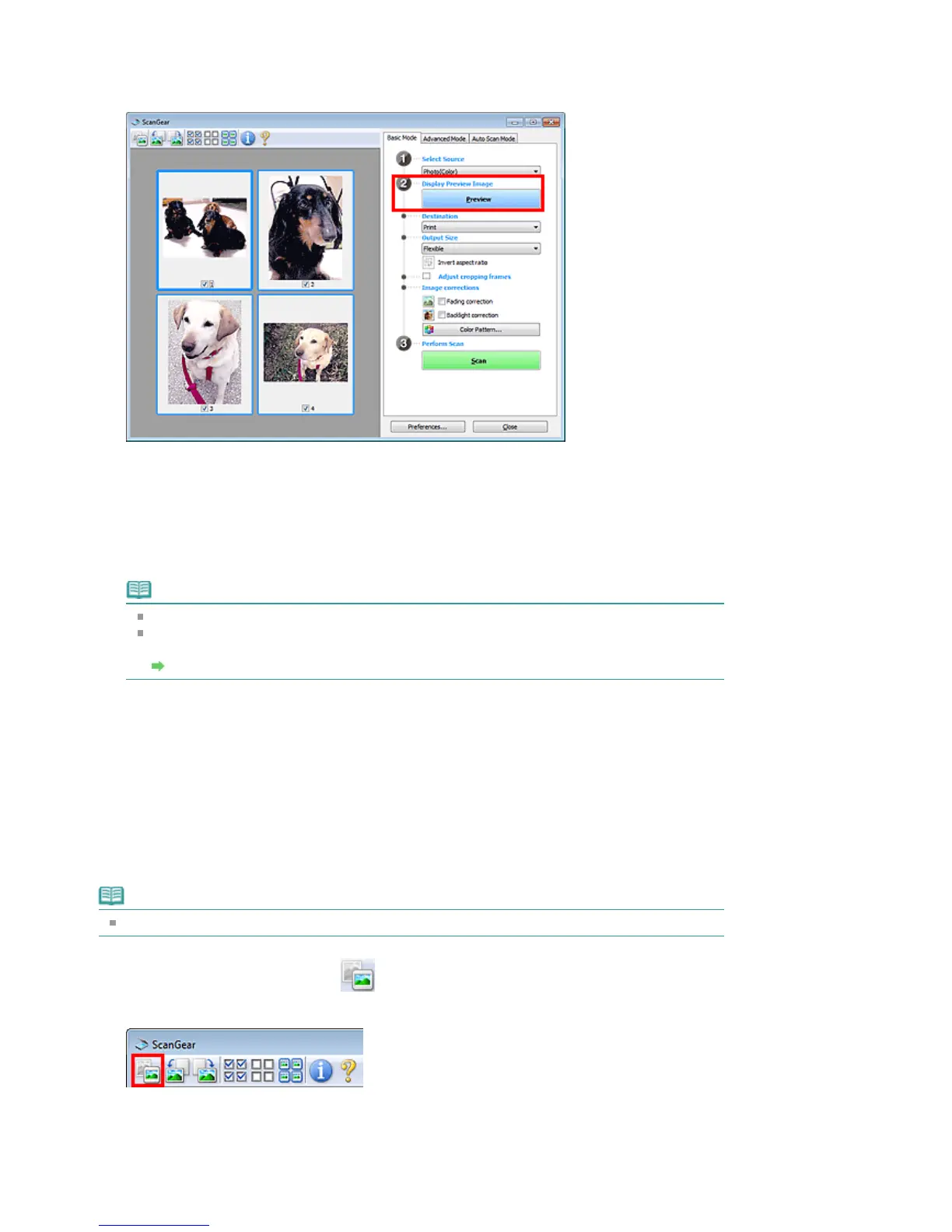
Click Preview.
Thumbnails of the preview images appear in the Preview area. Images are cropped (scan areas are
specified) automatically according to the document size.
4.
Set Destination.
5.
Set Output Size.
6.
Note
You can correct each image separately. Select the frame you want to correct.
In thumbnail view, you can only create one cropping frame (scan area) per image. To create
multiple cropping frames in an image, scan in whole image view.
Scanning Multiple Documents in Whole Image View
7.
Select the images you want to scan.
Select the checkboxes of the images you want to scan.
8.
Click Scan.
Scanning Multiple Documents in Whole Image View
Follow these steps if thumbnails are not displayed correctly when previewed or if you want to scan
multiple documents as a single image.
Note
Positions of slanted documents are not corrected in whole image view.
1.
(Thumbnail) on the Toolbar.
Switch to whole image view.
Seite 554 von 922 SeitenScanning Multiple Documents at One Time with ScanGear (Scanner Driv...















 To Next Page