Note
When the whole image is displayed, the icon changes to
(Whole Image).
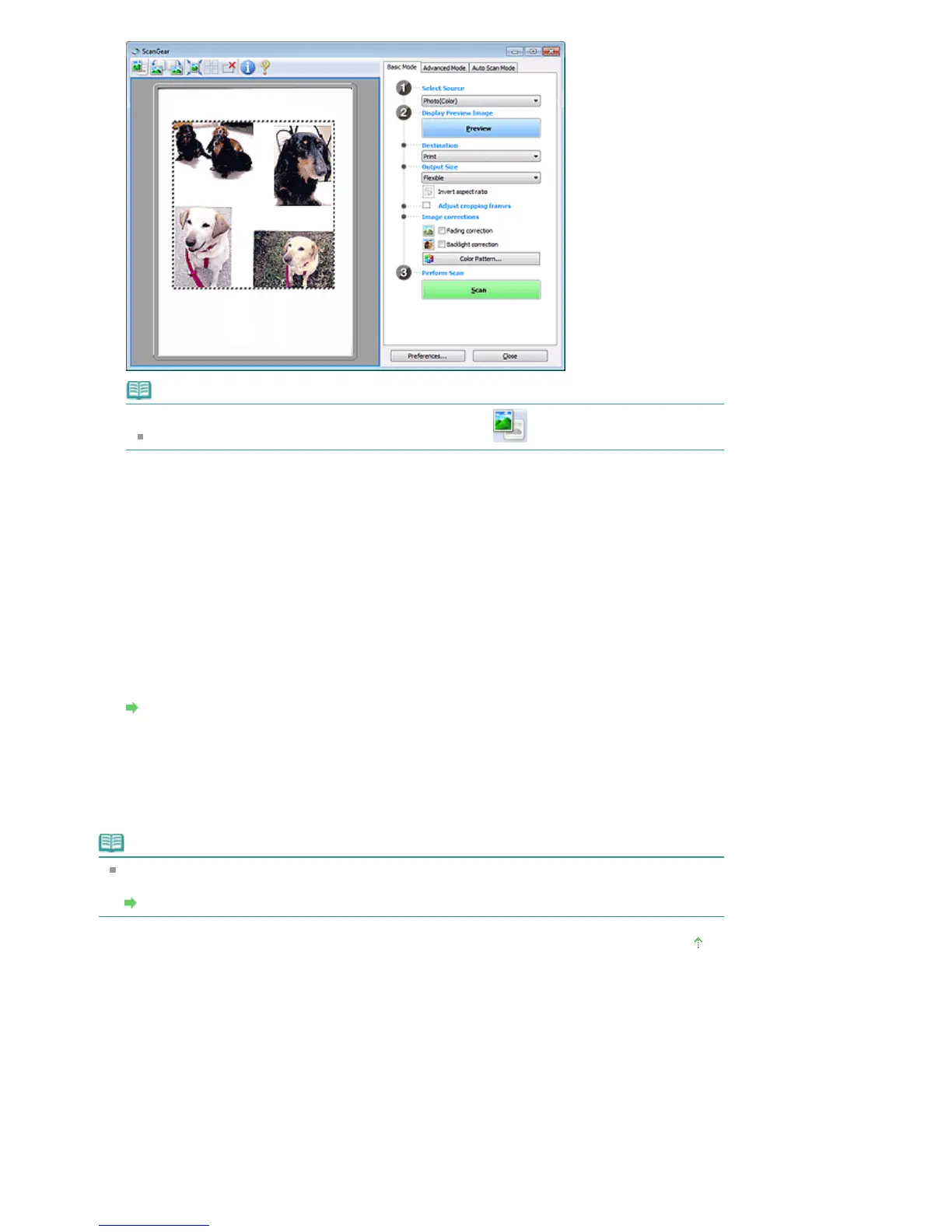
2.
Set Destination.
3.
Set Output Size.
Invert aspect ratio will be enabled when Output Size is set to anything but Flexible. Click this button
to rotate the cropping frame. Click again to return it to the original orientation.
4.
Adjust the size and position of the cropping frame (scan area) on the preview image. You can also
create two or more cropping frames.
If an area is not specified, the document will be scanned at the document size (Auto Crop). If an area
is specified, only the portion in the specified area will be scanned.
Adjusting Cropping Frames
5.
Set Image corrections as required.
6.
Click Scan.
Areas framed by broken lines are scanned.
Note
ScanGear's response after scanning can be specified in Status of ScanGear dialog after scanning
on the Scan tab of the Preferences dialog box.
Scan Tab
Page top
Seite 555 von 922 SeitenScanning Multiple Documents at One Time with ScanGear (Scanner Driv...















 To Next Page