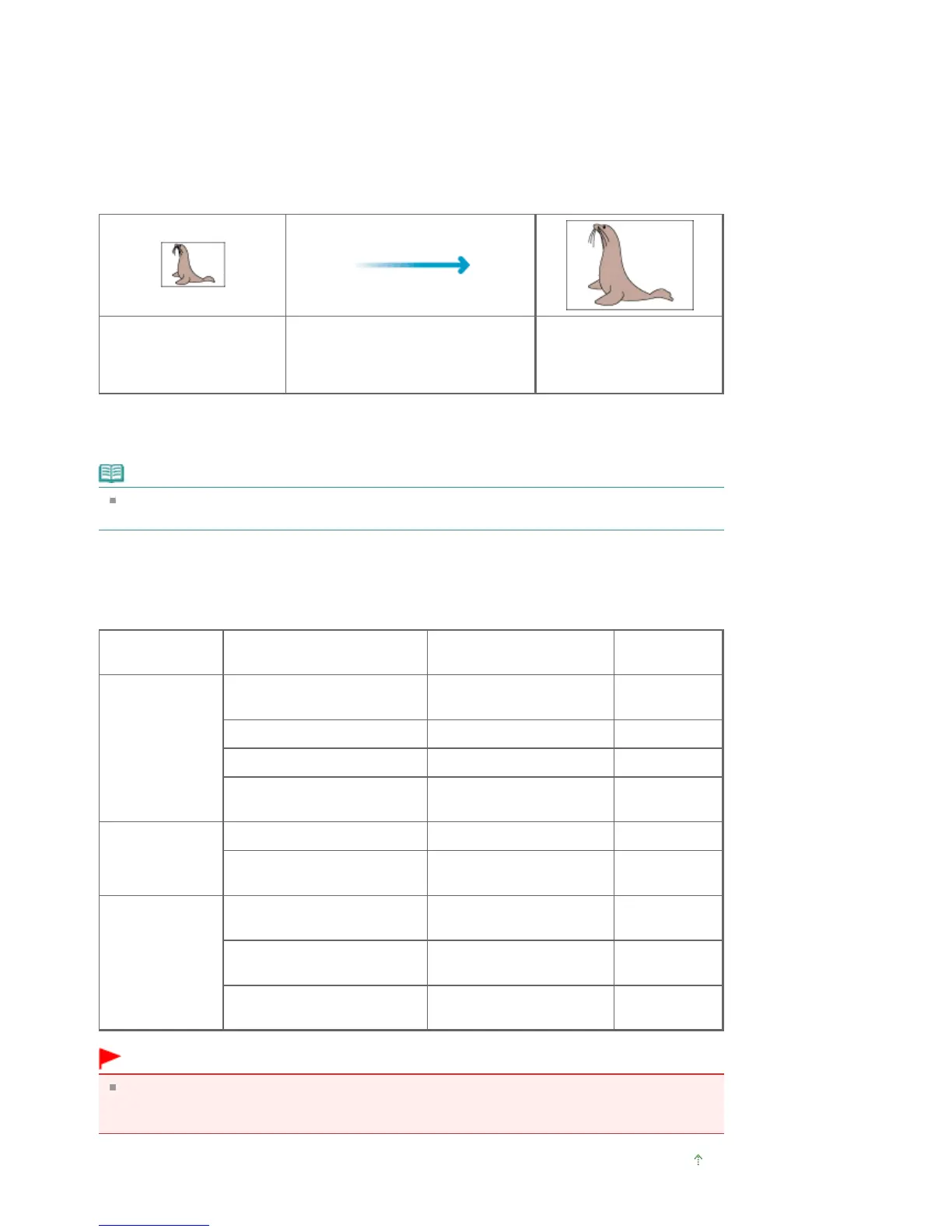
In ScanGear, you can specify the resolution with Output Resolution in Output Settings on the Advanced
Mode tab.
Example of Appropriate Resolution when Printing to Scale
The scanning resolution is automatically set so that the value set in Output Resolution will be the
resolution of the scanned image. If you set Output Resolution to 300 dpi and scan at twice the size, the
document will be automatically scanned at 600 dpi, and the resolution of the scanned image will be 300
dpi. You can print the document with sufficient quality using a 600 dpi color printer.
When Printing L Size (3.5 inches x 5 inches) (89 mm x 127 mm) Photos at Twice the Size
Document resolution: 300
dpi
Output resolution: 300 dpi
Scale: 200%
Scan at twice the size
Actual scanning resolution: 600 dpi
Image resolution/printing
resolution: 300 dpi
Appropriate Resolution Settings
Set the resolution according to the use of the scanned image.
Note
Although you can change Output Resolution in ScanGear, it is recommended that you scan at the
default value.
For displaying on a monitor: 150 dpi
For printing: 300 dpi
When Output Size is set to Flexible in ScanGear's Advanced Mode tab (Select Source is Platen and the
scale is 100%)
Document Use
Color Mode Output
Resolution
Color photo
Copying
(Printing)
Color 300 dpi
Creating a postcard
Color 300 dpi
Saving to a computer
Color
75 dpi - 300 dpi
Using on a website or attaching
to e-mail
Color
75 dpi - 150 dpi
Black and white
photo
Saving to a computer Grayscale
75 dpi - 300 dpi
Using on a website or attaching
to e-mail
Grayscale
75 dpi - 150 dpi
Text document
Copying
Color, Grayscale, or Black
and White
300 dpi
Attaching to e-mail Color, Grayscale, or Black
and White
150 dpi
Scanning text using OCR Color or Grayscale
300 dpi - 400
dpi
Important
If you double the resolution, the file size quadruples. If the file is too large, the processing speed will
slow down significantly, and you will experience inconvenience such as lack of memory. Set the
minimum required resolution according to the use of the image.
Page top
Seite 612 von 922 SeitenResolution















 To Next Page