take if you have trouble with the operation.
If you need to switch between users, be sure to exit My Printer beforehand.
Online Shopping
Purchase consumables such as ink from the website.
Information
Find useful information on the machine.
Note
The computer must be connected to the Internet to access the website for useful information, etc.
For details on operating Solution Menu EX, refer to the online help. Select the Help & Settings menu,
then click
(Solution Menu EX's Help) to view the online help.
Starting Software Applications from Solution Menu EX
From Solution Menu EX, you can start a software application, and also directly access a function of
the software application.
The following procedure is to start Solution Menu EX and, for example, select one of the Easy-
PhotoPrint EX functions, Photo Print.
1.
Start Solution Menu EX.
Double-click (Solution Menu EX) on the desktop.
Click Here: Solution Menu EX
Note
Unless the default setting has been changed, Solution Menu EX starts automatically when you
start up the computer.
To start Solution Menu EX from the Start menu, select All Programs, Canon Utilities, Solution
Menu EX, then Solution Menu EX.
If Solution Menu EX Main Screen does not appear after starting Solution Menu EX, right-click
(Accessory Icon) and select Show Main Screen.
2.
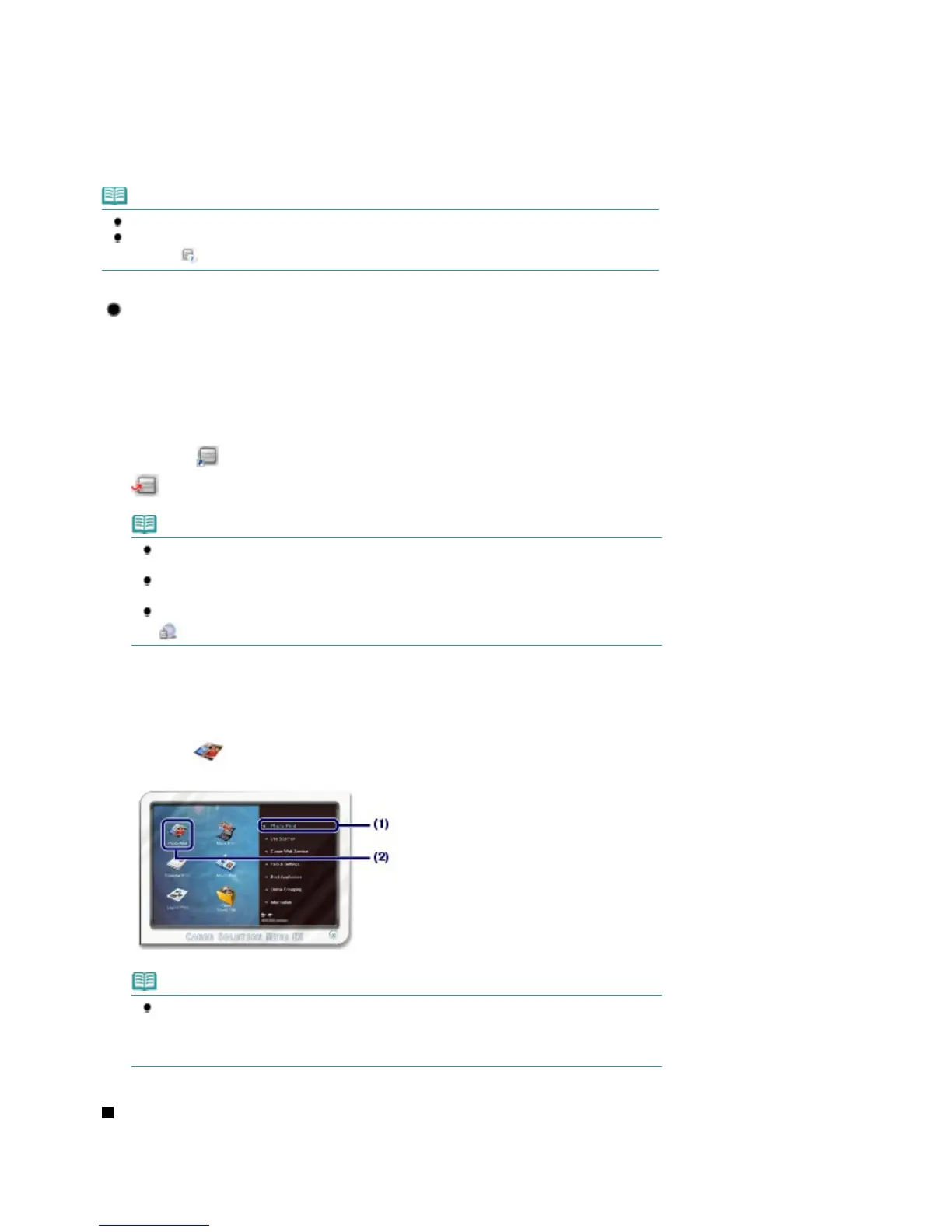
Select the function of a software application that you want to start.
(1)
Click the Photo Print menu.
(2)
Click (Photo Print).
Easy-PhotoPrint EX will be started, and the operation screen of Photo Print will appear.
Note
In addition to photo printing, functions for creating albums, calendars, and other photo items
are available.
For details on operations and functions of Easy-PhotoPrint EX, see
Printing Photos (Easy-
PhotoPrint EX)
.
Easy-WebPrint EX
When Easy-WebPrint EX is installed, it adds a toolbar to your Internet Explorer screen. The toolbar is
available whenever Internet Explorer is running.
Seite 68 von 922 SeitenStarting Various Software Applications















 To Next Page