Advanced Guide
>
About Bluetooth Communication
>
Basic Procedure for Printing via Bluetooth
Communication
> Printing with Computers
B011
Printing with Computers
When using Bluetooth communication, also refer to the computer's instruction manual.
When printing from a Bluetooth compliant device other than a computer, see Printing with Bluetooth
Compliant Devices other than a Computer
.
Note
Depending on your application software, operations may differ. For details, refer to your software
application's instruction manual.
The steps described in this section are for printing in Windows 7.
Bluetooth communication distance: Approx. 33 ft./10 m in normal environment.
The distance may vary depending on the radio conditions or the communication equipment.
1.
Turn on the printer and load paper.
2.
Create a document or open a file to print using an appropriate application software.
3.
Open the printer properties dialog box.
1.
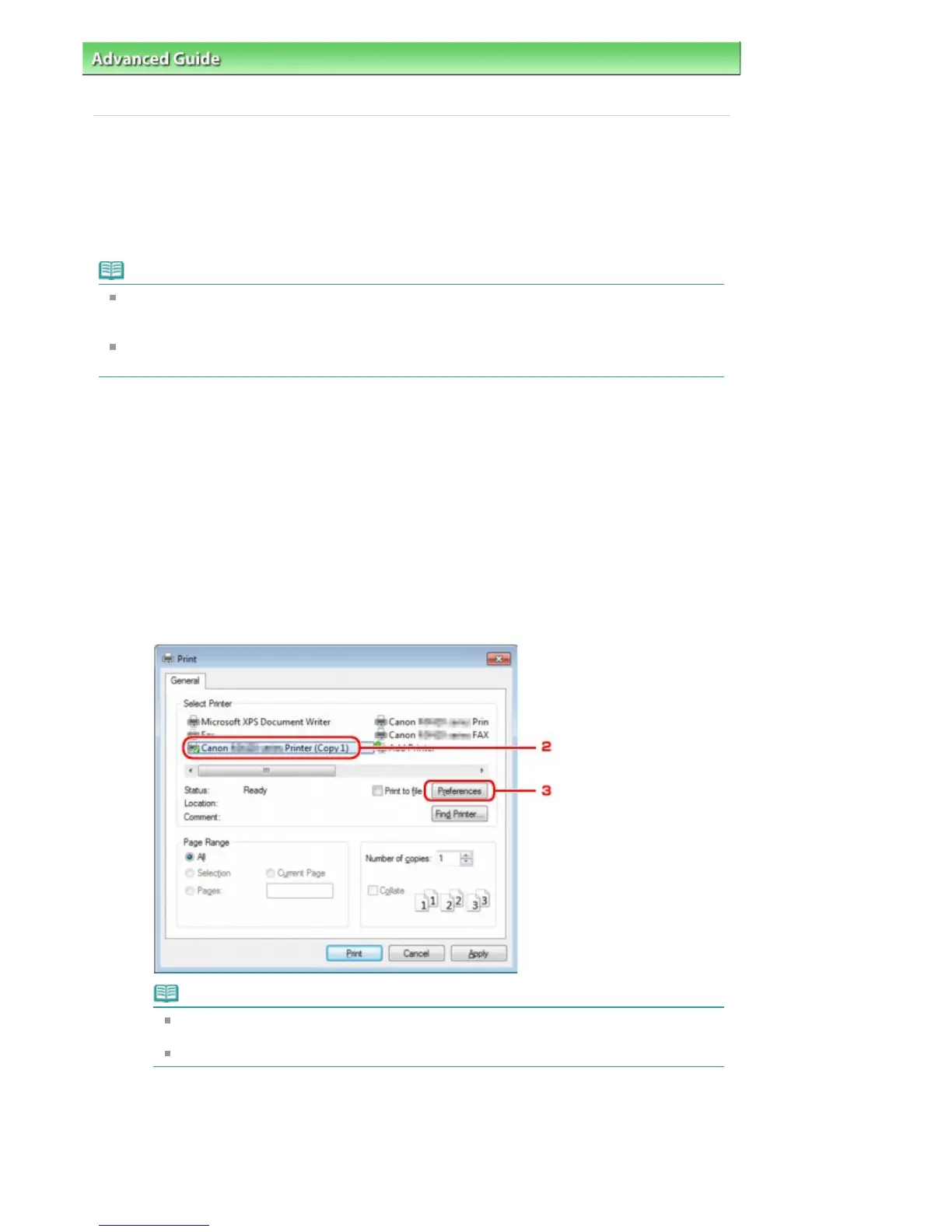
Select Print on the application software's File menu.
The Print dialog box opens.
2. Select the printer to which you attached the Bluetooth unit such as "Canon XXX Printer (Copy X)"
from Select Printer.
3.
Click Preferences (or Properties).
The Quick Setup sheet of the Printing Preferences dialog box is displayed.
Note
The printer registered on Add a Bluetooth Device (Bluetooth Devices except for Windows
7) is displayed as "Canon XXX Printer (Copy X)".
"X" is a device name or a digit. The number of digits may differ depending on the printer.
4.
Specify the required settings.
Seite 759 von 922 SeitenPrinting with Computers















 To Next Page