190-01263-01 Rev. A
Garmin G2000 Pilot’s Guide for the Cessna T240
225
Flight ManageMent
SYSteM
OVeRVieW
Flight
inStRUMentS
eiS
aUDiO Panel
& CnS
Flight
ManageMent
haZaRD
aVOiDanCe
aFCS
aDDitiOnal
FeatUReS
aPPenDiCeS inDeX
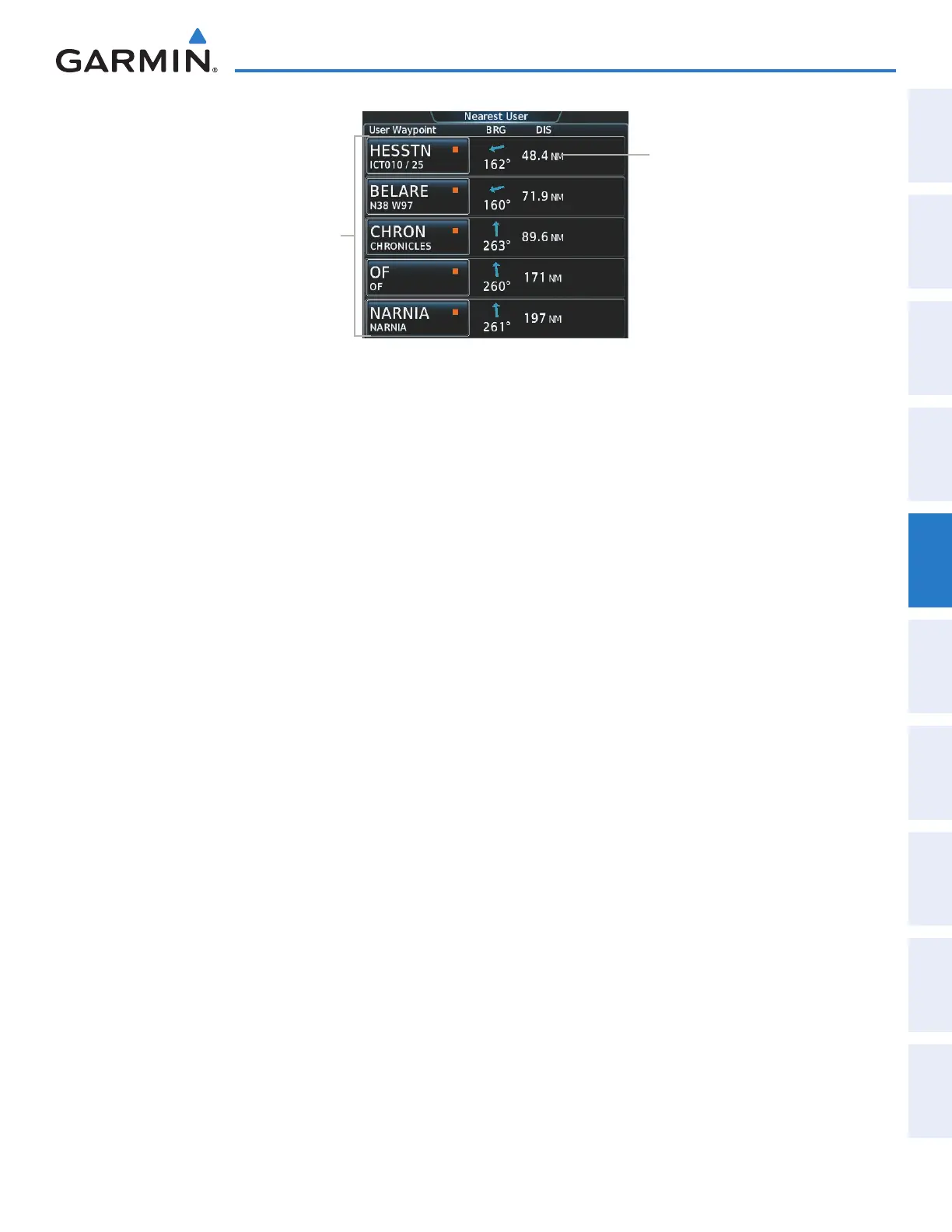
Figure 5-63 Nearest User Waypoint Screen
Nearest User Waypoint Buttons
(Identifier, Name, Symbol)
Nearest User Waypoint Information
Bearing/Distance
Viewing information for a nearest user waypoint:
1) From Home, touch Nearest > User.
2) Touch a nearest user waypoint button to display the Waypoint Options Window.
3) Touch the Show on Map Button to display the Nearest User pane, if necessary.
4) Touch the User Waypoint Info Button to display the User Waypoint Information Screen.
CREATING USER WAYPOINTS
User waypoints can be created from the User Waypoint Information Screen in the following ways:
Creating user waypoints from the User Waypoint Information Screen:
1) From Home, touch Waypoint Info > Create Waypoint. The current aircraft position is the default location
of the new waypoint.
2) Touch the user waypoint name button to display the keypad.
3) Use the keypad and the Enter Button to select a user waypoint name (up to six characters).
4) If desired, define the type and location of the waypoint in one of the following ways:
a) Touch the Type Button to display the User Waypoint Type Window.
b) Touch the RAD/DIS Button to select the bearing/distance from a waypoint type.
c) Touch the REF Button to display the keypad.
d) Use the keypad and the Enter Button, or the Find function, to select the waypoint.
e) Touch the RAD Button to display the keypad.
f) Use the keypad and the Enter Button to select the radial.
g) Touch the DIS Button to display the keypad.
h) Use the keypad and the Enter Button to select the distance.
This manual downloaded from http://www.manualowl.com



 To Next Page