Garmin G2000 Pilot’s Guide for the Cessna T240
190-01263-01 Rev. A242
Flight ManageMent
SYSteM
OVeRVieW
Flight
inStRUMentS
eiS
aUDiO Panel
& CnS
Flight
ManageMent
haZaRD
aVOiDanCe
aFCS
aDDitiOnal
FeatUReS
aPPenDiCeSinDeX
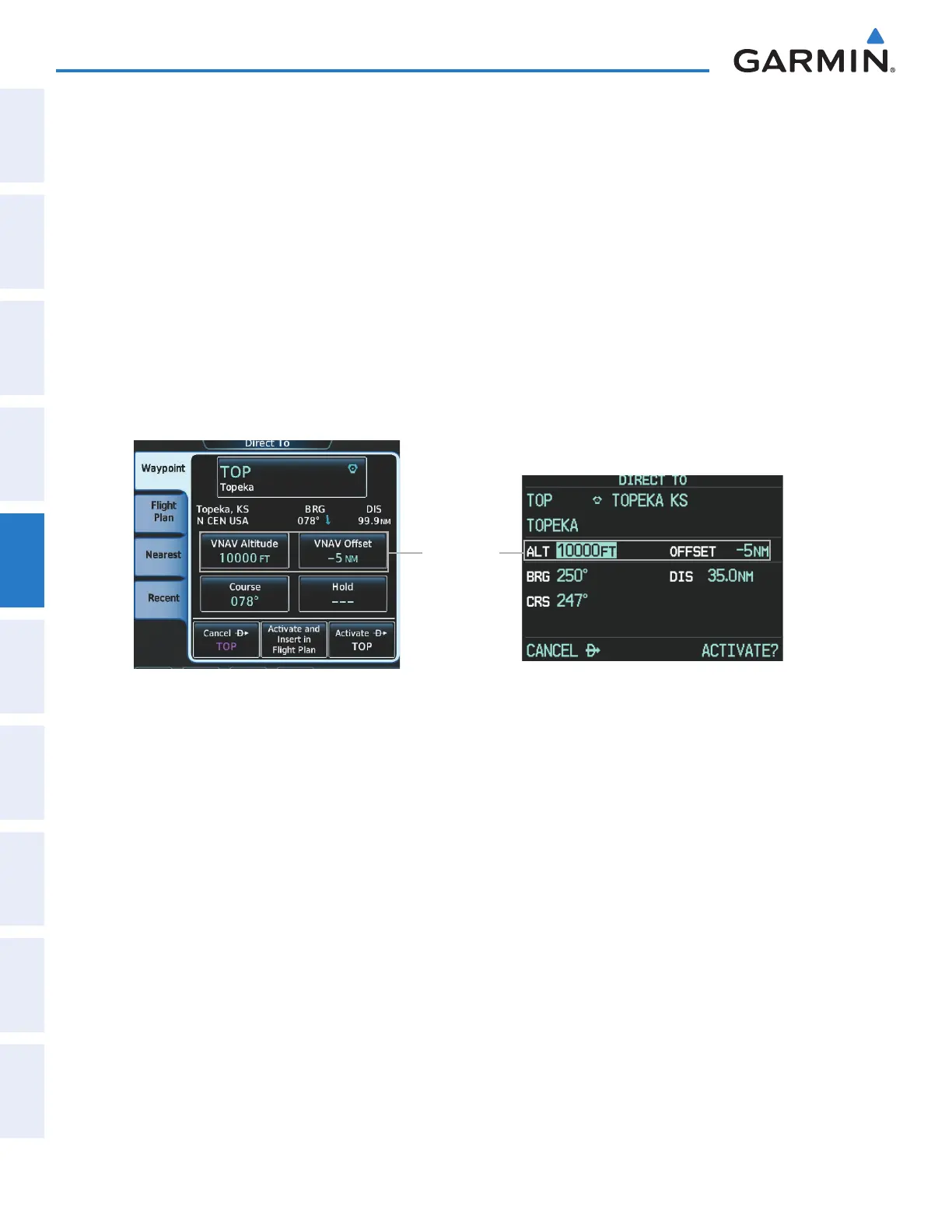
1) On the GDU Controller, press the ¯ Button to display the Direct To Window.
2) Turn the large PFD Knob to move the cursor to the ALT field.
3) Turn the small PFD Knob one click to activate the editing cursor (flashing).
4) Turn the large and small PFD knobs to select the altitude (large knob moves the cursor; small knob selects the
character).
5) Press the ENT Key or the small PFD Knob to accept the selection and move the cursor to the OFFSET field.
6) Turn the large and small PFD knobs to select the offset distance (large knob moves the cursor; small knob
selects the character).
7) Press the ENT Key or the small PFD Knob to accept the selection and move the cursor to the CRS field.
8) Turn the large PFD Knob to move the cursor to the ACTIVATE ¯ field.
9) Press the ENT Key or the small PFD Knob to activate the direct-to using the VNAV constraints..
Figure 5-82 Direct To - Setting VNAV Constraints
Altitude/
Offset
Selection
Using Touchscreen Controller
Using GDU Controller on PFD
Removing a VNAV constraint:
1) From Home, touch Direct To.
2) Touch the Activate ¯ Button to activate the direct to without the VNAV constraints.
Or:
1)
On the GDU Controller, press the ¯ Button to display the Direct To Window.
2) Press the ENT Key or the small PFD Knob to accept the selection and move the cursor to the ACTIVATE? field.
3) Press the ENT Key or the small PFD Knob to activate the direct to without the VNAV constraints.
This manual downloaded from http://www.manualowl.com



 To Next Page