Garmin G2000 Pilot’s Guide for the Cessna T240
190-01263-01 Rev. A286
Flight ManageMent
SYSteM
OVeRVieW
Flight
inStRUMentS
eiS
aUDiO Panel
& CnS
Flight
ManageMent
haZaRD
aVOiDanCe
aFCS
aDDitiOnal
FeatUReS
aPPenDiCeSinDeX
Altitude constraints can be modified or deleted after having been added to the flight plan. In the event
an altitude constraint is deleted and the navigation database contains an altitude restriction for the lateral
waypoint, the system displays the altitude restriction from the database provided no predicted altitude
can be provided. The system also provides a way to reinstate a published altitude constraint that has been
edited.
Removing an altitude constraint provided by the navigation database:
1) From Home, touch Flight Plan
2) Scroll the list, if necessary, and touch a VNAV ALT button to display the VNAV Altitude Window.
3) Touch the Remove VNAV ALT Button. A ‘Remove VNAV altitude?’ window is displayed.
4) Touch the OK Button. The altitude is now shown in white, indicating it is not usable for vertical guidance. To
cancel the request, touch the Cancel Button.
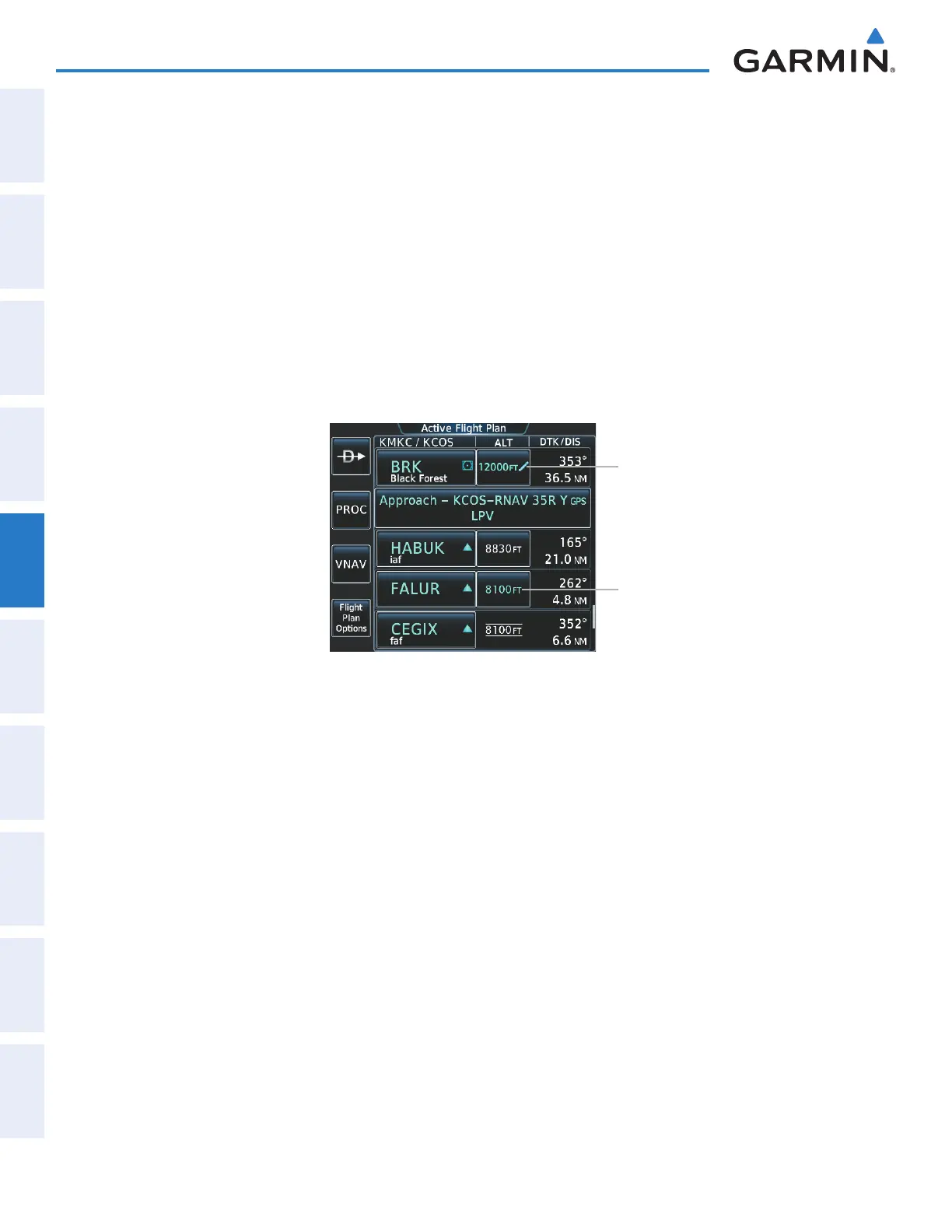
Figure 5-141 Active Flight Plan Screen - Deleting Altitude Constraints
Manually Entered Constraint
Database Constraint
Removing an altitude constraint that has been manually entered:
1) From Home, touch Flight Plan
2) Scroll the list, if necessary, and touch a VNAV ALT button to display the VNAV Altitude Window.
3) Touch the Remove VNAV ALT Button. A ‘Remove VNAV altitude?’ window is displayed.
4) Touch the OK Button. The altitude is now shown in white, indicating it is not usable for vertical guidance. To
cancel the request, touch the Cancel Button.
Reverting a manually entered altitude constraint back to the navigation database value:
1) From Home, touch Flight Plan
2) Scroll the list, if necessary, and touch a VNAV ALT button to display the VNAV Altitude Window.
3) Touch the Remove VNAV ALT Button. A ‘Remove or Revert to published VNAV altitude of nnnnnFT?’
confirmation window is displayed.
4) Touch the Revert Button. The altitude is now the database altitude and is shown in light blue, indicating it is
usable for vertical guidance.
This manual downloaded from http://www.manualowl.com



 To Next Page