L-INX User Manual 223 LOYTEC
Version 4.0 LOYTEC electronics GmbH
5. Click on the Create Device button. This creates the M-Bus device and adds it to the
device list on the left hand side of the dialog.
6. When a device is selected the device information is displayed in the appropriate fields
on the right hand side of the dialog. The information can be changed in the fields. Press
the Update Device button to store the changes.
7. If a device has to be deleted select the device and press the Remove Device button.
To Add an M-Bus Device Manually Using the Scan Device Information
1. Enter the address of the device which has to be scanned.
2. Press the Scan Device Information button. If the device is found in the network, the
device properties are filled.
3. Enter a name for the M-Bus device in the Device Name field. If no name is specified
the name is created automatically as described in section 10.7.1 from the M-Bus data
the device sends back.
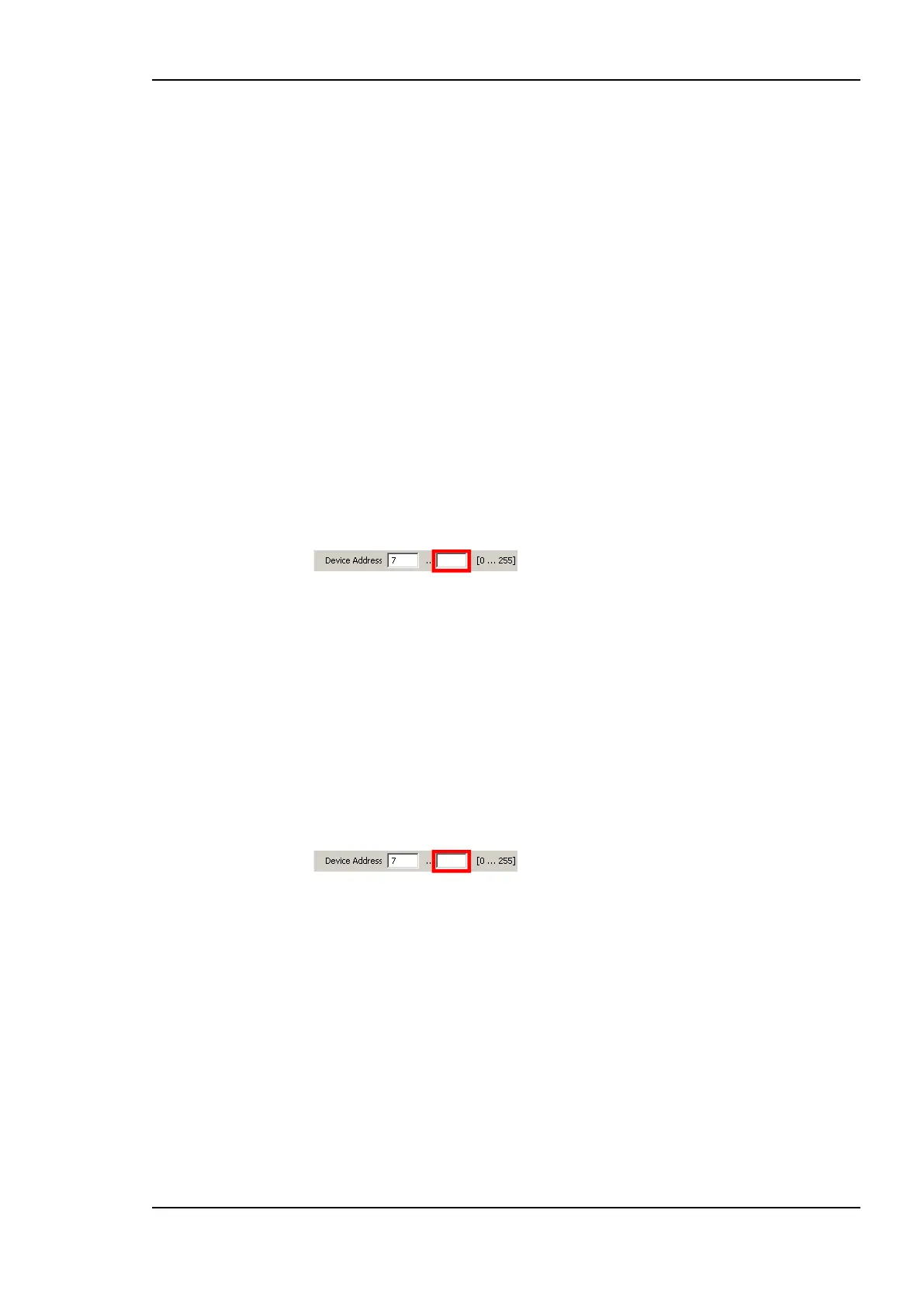
4. Enter a device address in the Device Address field. If more devices with the same
properties have to be created using subsequent addresses, the end address can be
specified in the input field on the right hand side of the Device Address field.
5. Select a device Baud rate from the combo box.
6. Press the Create Device Button to add the number of devices.
To Add an M-Bus Device Manually Using a Template
1. Enter a name for the M-Bus device in the Device Name field. If no name is specified
the name is created automatically as described in section 10.7.1 from the M-Bus data
the device sends back.
2. Enter a device address in the Device Address field. If more devices with the same
properties have to be created using subsequent addresses the end address can be
specified in the input field on the right hand side of the Device Address field.
3. Click on the Create From Template button. This opens the Import M-Bus Device
Template dialog shown in Figure 174.



 To Next Page