Pathway Technical Reference Manual
Proprietary 124 of 190
10.3.2 Event Marker
Configure the keyboard keys, manual trigger button or patient response unit to mark events
during a test.
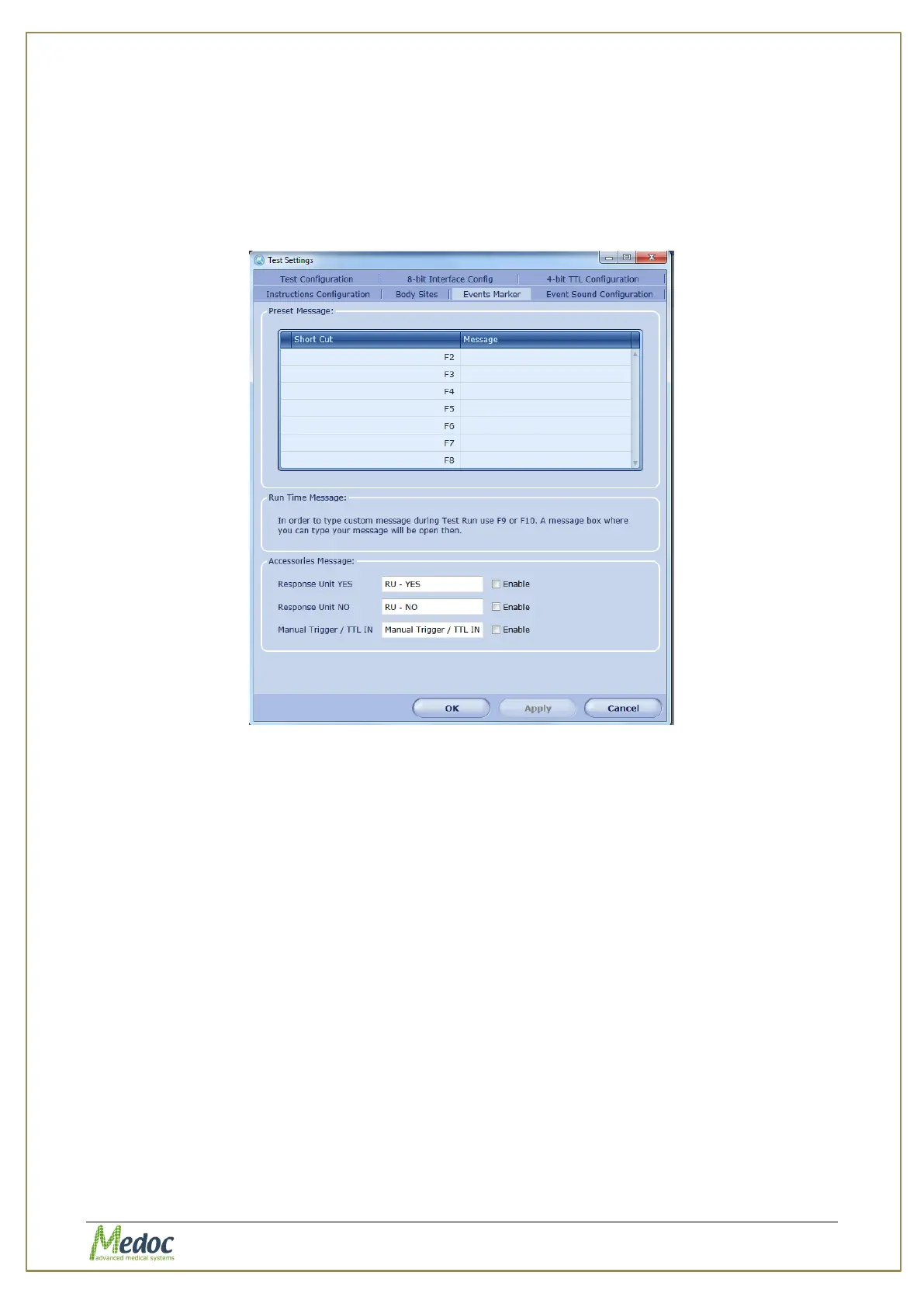
To access Event Marker Configuration: from the top menu bar, select Settings and then Test
Settings. In the Test Settings windows that opens, select the Event Marker tab. The
following window is displayed:
Figure 83: Event Marker
The Event Marker options enable you to mark specific events by adding messages that will be
displayed during the test. The events are also saved with the test results and can be viewed in
exported excel file.
There are three types of messages that can be added:
1. Preset Messages – F2 to F8 keys are used to mark an event and display a preset
message during the test. To edit the present message, click the cell in the Message column
beside the relevant key. Preset messages may contain Numbers, Letters and Symbols.
2. Run Time Messages – F9 or F10 keys are used to mark an event and display a message
box for entering free text during the test. Press one of these keys and type the message in
the dialog box. Use Shift+Enter to begin a new line when typing the message and Enter
to save the message.
3. Accessories Messages - Change the text displayed when the patient response unit is
pressed and/or the manual trigger is used. This option can be used in methods such as
Ramp and Hold to indicate different sensations felt by the subject, for example.



 To Next Page