Pathway Technical Reference Manual
Proprietary 98 of 190
9.2.1 Export Test Results
In order to export test results follow the procedure below:
1. Open the result list in the Results screen.
2. Select the test result to export. Multiple selection is possible by holding down the Shift or
Ctrl and Shift buttons on the keyboard
3. From the menu bar select File and then Export.
4. Enter a file name for the exported test results and select the save location.
5. Click the Save button.
The selected test results are saved to the selected location under the selected name.
9.2.2 Export Test Results to Excel
In order to export test Results to MS excel format follow the procedure below:
1. Open the results list in the Results screen.
2. Select the test result to export. Multiple selection is possible by holding down the Shift or
Ctrl and Shift buttons on the keyboard. Each test result will be exported as a separate file.
3. From the menu bar select File and then Export to Excel
4. Select the save location and click OK to save.
5. Click the Save button.
The selected results are saved to the selected location.
The name of each result file is automatically generated according to the patient name, date,
and time of test. Chain results are exported to a new folder containing a separate file for each
sub-program of the chain program.
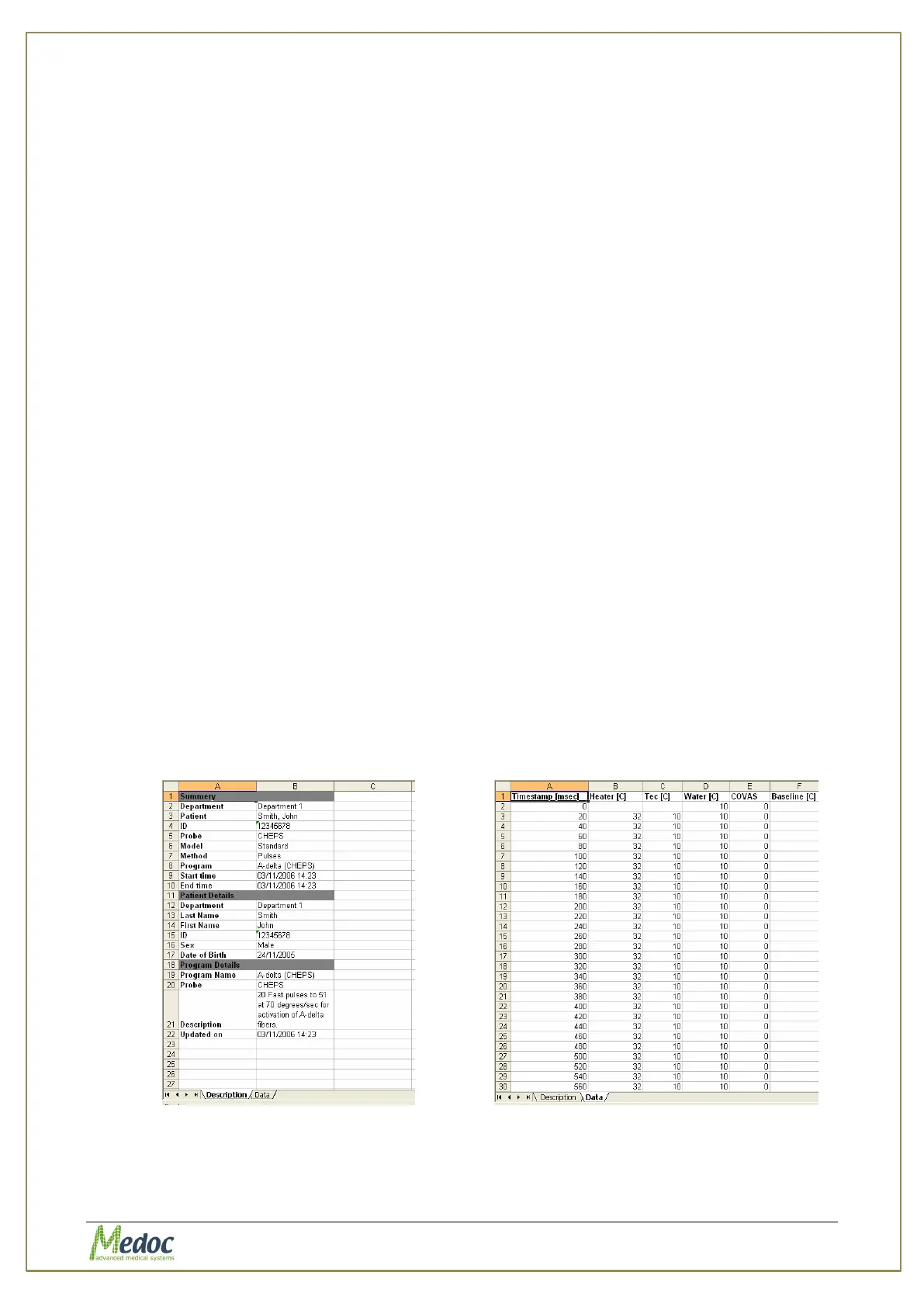
The Excel File Structure:
The excel file includes the following sheets (content may change depending on test method):
1. Description – Patient and test information.
2. Data – All test data organized in a data table including Thermode temperature, events
(when response unit button is pressed, triggers, standard events and etc.), CoVAS and any
other data if available.
3. Results – Summary of results depending on test method.
Figure 59: Description sheet example
Figure 60: Data sheet example



 To Next Page