Pathway Technical Reference Manual
Proprietary 155 of 190
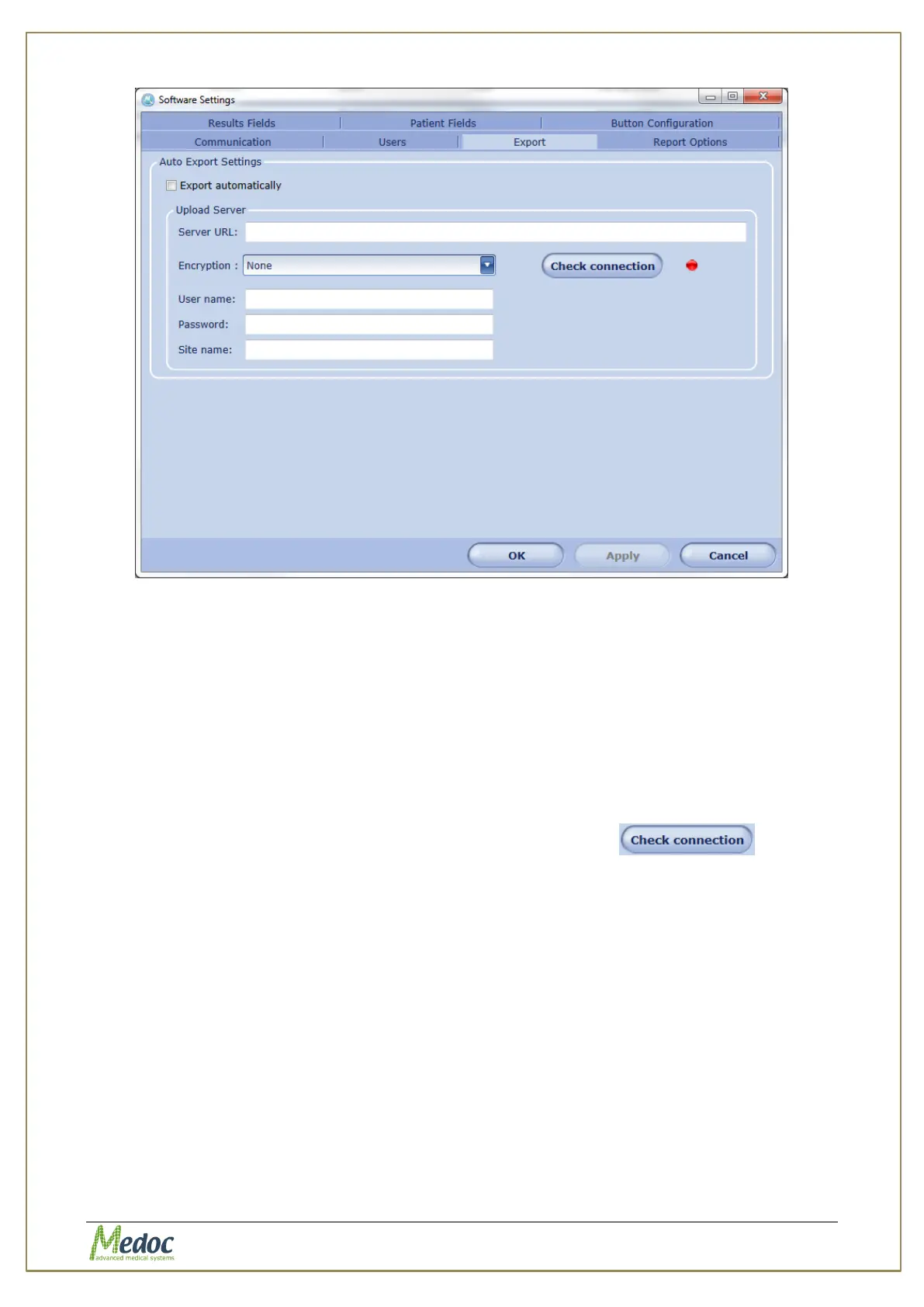
Figure 110: Software Settings Export Tab
16.1.1 Configure the FTP Upload Server
To configure the server enter the following details:
1. Server URL – the FTP address. Use a specific address including the folder to which you
want the results to be uploaded to. For example: ftp://ftp.my-ftp-server.com/FolderName
2. User name and password required to access the FTP server
3. Site name – an identifier which will be used in the name of the uploaded result file to
distinguish the uploaded file from other files uploaded from different locations.
4. Click Apply to confirm
5. Check the Connection by clicking the “check connection” button
the red indicator to the right will change to green if the connection is successful.
16.1.2 Automatic Export
If automatic export is enabled test results will be automatically uploaded to the FTP server at
the end of a test. A message will be displayed at the end of the test, indicating whether or not
the upload attempt was successful or not. The computer must be connected to a network in
order for the results to be successfully uploaded at the end a test.
To enable automatic export:
1. Make sure the FTP server details are entered correctly and check the connection.
2. Mark the “Export automatically” checkbox.
3. Make sure the automatic save option is enabled (see section 10.3).



 To Next Page