Pathway Technical Reference Manual
Proprietary 58 of 190
6.1 Selecting a Patient
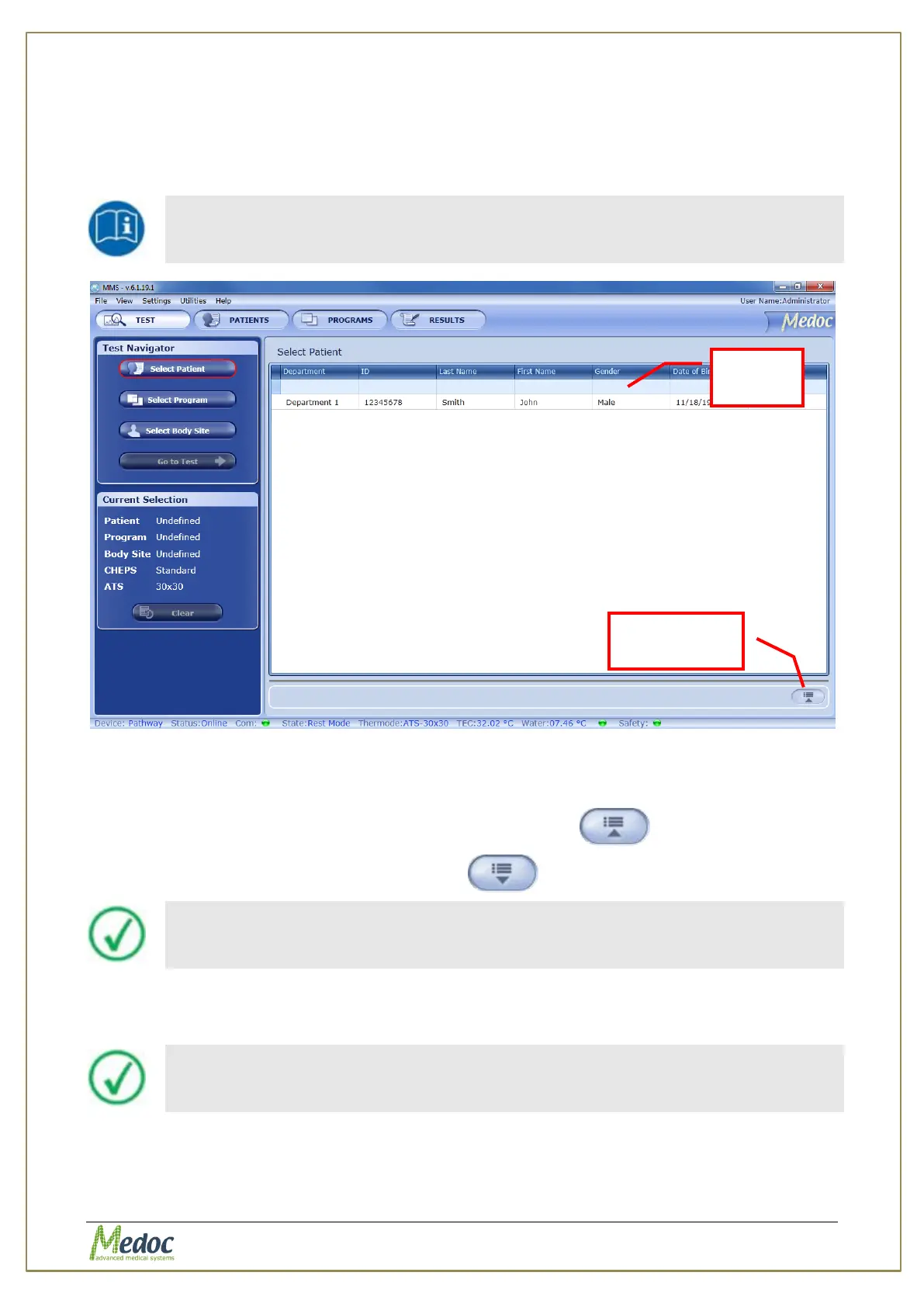
1. Click the Select Patient button on the Test Navigator
2. Use the Search Row (see section 5.3.3 above) to filter and sort list in order to find the
relevant patient entry.
The Patient List can be sorted according to any of the displayed fields. Click
the relevant column header to sort the list.
Figure 25: Patient Selection Menu
3. Click the patient entry to select (or double-click to select and move on to the next step).
The selected entry will be displayed in the current selection details in the left panel.
4. In order to view patient details, click on the Show Details button.
5. To hide the details click on the Hide Details button to view the patients list only.
Patient details can only be viewed from the Test screen. For editing, refer
to Patient Management section (section 8, page 91).
6. Click on the Clear button to clear Current Test information if required.
7. Proceed to the Selecting a Program section.
It is not possible to run a test before you select the tested subject and
program. The “Go to Test” button will remain disabled as long as test
details are not complete.



 To Next Page