Pathway Technical Reference Manual
Proprietary 53 of 190
5.3 Basic Operation
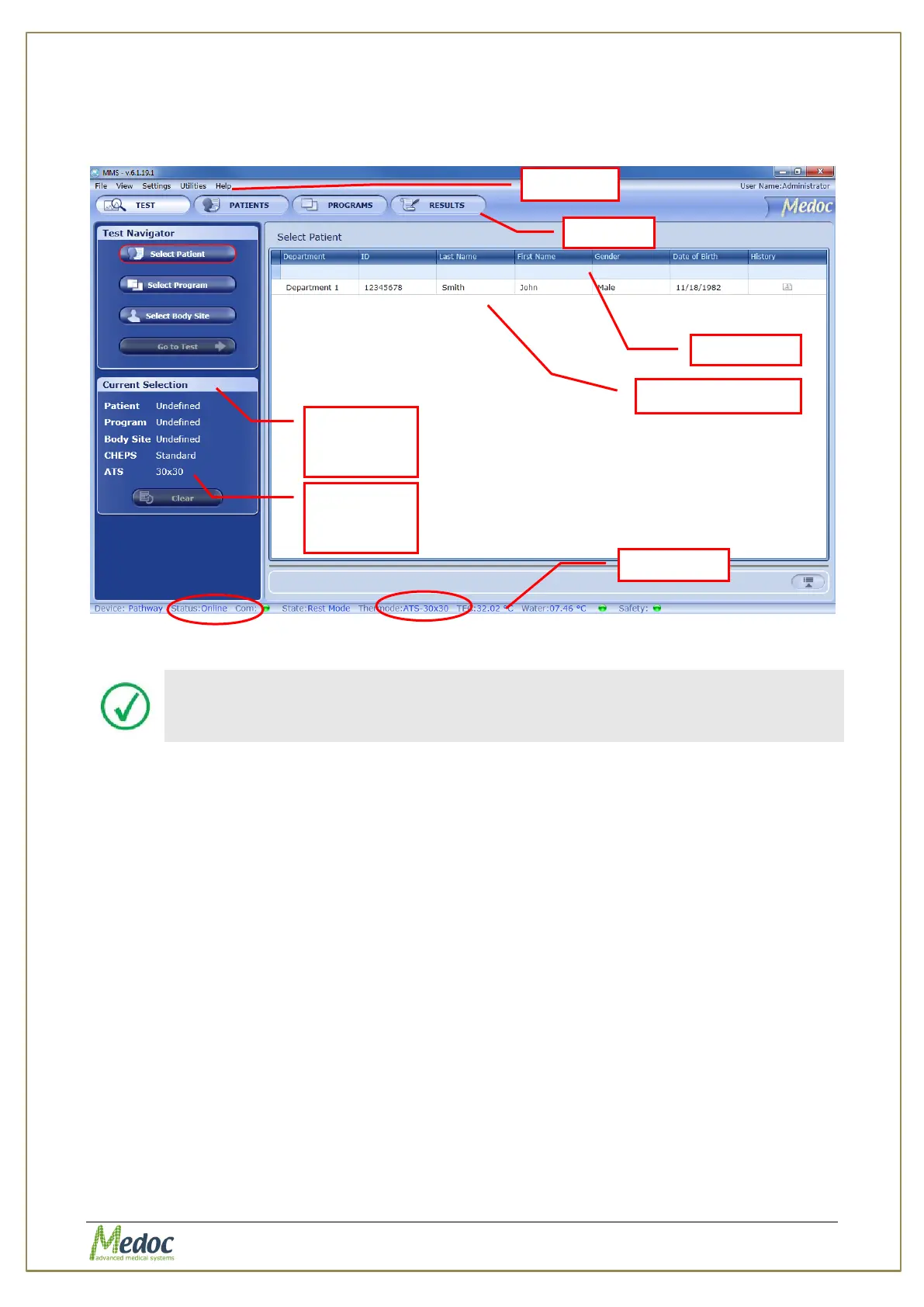
As soon as the self-test is successfully completed the TEST screen is displayed:
Figure 23: Test Navigator – Main Menu
Note that the status line also indicates the type and model of the Thermode
currently active (circled in red, above).
The Test screen enables you to select a patient, program and body site before starting the test
procedure.
The TEST screen menu consists of the following components:
Menu Bar – Perform general and software related operations
Toolbar – Quick access to patient and program editors and saved test results
Search Row – Filter the data for quick access to patients and programs
Current Selection Information – Display of current selections made by user
Current Thermode Information – Display of enabled Thermodes
Data Display Area – View list of patients, programs or body sites
Status Line – Continues real-time display of PATHWAY status and Thermode
temperature.
The components are detailed in the following sections.
Selection
Thermode



 To Next Page