Pathway Technical Reference Manual
Proprietary 99 of 190
9.2.3 Import Test Results
In order to import test results, follow the procedure below:
1. From the menu bar select File and then Import
2. Browse to the location of the saved test results and select the file to import
3. Click on the Open button. The results will be added to the test results list.
9.2.4 Solving Conflicts When Importing Test Programs
Medoc Main Station identifies any possible conflicts between existing test results and imported
test results. In case of conflict (e.g. patient and/or program already exist in the database) it is
possible to manually select how to handle the import. The following options are available:
1. Use Local – keep the existing test results and ignore the imported test results
2. Use Import – overwrite the existing program with the imported test results
3. Keep Both – Edit the conflicting fields of the patient or program data and keep both test
results.
9.3 Generate Test Reports
MEDOC Main Station has a powerful Analysis and Report Generator that can be customized as
needed.
In order to print test results follow the next steps:
1. Open the result list in the Results screen
2. Select one or more test results to generate reports from.
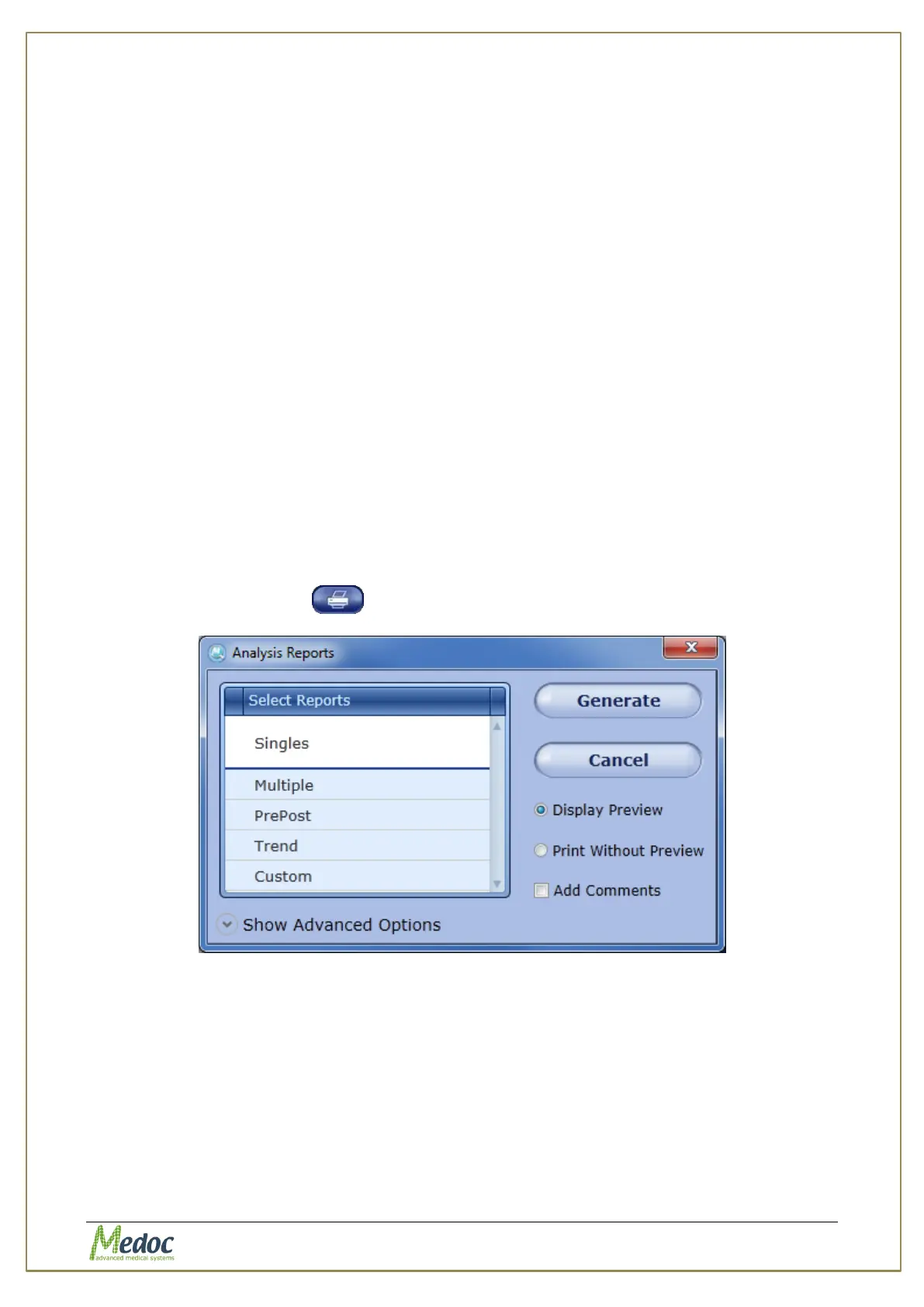
3. Click on the Print button
Figure 61: Analysis Reports Dialog
4. Select the type of report to print. The available report types depend on the selected
results. See section 9.3.1 for details about report types.
5. Select print preview option:
5.1. Display preview (default) – opens report in viewer. The report can be exported in
various formats (.pdf, .jpg and etc.) or printed.
5.2. Print without preview – report will be sent directly to the default printer specified on
your computer.
6. Select whether or not to add comments to the report
7. Click on the Generate button to preview / print report.



 To Next Page