125
The procedure for adding (pairing) the Bluetooth device varies depending on the environment of your
computer. The following procedure is an example of Windows 10. For details, refer to the user manual
of your computer.
• Before starting the installation, close all applications.
• When you do the printer driver setup, the properties settings, or the print settings, log in
with Administrator Privilege.
• When you use the printer driver, enable bi-directional communication.
• If the terminal service is being started with Windows Server 2008, change the terminal
service to the install mode. However, it is not guaranteed that the printer driver can be
used in the terminal service environment.
• When using multiple products, it is necessary to install as many printer drivers as
products, to identify each product.
1. Start Windows.
2. Power on the product.
3. Confirm that Bluetooth is enabled (initial value) in the [Interface] menu of the
product.
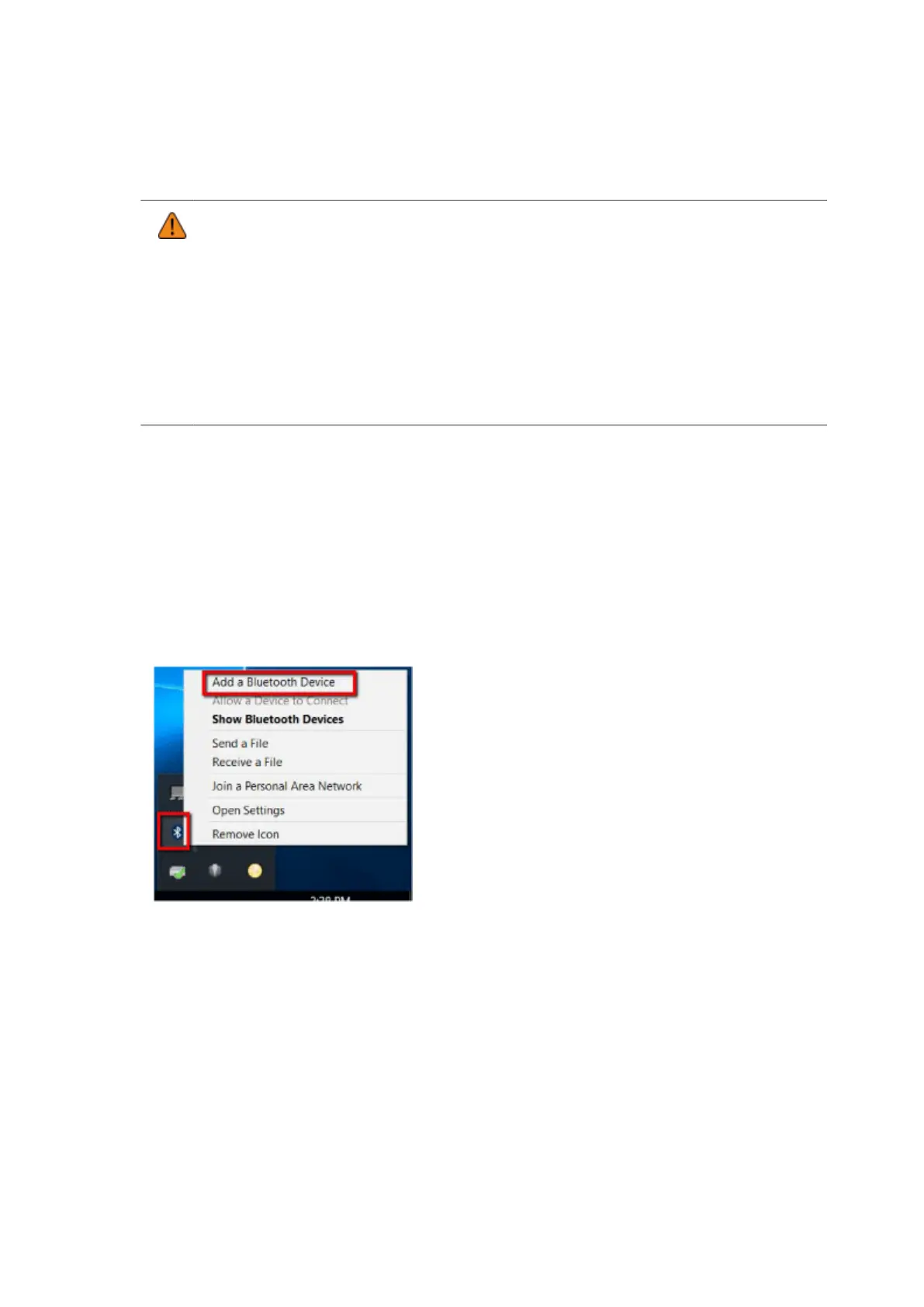
4. Right-click the Bluetooth icon at the lower-right corner of the Windows desktop
screen, and select [Add a Bluetooth Device].


 To Next Page