693
Operating the Notification Screen of SOS (SATO Online
Services) (SOS users only)
Operating the Notification Screen of the SOS (SATO Online Services)
On-Demand Mode (SOS users only)
In the SOS (SATO Online Services) function, the product information is sent to the SOS cloud and
monitored and managed.
The status icon and the notification screen appear at the time specified when [SOS Mode] is set
to [On-Demand] in the [Interface] > [Network] > [Services] > [Online Services] menu and [Periodic
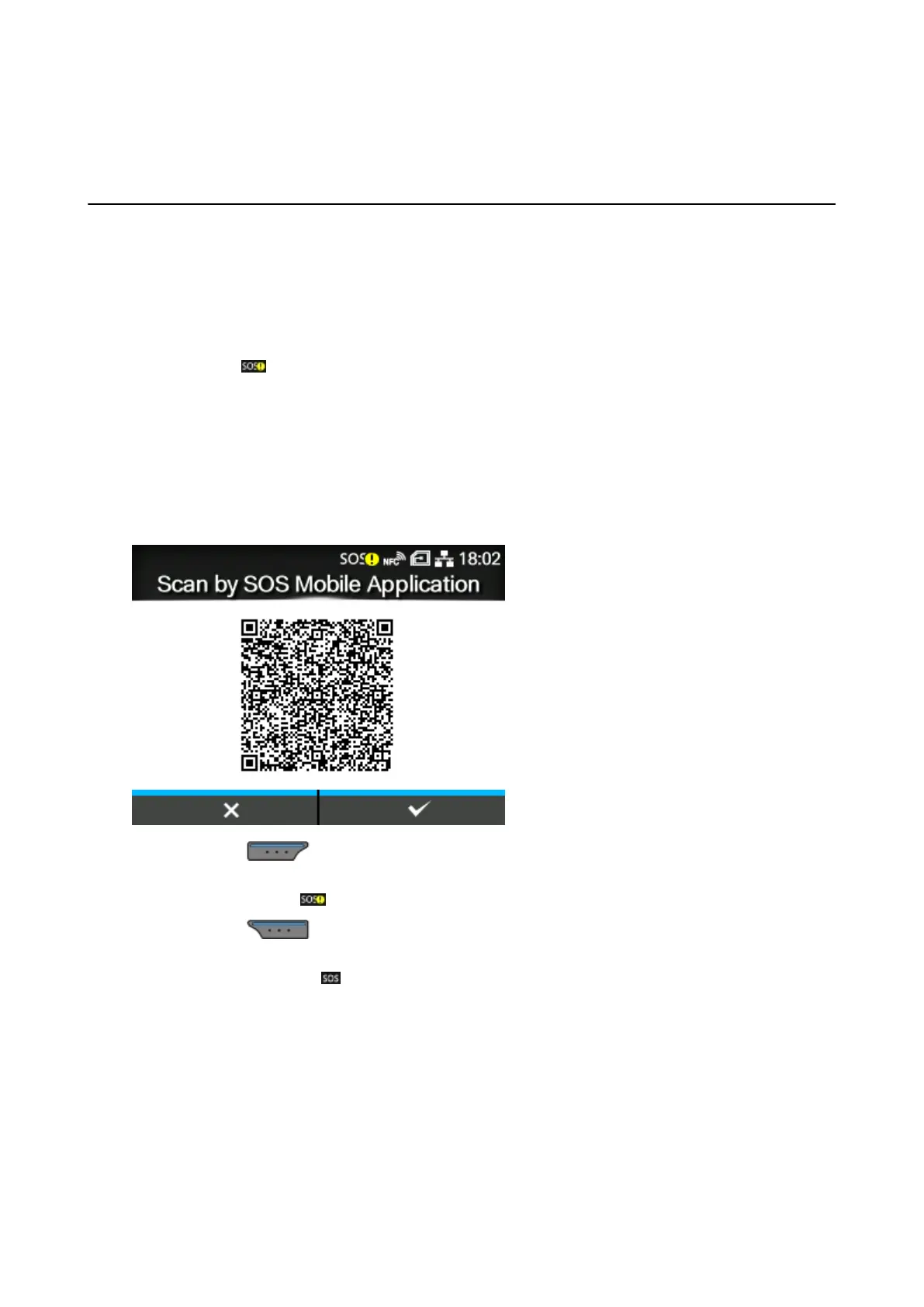
Notification] is enabled on the product. A QR code with the product information is displayed on the
notification screen. You can send the product information to the SOS cloud by scanning the QR code
with a tablet or a smartphone.
The following shows how to operate the notification screen.
The soft key function changes according to the setting of [Update Screen].
When [Update Screen] Is Set to [Normal]
By pressing the button, the display returns to the Offline screen without resetting the QR
code for periodic notification.
The status icon remains .
By pressing the button, the QR code for periodic notification is reset and the display returns
to the Offline screen.
The status icon changes to .


 To Next Page