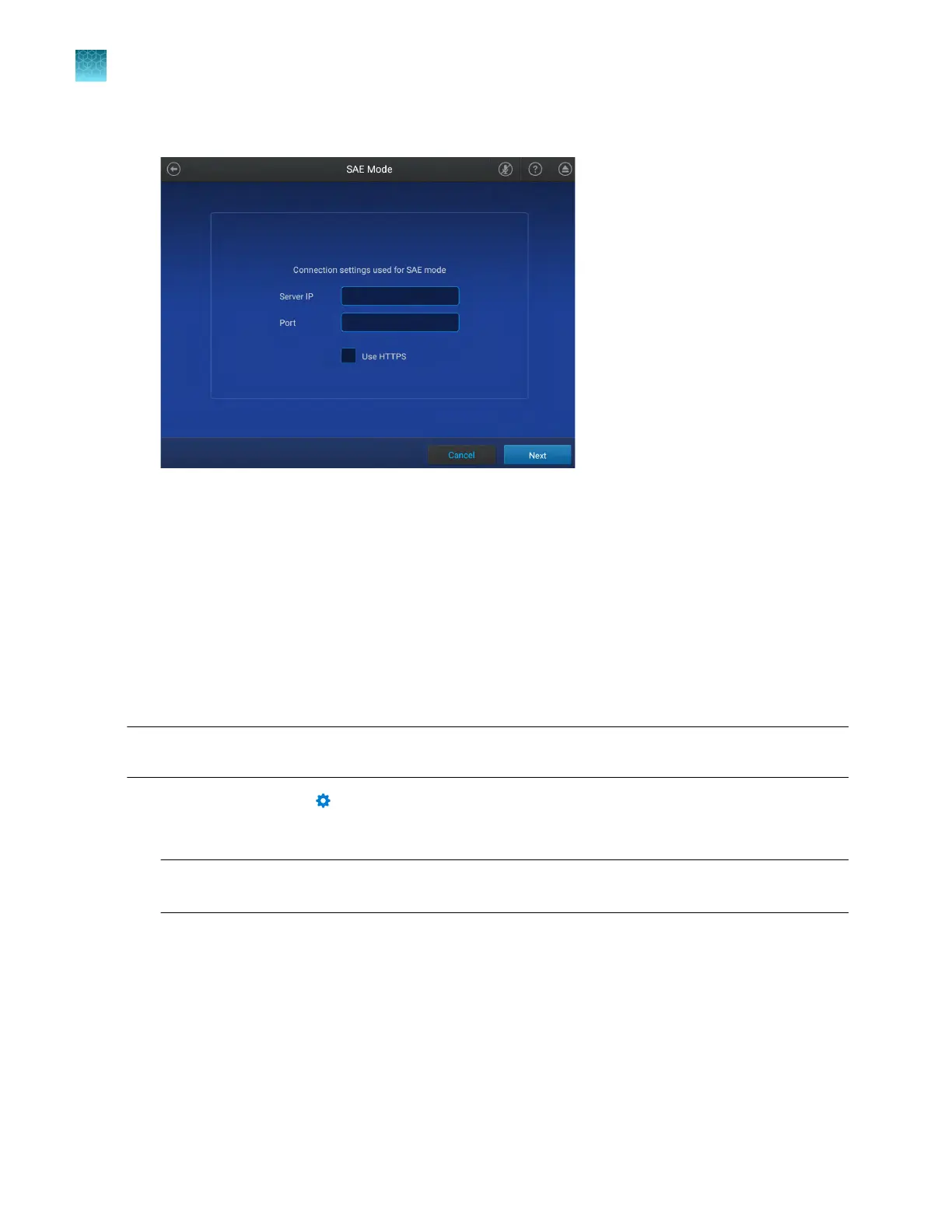
3.
Tap the Server IP field, then enter the IP address of the SAE server.
4.
T
ap the Port field, enter the port, then tap Next.
5.
Enter the SAE administrator user name and password when prompted, then tap Enable.
The home screen is displayed. The SAE administrator is signed in.
Connect to the SAE server
•
Install the SAE Administr
ator Console and the SAE server on a computer with a static IP address
(recommended) or a dynamic IP address.
•
Before you connect, close all plate files and data files.
Note: Connect the software and any instruments to the same SAE server to ensure that audit records
are maintained across system components.
1.
In the menu bar
, click
System4SAE Connection Settings.
2.
Ent
er the IP address and port number of the SAE server.
Note: If using a dynamic IP address, enter the hostname instead of the IP address to prevent the
loss of a connection.
3.
(Optional) Click T
est Connection to confirm that the connection information is correct.
4.
Click Save.
Chapter 9 Use the instrument with the Security, Auditing, and E‑signatur
e (SAE) v2.0 module
Enable SAE functions
9
144
QuantStudio
™
6 Pro Real-Time PCR System and QuantStudio
™
7 Pro Real-Time PCR System User Guide












 To Next Page