(continued)
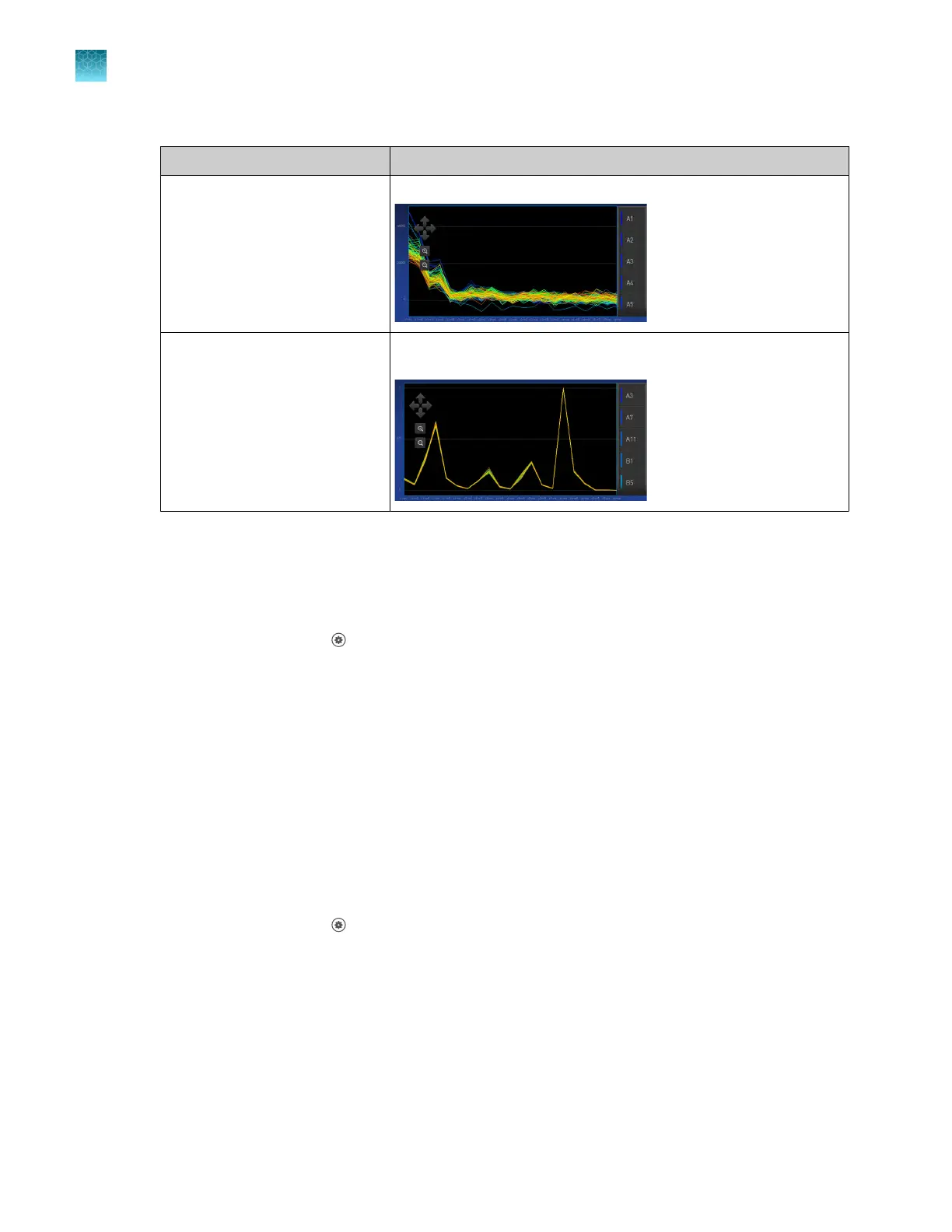
Calibration Example results indicating successful calibration
Background Few, if any, signals with abnormally high fluorescence.
Dye Signals from each well following a uniform trend, and each dye
peaks at the corr
ect filter.
5.
(Optional) F
or Uniformity, Background, and Dye calibration images, tap on an individual well on the
right side to see the results for a single well.
Transfer calibration results
1.
In the home screen, tap
(Settings)4Maint
enance and service4Calibration4Status and
reminders.
The Status and Reminders screen is displayed.
2.
Tap a calibration type in the table.
3.
Tap Export.
Transfer calibration data files
This section describes transferring calibration files if the calibr
ation passed.
If the calibration fails, the calibration data file is not saved. The data file can only be transferred
immediately after the calibration (see “Perform calibrations” on page 91).
1.
In the home screen, tap
(Settings)4Maint
enance and service4Calibration4Status and
reminders.
The Status and Reminders screen is displayed.
2.
Tap a calibration type in the table, then tap View.
3.
Tap a calibration date in the table, then tap View.
4.
Tap Transfer EDS.
Chapter 7 C
alibrate and verify instrument performance
Perform ROI/uniformity, background, and dye calibrations for plate blocks
7
94
QuantStudio
™
6 Pro Real-Time PCR System and QuantStudio
™
7 Pro Real-Time PCR System User Guide












 To Next Page