(continued)
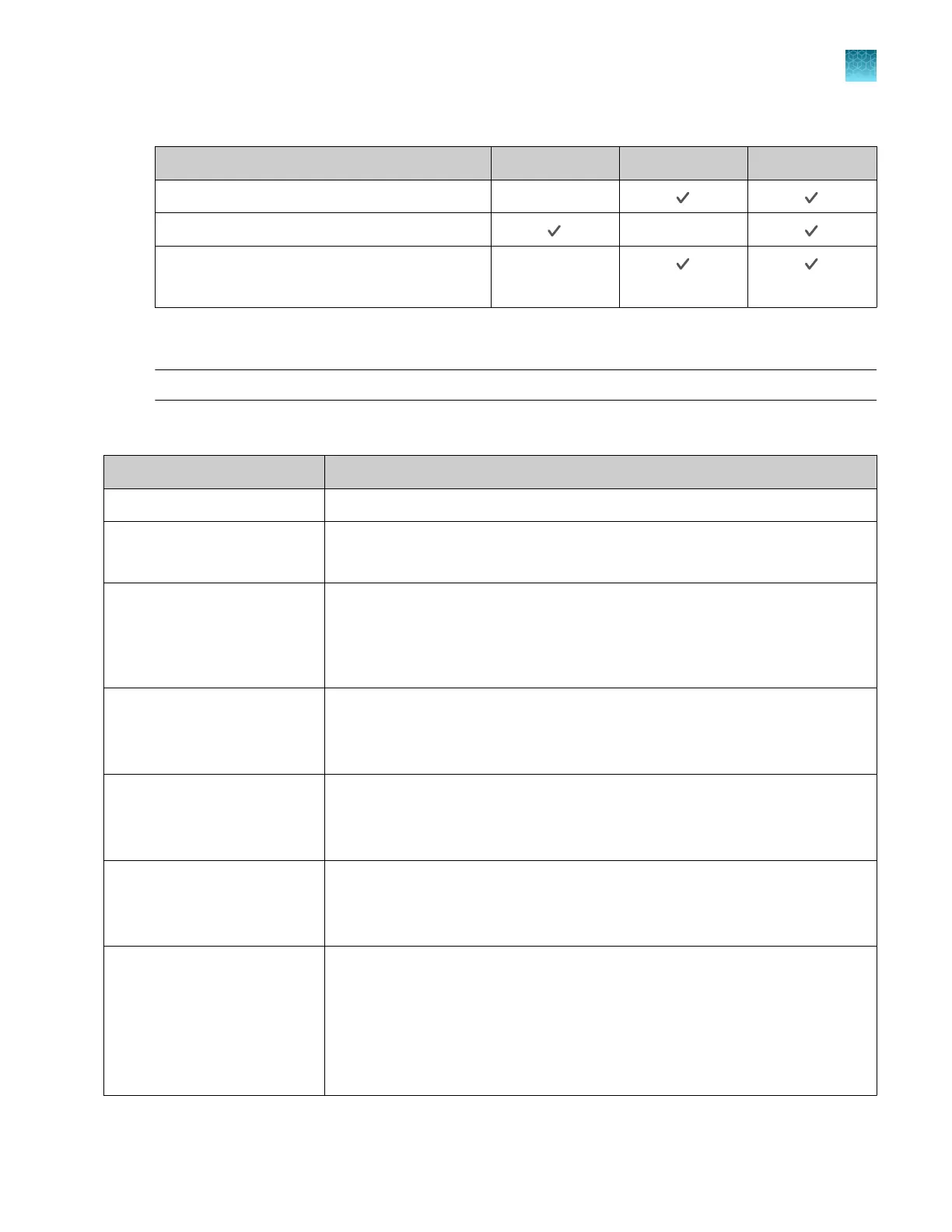
Feature Instrument Desktop Connect
View analysis of results —
Set calibration reminders
—
Review exported calibration or RNase P
verification results
—
(RNase P only)
Overview of file locations and files
Note: The term plate file is applicable to both plates and TaqMan
™
Array Cards.
File locations
File location
Description and function
Run queue Plate files sent from the desktop software.
Public
•
Plate files saved by guest users are stored in this folder.
•
Data files from runs started by guest users are stored in this folder.
Templates
•
System templates are stored in this folder.
•
System templates cannot be edited. They must be saved as a separate plate
file and stored in a dierent folder.
•
Data files cannot be saved in this folder.
Connect
•
Plate files can be retrieved from a Connect profile.
•
Data files can be saved to a Connect profile.
•
You must have a Connect profile.
Network drive
•
Plate files can be retrieved from a network drive.
•
Data files can be saved to a network drive.
•
The instrument must be connected to a network or a computer.
USB drive
•
Plate files can be retrieved from a USB drive.
•
Data files can be saved to a USB drive.
•
A USB drive must be inserted into the instrument.
My instrument
•
This location is only available to a user who is signed in. Guest users cannot
access this location to retrieve plate files or save data files.
•
This location is specific to a user. Files are not accessible to any other users,
except for administrators.
•
Plate files can be retrieved from this location.
•
Data files are always saved to this location.
Chapter 1 Product information
Software description
1
QuantStudio
™
6 Pro Real-Time PCR System and QuantStudio
™
7 Pro Real-Time PCR System User Guide
27












 To Next Page