Sign in with SAE enabled
You must create a profile on the SAE Administrator Console before you sign in when SAE is enabled on
the instrument.
1.
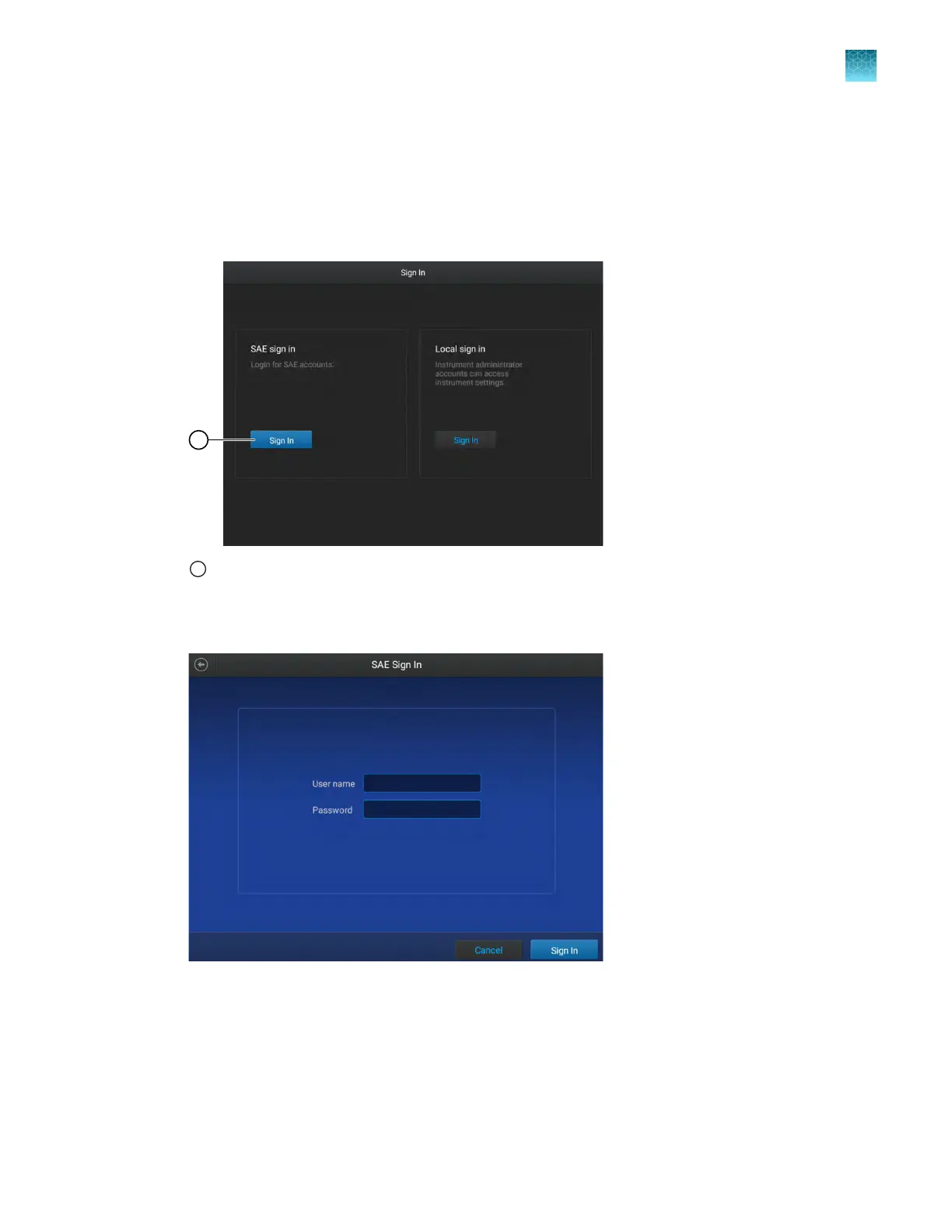
In the Sign In screen, tap Sign in under SAE sign in.
1
Sign in to an SAE account
The SAE Sign In scr
een is displayed.
2.
In the SAE Sign In screen, enter your SAE user name and your SAE password, then tap Sign in.
Figure 19 SAE Sign In screen
The home scr
een is displayed.
Chapter 9 Use the instrument with the Security, Auditing, and E‑signatur
e (SAE) v2.0 module
Sign in with SAE enabled
9
QuantStudio
™
6 Pro Real-Time PCR System and QuantStudio
™
7 Pro Real-Time PCR System User Guide
147












 To Next Page