Change your SAE account password on the instrument
The QuantStudio
™
Design and Analysis Software v2 and the instrument must be connected to the
same SAE server in order for the SAE account password to be updated for both the software and the
instrument.
You must be signed in with the instrument in SAE mode.
See “Sign in with SAE enabled” on page 147.
1.
In the home screen, tap (Profile).
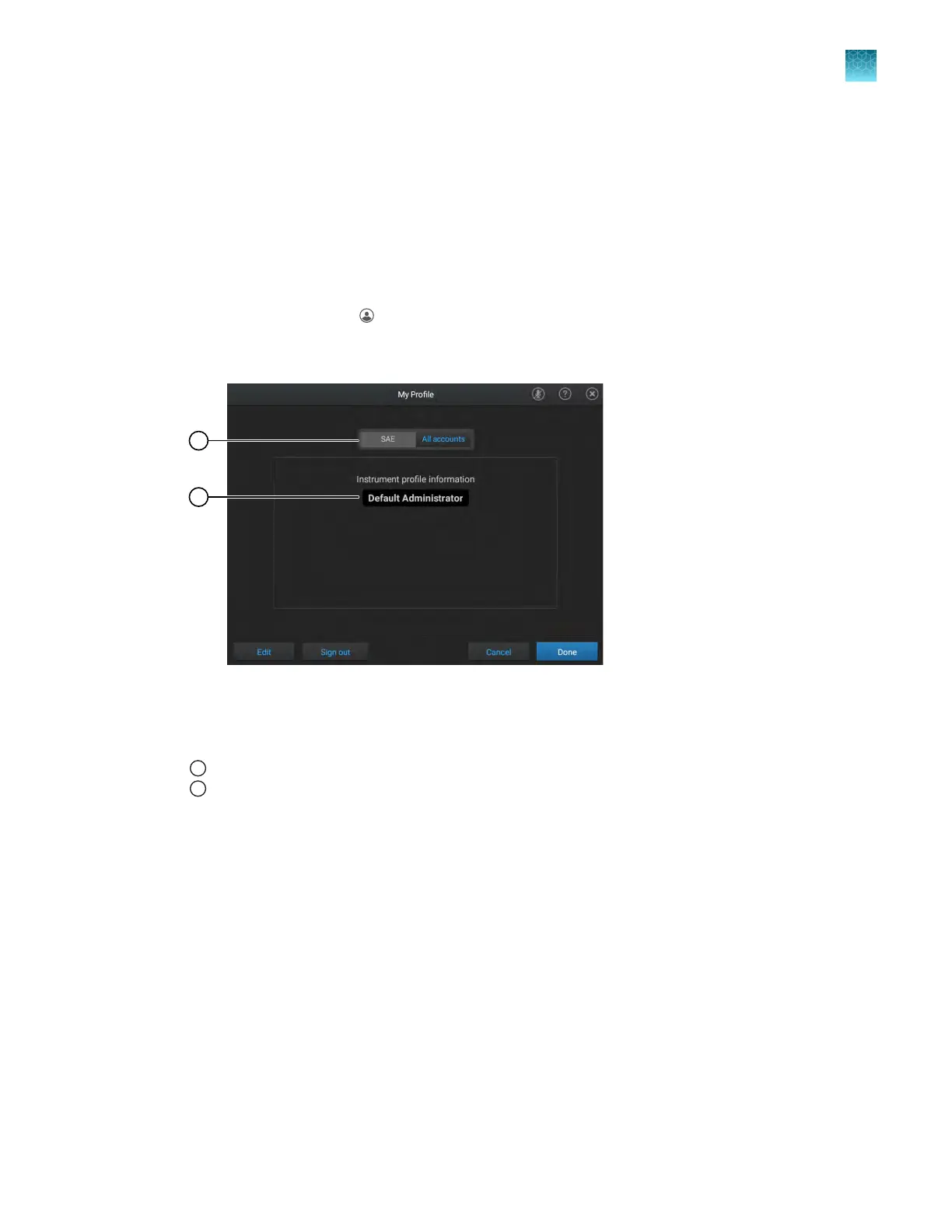
The My Profile screen is displayed. The SAE button is selected, and the profile that is signed in is
listed.
Figure 22 My P
rofile screen
1
SAE butt
on is active
2
Profile that is signed in
2.
T
ap Edit.
The Edit My Profile screen is displayed.
Chapter 9 Use the instrument with the Security, Auditing, and E‑signatur
e (SAE) v2.0 module
Change your SAE account password on the instrument
9
QuantStudio
™
6 Pro Real-Time PCR System and QuantStudio
™
7 Pro Real-Time PCR System User Guide
149












 To Next Page