Repair the software
If a software update failed, the software can be repaired.
The software version installed during a repair is the same version that was previously installed on the
instrument, even if a newer version is available.
Instrument settings, calibrations, profiles, and data files are preserved during a repair.
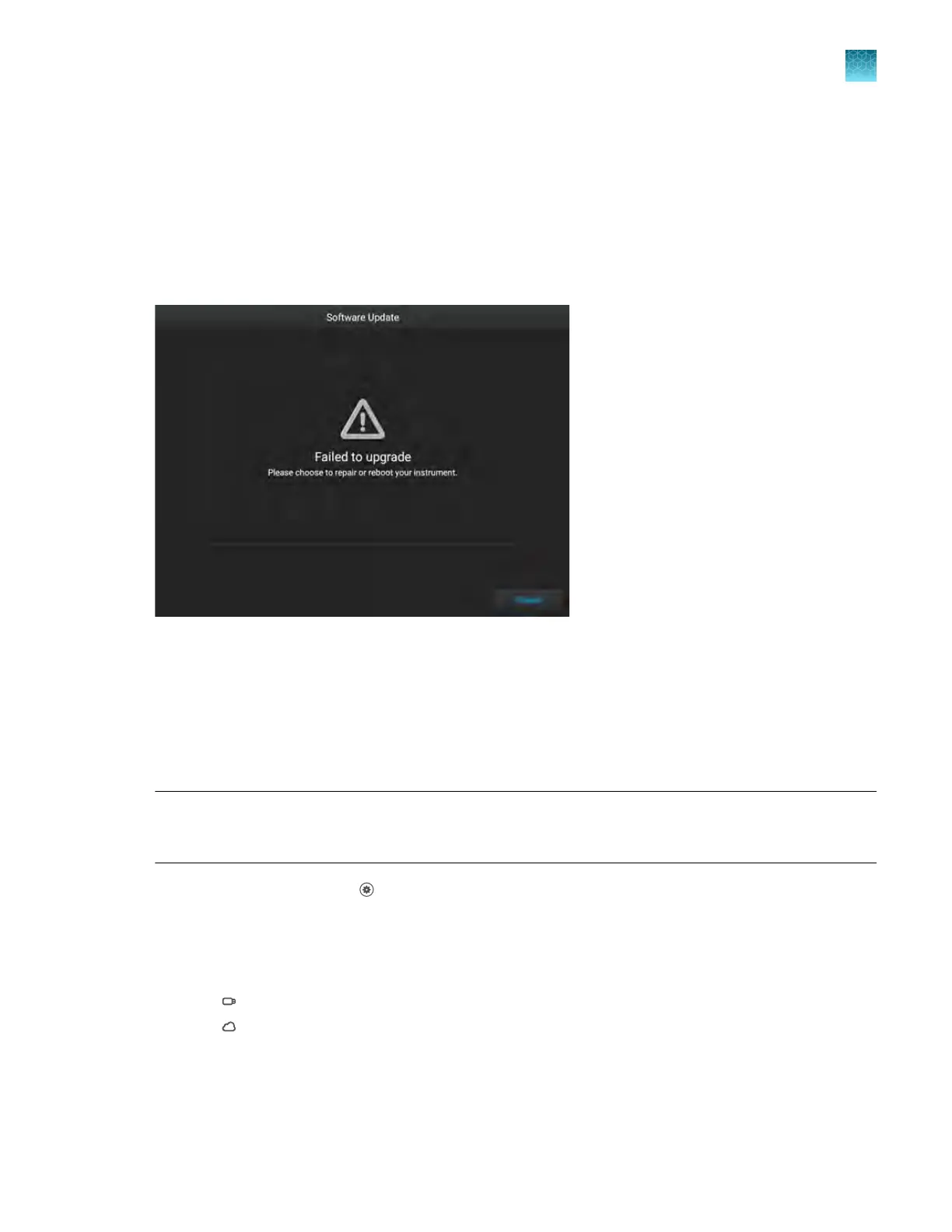
If the software update failed, the Software Update screen displays Failed to upgrade.
In the Softwar
e Update screen, tap Repair.
Back up the instrument
The instrument can be backed up to a USB drive or to Connect.
A back-up of the instrument can only be performed by an administrator.
IMPORTANT! A back-up of the instrument includes instrument pr
ofiles and settings. It does not
include plate files or data files. Plate files and data files must be transferred separately. See Chapter 6,
“View and manage files”.
1.
In the home scr
een, tap
(Settings)4Maint
enance and service4Back up/Restore4Back up
instrument.
The Back Up/Restore screen is displayed.
2.
Select a location to store the backup of the instrument.
•
USB Drive
•
Connect
3.
(Optional) If you ar
e backing up the instrument to a USB drive, insert a USB drive into the USB port
on the front of the instrument.
Chapter 11 Configur
e the instrument settings
Configure maintenance and service settings
11
QuantStudio
™
6 Pro Real-Time PCR System and QuantStudio
™
7 Pro Real-Time PCR System User Guide
181












 To Next Page