4.
In the Plate Properties screen, tap Actions.
The Actions screen is displayed.
5.
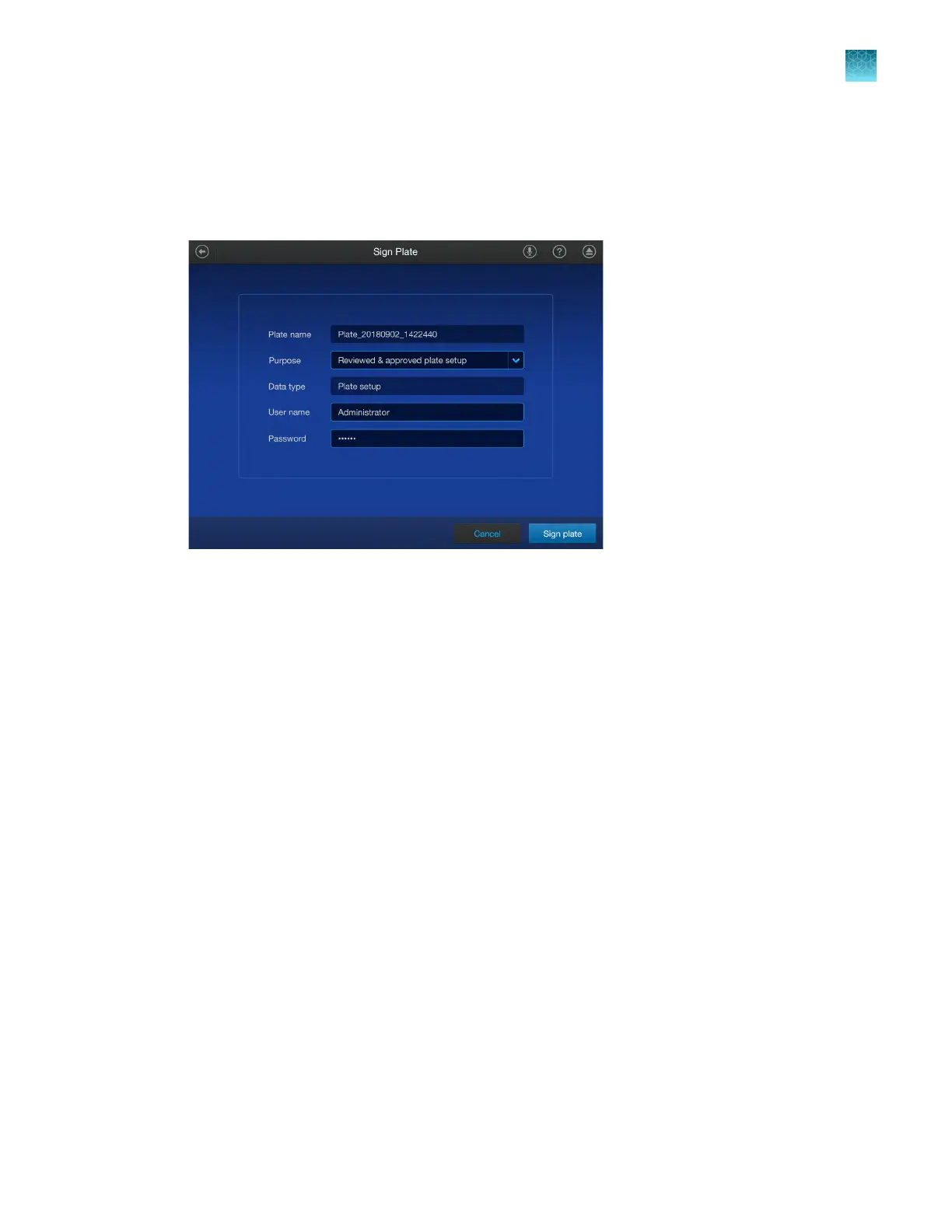
Tap Sign plate.
The Sign Plate screen is displayed.
6.
Select the purpose fr
om the Purpose dropdown list.
7.
Enter your SAE user name and password.
8.
Tap Sign plate.
Enter an audit reason
Depending on the way that your SAE administrator configures audit settings, the Enter Audit Reason
screen may be displayed when you make changes to one of the following items:
•
Plat
e file
•
Calibration
•
RNase P run
Chapter 9 Use the instrument with the Security, Auditing, and E‑signature (SAE) v2.0 module
Enter an audit reason
9
QuantStudio
™
6 Pro Real-Time PCR System and QuantStudio
™
7 Pro Real-Time PCR System User Guide
151












 To Next Page