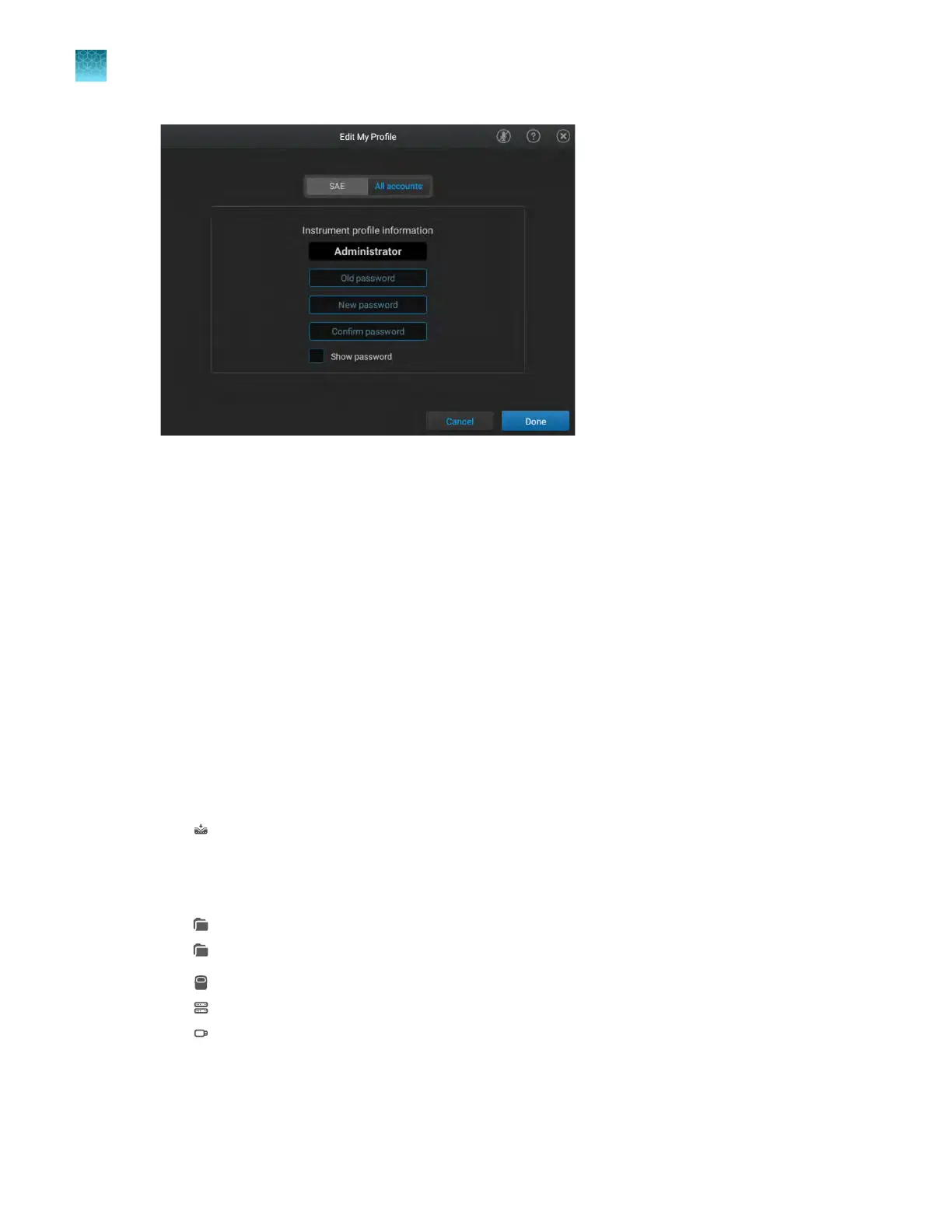
Figure 23 Edit My P
rofile screen
3.
Tap the Old password field, enter the current SAE account password, then tap Enter.
4.
Tap the New password field, enter a new SAE account password, then tap Enter.
(Optional) Tap the Show password checkbox to show or hide the password.
5.
Tap the Confirm password field, enter the new SAE account password again, then tap Enter.
6.
Tap Done.
Your SAE password will also be changed on the QuantStudio
™
Design and Analysis Software v2 if the
instrument and the software are connected to the same SAE server.
Sign a plate setup
1.
In the home screen, tap one of the following options:
•
(Load plate file)
•
Set up run
2.
T
ap the location of the system template or the plate file in the left column.
•
Run Queue
•
Public
•
My Instrument
•
Network Drive
•
USB Drive
3.
T
ap the template file name in the right column.
The Plate Properties screen is displayed.
Chapter 9 Use the instrument with the Security, Auditing, and E‑signatur
e (SAE) v2.0 module
Sign a plate setup
9
150
QuantStudio
™
6 Pro Real-Time PCR System and QuantStudio
™
7 Pro Real-Time PCR System User Guide












 To Next Page