Enable SAE functions in QuantStudio
™
Design and Analysis Software v2
This procedure requires an SAE administrator account.
Before you enable SAE functions in the QuantStudio
™
Design and Analysis Software v2, you must
complete the following tasks:
•
Connect to the SAE server (see “Connect to the SAE server” on page 144).
•
Close all plate files and data files.
1.
In the QuantStudio
™
Design and Analysis Software v2, select System4Enable Security.
2.
Enter your SAE administrator account username and password, then click Sign In.
The SAE administrator account is automatically signed into the software after SAE is enabled. The SAE
username is displayed in the upper-right corner of the software menu bar.
Disable SAE on the instrument (administrator only)
This procedure requires a local administrator profile and an SAE administrator account.
Sign in with a local administrator account (see “Sign in as a local administrator with SAE enabled” on
page 146).
1.
In the home screen, tap
(Settings)4SAE.
The SAE Mode scr
een is displayed.
2.
In the SAE Mode screen, set the SAE Mode slider to the Disable position, then tap Done.
3.
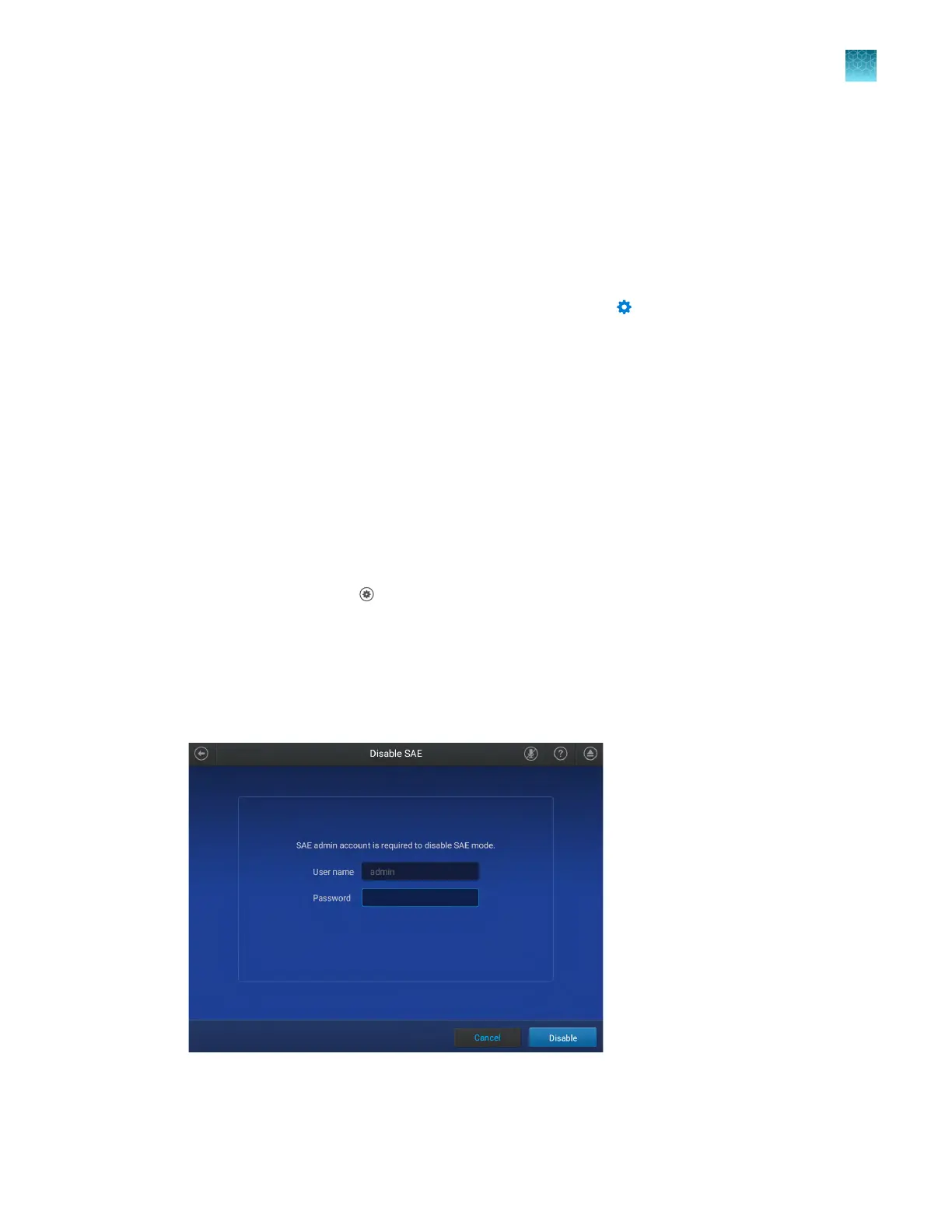
Enter the password for the SAE administrator account, then tap Disable.
The user name for the SAE administrator account is filled out and cannot be edited.
The Sign In scr
een is displayed.
Chapter 9 Use the instrument with the Security, Auditing, and E‑signatur
e (SAE) v2.0 module
Disable SAE on the instrument (administrator only)
9
QuantStudio
™
6 Pro Real-Time PCR System and QuantStudio
™
7 Pro Real-Time PCR System User Guide
145












 To Next Page