1.
In the home screen, tap (Settings)4Remote support.
The Remote Support screen is displayed.
2.
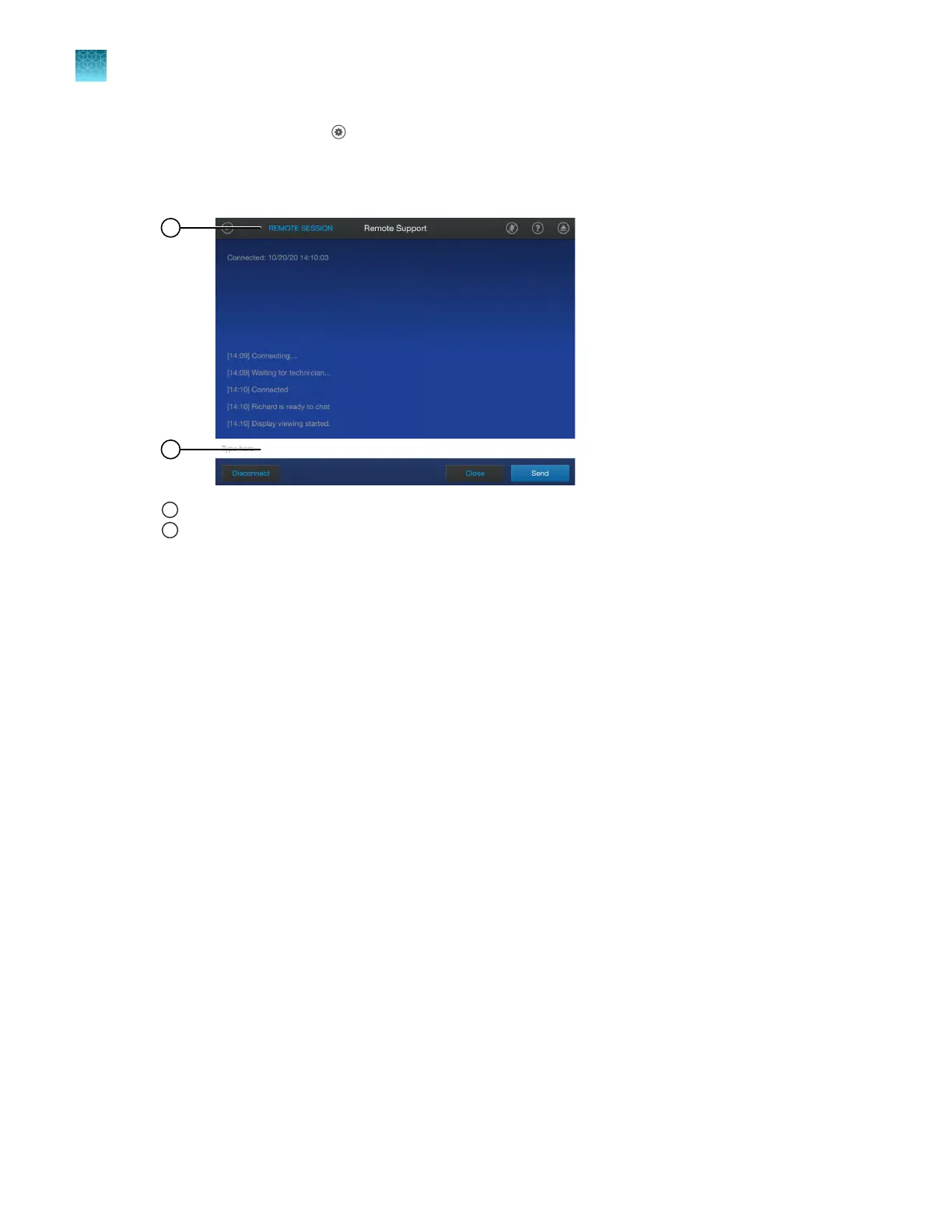
Tap Start remote session, then enter the PIN provided by Support.
1
Remote Session
2
Text field
Remote Session is displayed at the t
op of the touchscreen when a successful connection is
established. A chat is displayed on the touchscreen.
3.
Tap the text field to type a message, then tap Send.
4.
(Optional) Navigate to another screen on the instrument.
Remote Session is displayed at the top of the touchscreen to indicate that the session is active.
5.
Tap Remote Session to return to the remote support session.
The Remote Support screen is displayed.
6.
In the Remote Support screen, tap the active session listed in the table, then tap one of the
following options.
•
Disconnect to end the remote support session.
•
View to return to the chat.
The remote session can also be disconnected from the chat screen. A Support representative can
end the remote support session. Remote Session is not displayed on the touchscreen after a
session has been disconnected.
Chapter 11 Configur
e the instrument settings
Request remote support
11
184
QuantStudio
™
6 Pro Real-Time PCR System and QuantStudio
™
7 Pro Real-Time PCR System User Guide












 To Next Page