EN
186
Web-Based Configuration
14. Web-Based Configuration
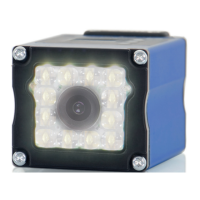
In order to operate the weQube at an Ethernet LAN, the sensor and the remote station, for example a computer,
must be located in the same network. The sensor’s IP address is set to 192.168.100.1, the subnet mask is set to
255.255.255.0 and the standard gateway is set to 192.168.100.254. The operating instructions always assume
that these default values are used.
Further information on changing the IP address and deactivating the firewall – with reference to your operating
system – can be found in the general instructions included on the weQube product page at:
www.wenglor.com Product World Product search (Order no.) Download General instructions.
Note: It’s not possible to access the sensor simultaneously with the software and via the website. If applicable,
disconnect the sensor from the software before opening the website. Furthermore, under no circumstances
should you enter settings simultaneously via the website and at the OLED display.
Note: If a DHCP server has been connected, it automatically assigns an IP address to the sensor. The assigned
IP address can be viewed at the OLED display (see section 6.8.2) and entered to the address line in the
browser, in order to open the sensor’s website.
Note: The web interface has been tested with PC-based browsers. Error-free performance cannot be 100%
assured for mobile devices.
14.1. Invoking the Administration Interface
Start the web browser. Enter the sensor’s IP address to the address line in your browser and press the enter
key. The IP address is preset to 192.168.100.1.
Example: http://192.168.100.1/
The “General Device” overview page and the sensor’s live image are not password protected. A password
prompt appears when other pages are accessed. The following user data are preset upon shipment from the
factory.
User name: admin
Password: admin
The password can be changed in the “Device Settings” page.


 To Next Page