35
Smart Camera / Vision-Sensor / 1D-/2D-Code-Scanner / OCR Reader
8. Updating the Firmware
Before setting up the sensor, check to see whether or not a newer version of the firmware is available for the
weQube. You can check your sensor’s firmware version in the graphic display under Info Product Version
(see section 6.10).
The most up-to-date version of the firmware can be downloaded from our website at:
www.wenglor.com Product World Product search (Order no.) Download Software.
Note: When the firmware is updated, the associated PC-software should be updated at the same time (see
section 7.3).
The version number indicates whether or not the versions are compatible with each other: if the last place in the
version designation changes, the versions are compatible with each other. If the middle place changes, the ver-
sions are not 100 % compatible. If the first place changes, the version are not compatible with each other at all.
The exact changes included in the consecutive versions can be viewed in the versions history file in the instal-
lation directory under .../wenglor/weQube/ressources/help/changelog.text.
Projects generated with version <1.1.x are not 100 % compatible with version >1.2.x. New functions included
with version 1.2.x are not available for version 1.1.x projects.
There are two different ways to execute a firmware update. Connection to the sensor must first be established.
8.1. Firmware Update via weQube Software
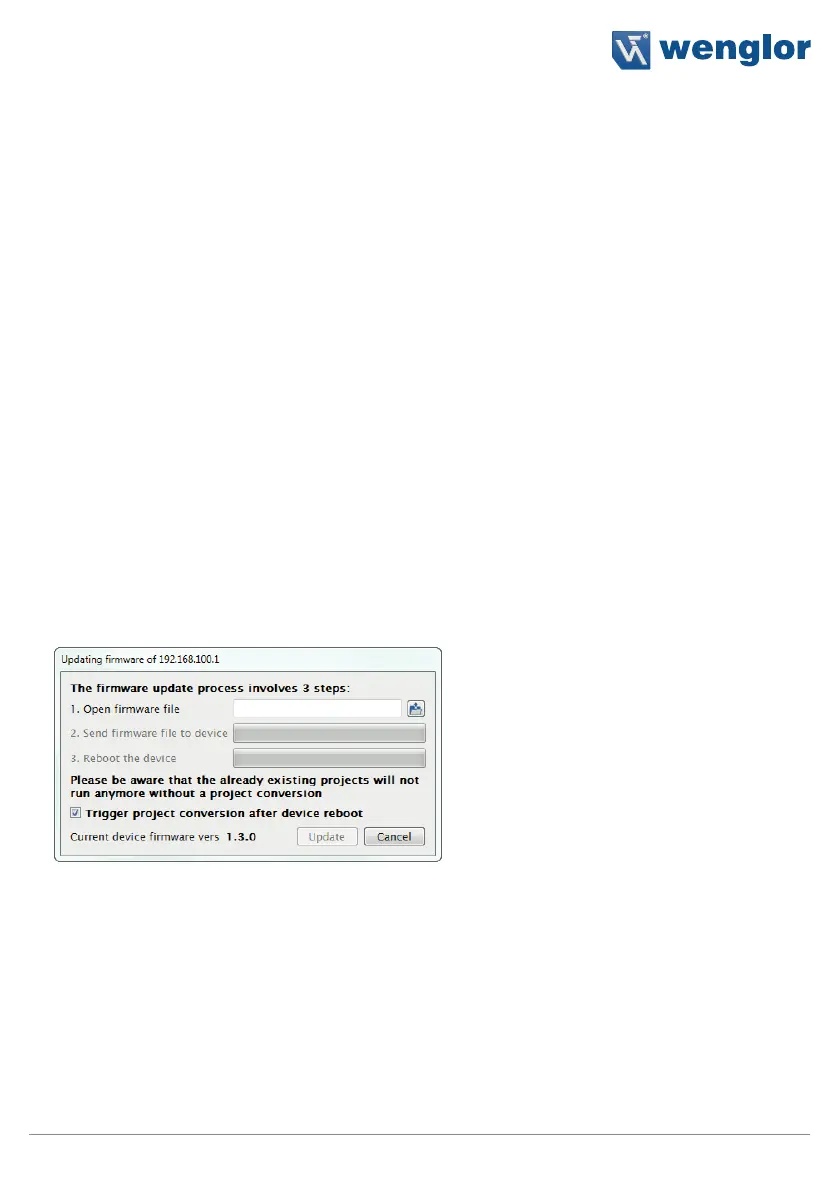
The firmware in the weQube can be updated after opening the firmware update dialog window by clicking
Firmware Update in the Help menu. The following window appears:
First select the corresponding firmware file and then click the update button. The firmware file is automatically
transferred to the sensor, which is then restarted. The firmware update process may not be interrupted. Power
to the sensor may not be interrupted during this procedure. Updating takes roughly 10 to 15 minutes.
If project files are located in the sensor’s memory, it’s advisable to convert them automatically after the update
procedure has been completed. The checkbox for “Start project conversion after device restart” must be acti-
vated to this end. After the sensor has been restarted, the conversion program is launched.


 To Next Page