57
Smart Camera / Vision-Sensor / 1D-/2D-Code-Scanner / OCR Reader
Various settings can be selected after right clicking a module. A module can be moved to the desired position
within the project tree by clicking it and holding the mouse key depressed.
Visible
Rename
Delete
Copy Node Path to the
Clipboard
Copy Module
The module can be made invisible for the normal mode and thus pro-
tected against any alteration of its settings.
• Not crossed out: visible in the normal mode
• Crossed out: invisible in the normal mode
The module’s name can be changed.
The selected module is deleted from the function tree.
Note: Modules can be added once again with the help of the toolbox.
Copying the node value to the clipboard can be helpful in making it easier
to create your own LIMA commands.
Copies the module along with all of its settings. The position of the newly
copied module can be freely selected.
10.2.3.2. Image Container Viewer
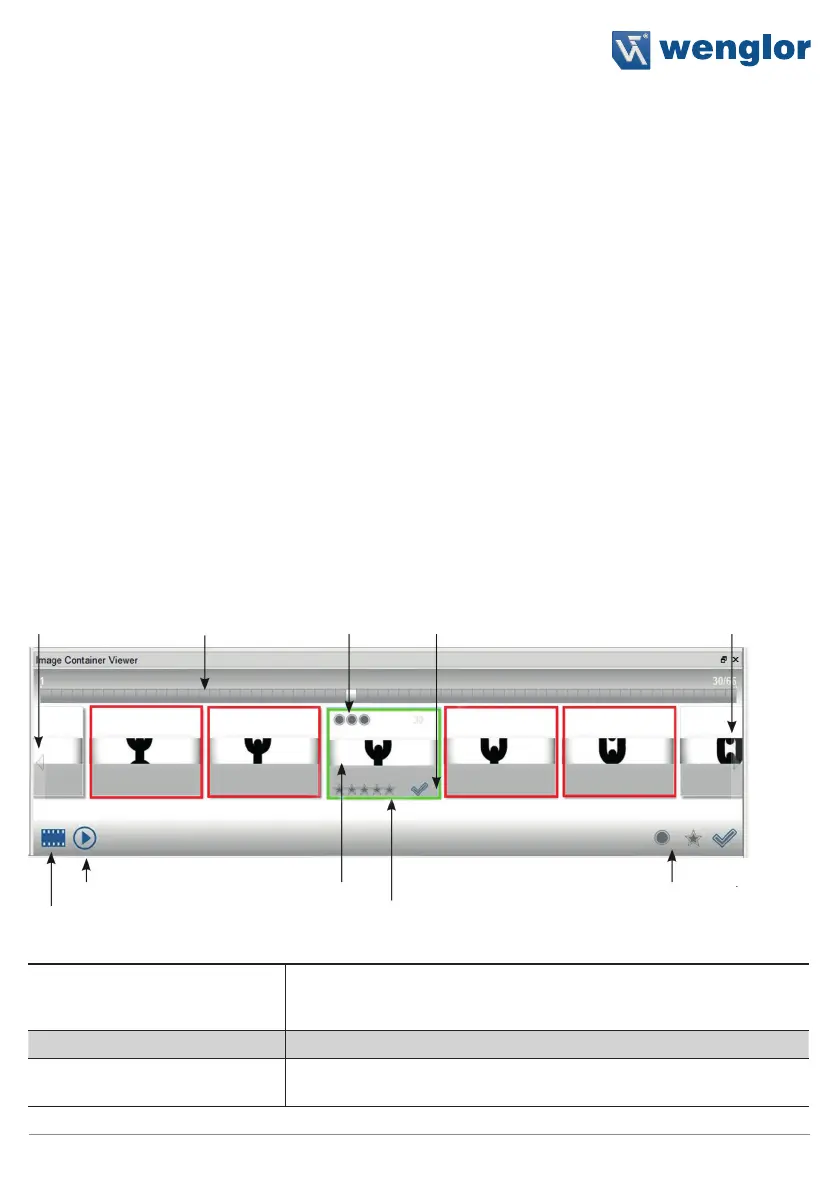
The image sequence is shown as a preview in the image container viewer, thus providing an overview of the
recorded images.
Advance image Navigation through Traffic light Image Advance image
sequence left image sequence evaluation selection sequence right
Start button Current image Filter applications
Rating of the
Load images image with stars
Current image The current image is displayed in the image area and appears with a
blue frame in the preview provided by the image container viewer. Eval-
uation is performed and the results are updated.
Start button Starts automatic replay of the image sequence.
Advance image sequence left/
right
The image to the left or right of the current image is selected and dis-
played in the image area.


 To Next Page