EN
24
Functions Description, OLED Display
6.2. Teach-In
Subsequent sensor teach-in is possible with the display. Up to six teach options can be taught-in in this way.
The parameters which are assigned to the memory locations is determined by means of the PC software. Upon
delivery, no parameters are assigned to the teach-in memory locations.
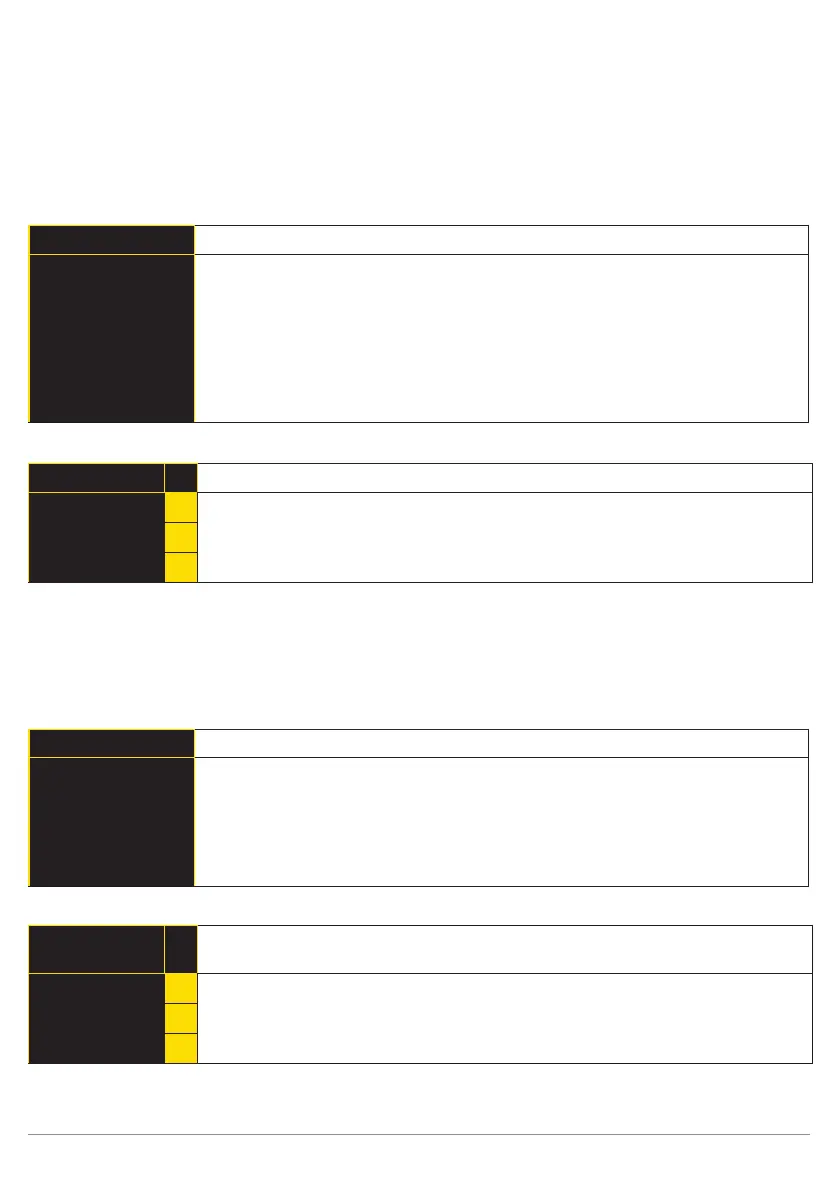
Teach-In
Select memory location for teach-in
Teach-In 1
Teach-In 2
Teach-In 3
Teach-In 4
Teach-In 5
Teach-In 6
Back
Run
Selection of up to 6 different memory locations for teaching in objects
subsequently.
Note: In order to be able to teach in a given object to the sensor via the OLED dis-
play, the desired teach-in function must first be linked to the corresponding teach-in
memory location at the display with the help of the software (see section 11.22.3.5).
Execute teach-in using the selected memory location.
Teach-In 1
Teach in certain object to the sensor.
Press
<T>
to teach in.
T
Teach-in procedure:
1) Align the sensor to the desired object.
2) Press the “T” key -> the parameter value is taught in.
t
6.3. Teach+
In the case of Teach+, entire image sequences are saved to a compressed file, including all settings for the
current project, for example interface settings etc. This file can be transferred to the PC with the help of weQube
software (see section 10.2.3.8).
Teach+
Execute Teach+
Number of frames
Start
Back
Run
Number of frames: Select the number of frames for the Teach+ process.
Start: Start archive generation for the Teach+ process. A Teach+
procedure which has been started can be aborted by press-
ing the “C" key.
You can adjust the number of frames for the Teach+ process to meet your own individual requirements.
Number of
frames
Select the number of frames for teach-in.
10
+
Press the “+” or “–” key in order to set the number of frames for the Teach+ process
to a value between 0 and 1000.
8
−
Note: Quicker scrolling through numbers is made possible by pressing and holding the respective key.


 To Next Page