39
Smart Camera / Vision-Sensor / 1D-/2D-Code-Scanner / OCR Reader
10. General Layout of weQube Software
Windows software, which is installed to a PC, is utilized to configure, adjust and diagnose the weQube.
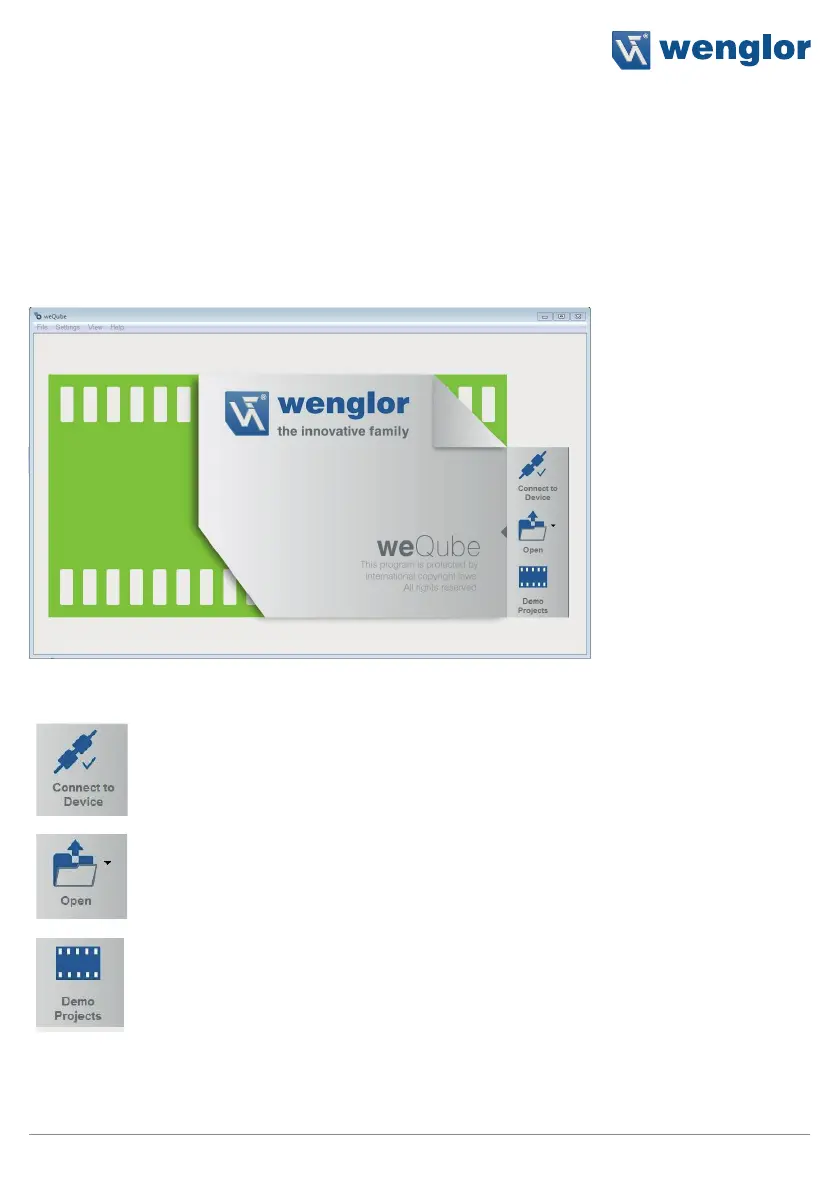
10.1. Initial Window
The following initial window appears after the program has been started. Various options are provided by the
software.
The software establishes a connection to the sensor.
Note: The sensor must be correctly connected to the PC to this end
(see section 5.5).
If a project file has been saved to the PC, it can be opened, or any
existing project can be selected.
Teach+ files can be loaded after changing the file extension to “w_r”.
A demo project can be selected from an applications list. Demo proj-
ects show settings used for typical applications with the help of image
sequences.


 To Next Page