EN
38
License Management
9. License Management
The various products included on the weQube platform vary with regard to available software licenses. Licenses
are available for scanning modules, for image processing modules and for offline code reading (see section
5.2). The scope of functions included with each product can be expanded as desired by purchasing further
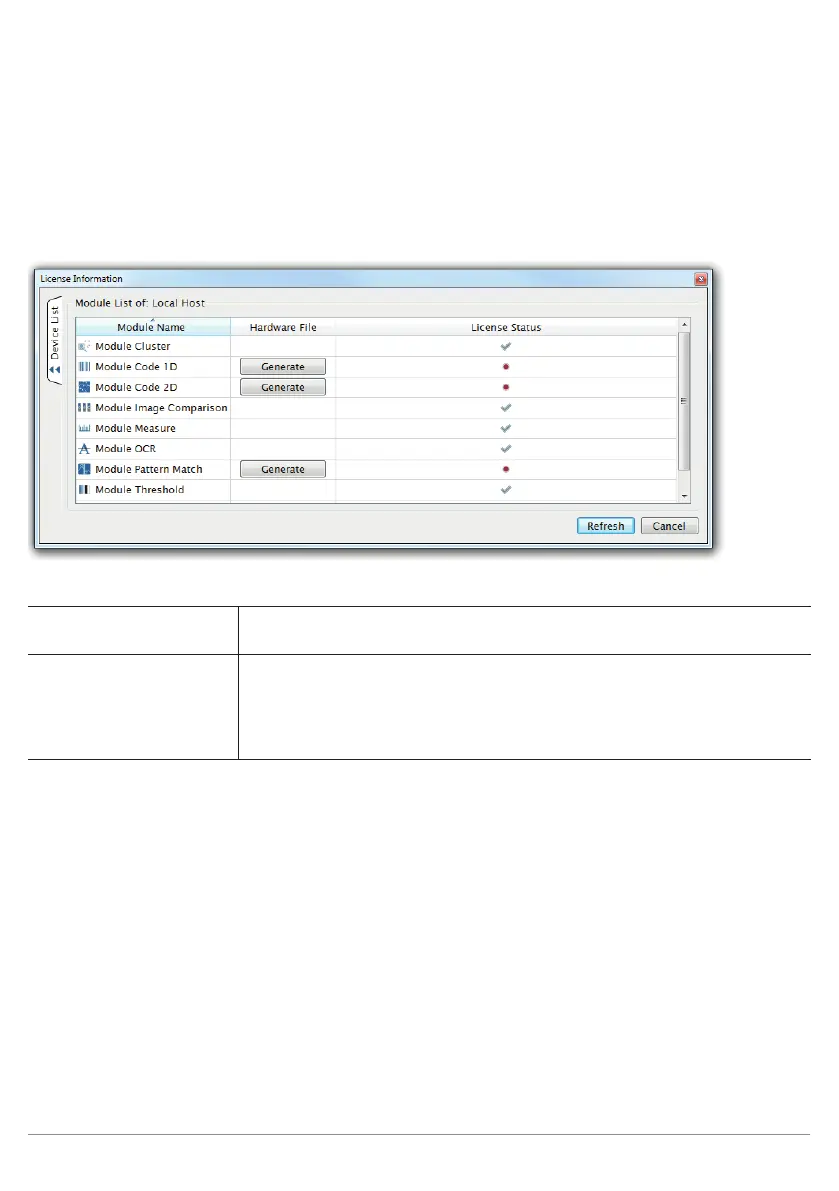
licenses. In order to open the license view, click licenses in the help menu, which can be accessed in the
software’s menu bar.
Differentiation must be made between the following two cases:
The software is connected The sensor’s license status is displayed, including all of its licensed and unli-
censed modules.
The software is not con-
nected to the sensor
(offline).
In the offline mode, all of the image processing modules are licensed. However,
as a default setting the scanning modules are not licensed.
Note: The PC license for offline 1D-2D code reading is required for offline code
reading (see section 5.2). The USB dongle included with the offline license
must always be connected to the PC during offline code reading.
The status of each license is displayed.
• The license for the respective module is included in the current software version.
• The license for the respective module is not included in this software version.
Subsequent ordering of licenses:
A hardware file must first be created before licenses can be subsequently ordered for currently unlicensed
modules.
Click the Generate button to this end. Send the resulting file (*.w_l) to wenglor by e-mail. After processing
has been completed, you’ll receive an e-mail reply from wenglor with
the enabled license as an attachment. Afterwards, a “Load” button appears in the window with the licenses
under license status of the respective module. After clicking this button, the received file can be added. The
corresponding module is then enabled and appears in the toolbox.
Note: Along with the PC license for 1D-2D code reading, you also receive as USB dongle in addition to the
hardware file – located on the accompanying CD. Before transferring the hardware file to your PC, plug the USB
stick into your PC and do not remove it during offline code reading.


 To Next Page