EN
54
General Layout of weQube Software
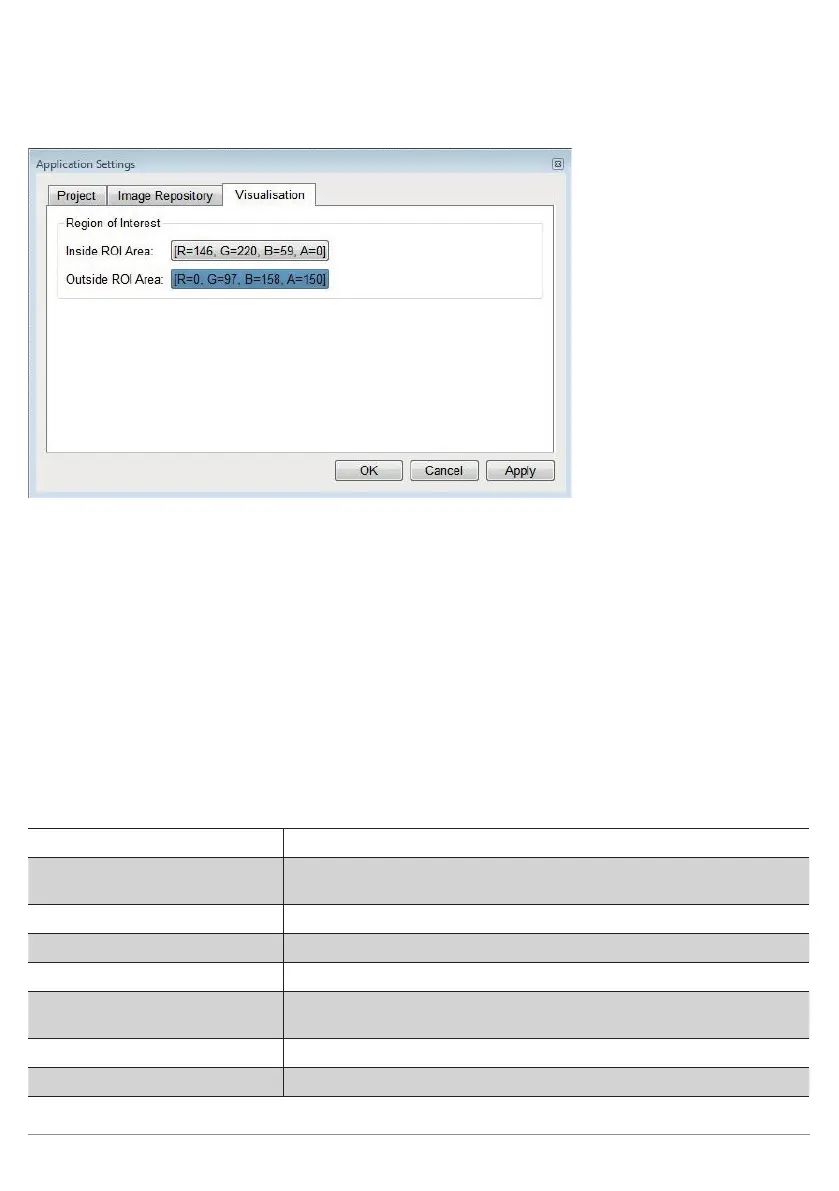
Visualization:
In the ROI Select color for the area within the region of interest (active area)
Outside of the ROI Select color for the area outside of the region of interest (inactive area)
After clicking the corresponding color preview, a window appears at
which the color selection can be set.
Language: Software language selection. Project relevant texts such as properties
and values are displayed in English only and are not translated.
10.2.2.4. View
Various windows can be activated or deactivated in the “View” menu.
Note: Detailed information regarding the individual areas is included in the following sections.
Image Container Viewer
Window with an overview of all recorded images
Histogram
Window for analyzing color- and gray scale values within a certain sur-
face area
Monitoring Data from....
Window with current sensor information
Navigator
Window with an overview of the current project
Profile
Window for analyzing color- and gray scale values along a line
Process Time
Window with an overview of current processing times for the individual
modules
Toolbox
List of available tools.
Device List
See section “10.2.3.6. Network Tools” on page 60


 To Next Page