EN
50
General Layout of weQube Software
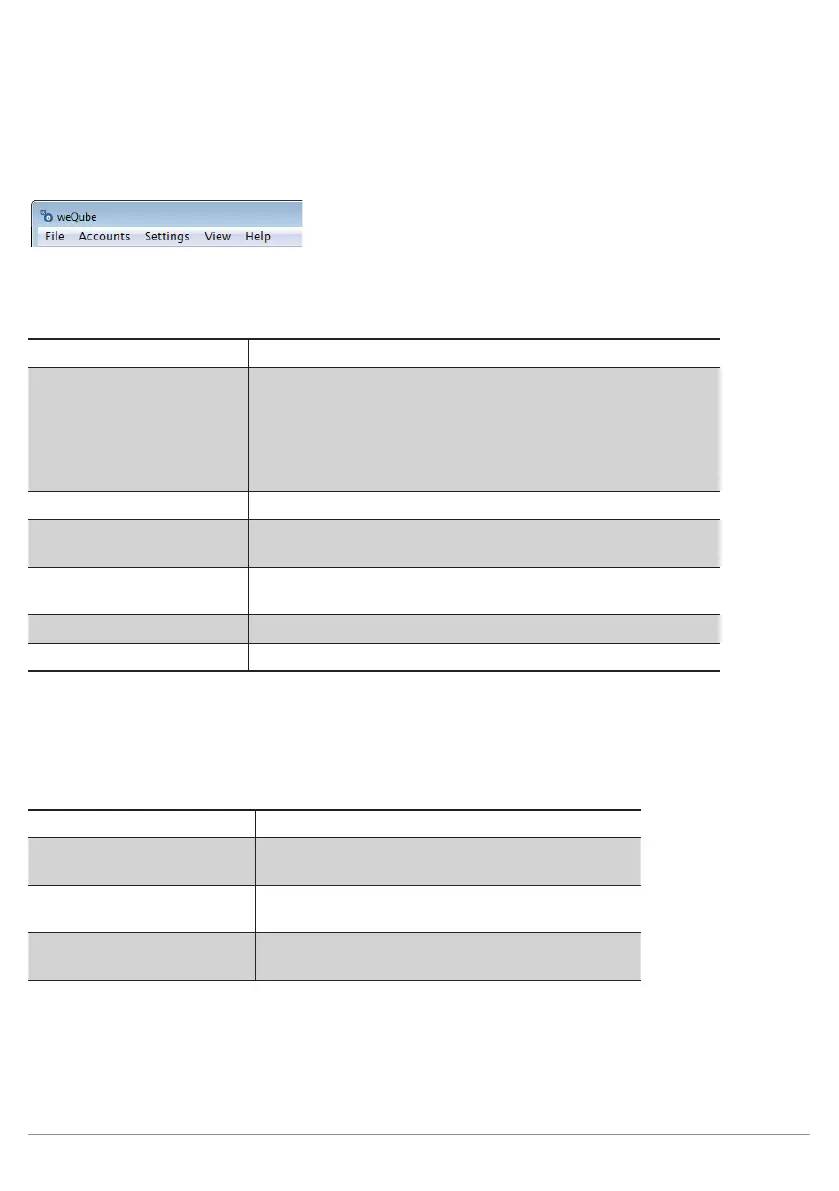
10.2.2. The Menu Bar
The following actions are available in the menu bar.
10.2.2.1. File
New ... A new project is opened.
Open... A saved project, a Teach+ file or a template file can be opened.
Note: If a connection has been established with the sensor and
you click the “Open” button, all files saved to the micro SD card
are displayed. As a standard feature, template files are located
here which make it possible for you to set up your applications
quickly (see section 10.1.2.3).
Save The currently open project is saved.
Save as The currently open project can be saved to any desired folder by
use of a new name.
Recent project The most recently accessed projects are displayed and can be
opened.
Close project The currently open project is closed.
Exit The program is exited.
10.2.2.2.User accounts
Various settings can be selected for user administration.
Log out Logs the active user out.
Disable monitor screen The monitor screen is disabled. The software can
only be enabled again with the user password.
Settings Further information on settings is included through-
out this section.
Automatic login If this function has been activated, the last active
user account is logged in again.
After clicking the “Settings” menu, an overview of existing users appears:


 To Next Page