EN
96
Software Module
11.5.3.2. Set
Objective
All of the individual shapes used in the image area, as well as the overall shape, can
be adapted to the application.
1 rectangle is available as standard features.
Note: Not only can the overall shape and the two standard shapes be edited, new
shapes can also be added with the help of the toolbar module (see section 9.4.2).
Image Area
The selected shapes are displayed in the image area and can be edited there as well.
Before the respective shape can be edited, it has to be clicked in the navigator under
“Set”. Alternatively, the overall shape can be selected by clicking “Set”.
Change position Click the respective shape in the image area and hold the
mouse key depressed until the shape has been dragged
to the desired position.
Change size Click one of the corners of the respective shape in the im-
age area. Hold the mouse key depressed until the shape
reaches the desired size.
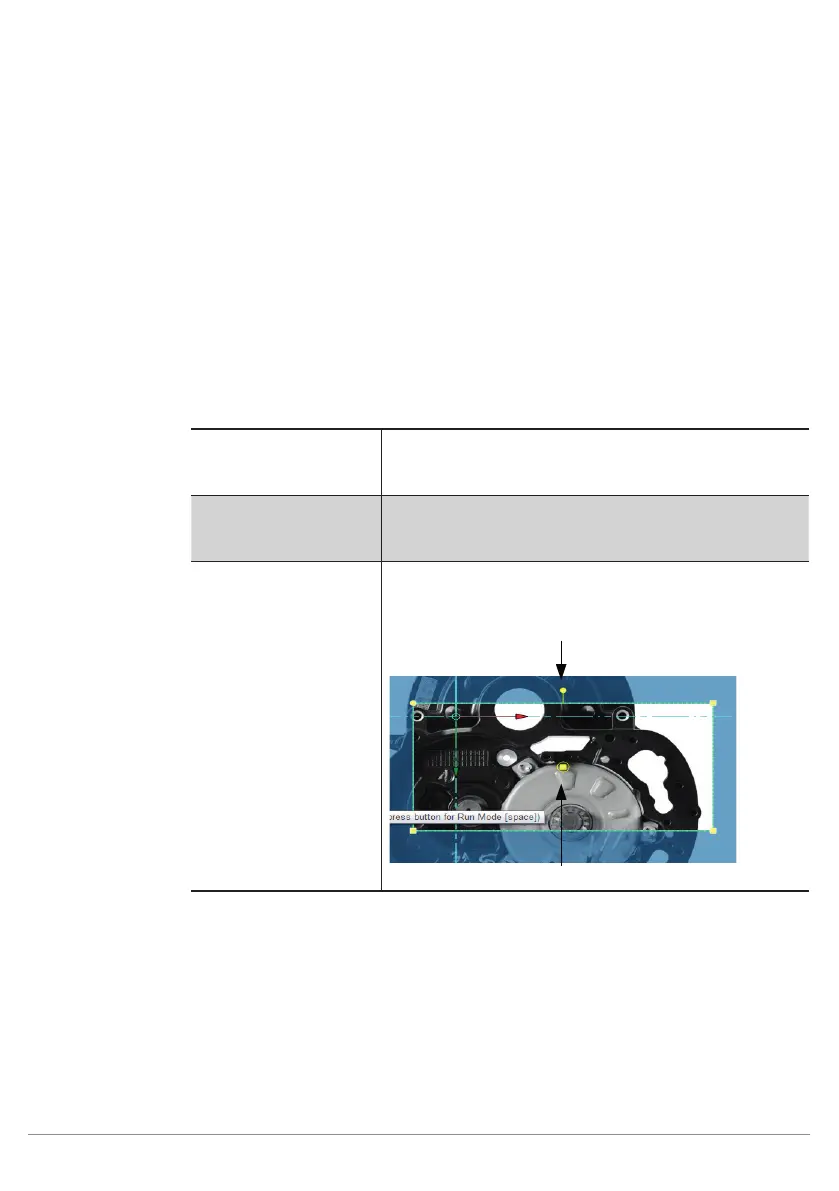
Rotate shape 1. Position the pivot reference point.
2. Rotate the shape at the pivot point.
Pivot reference point


 To Next Page