EN
94
Software Module
2. Select a new shape.
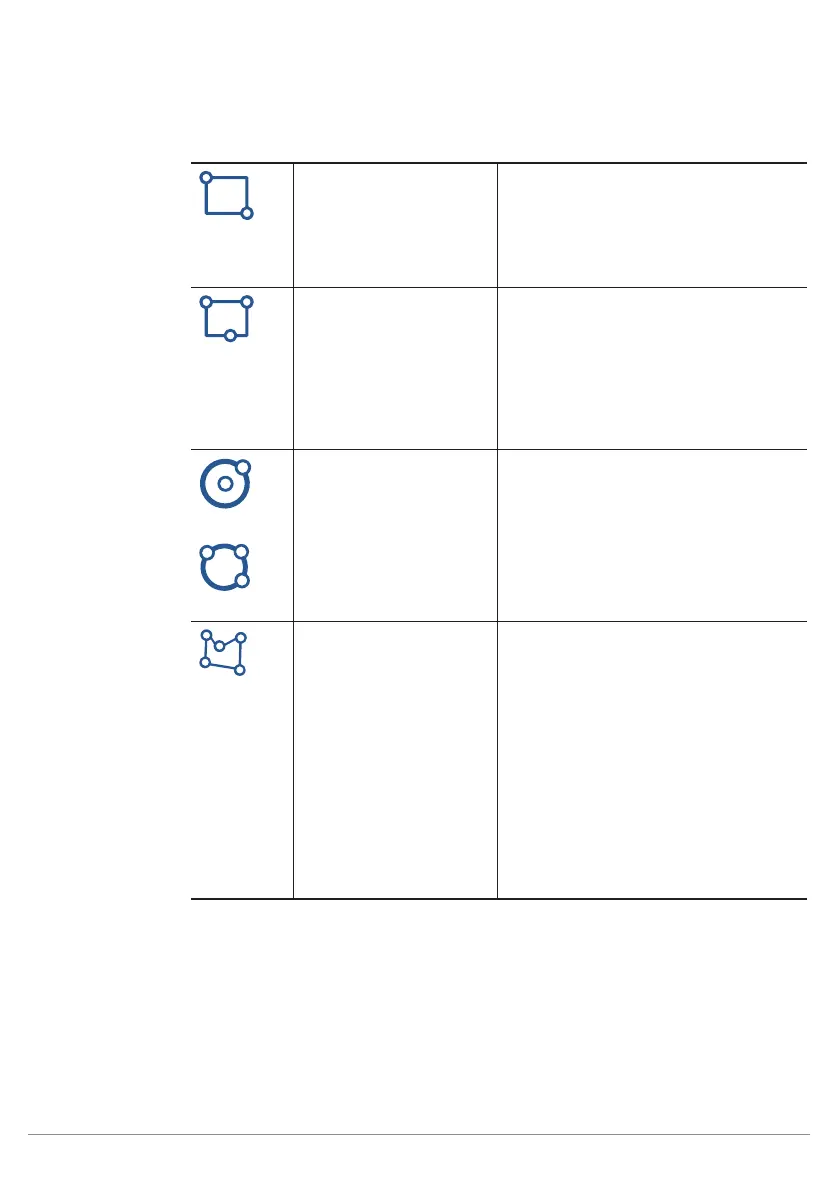
Rectangle two points
A rectangle is drawn with two points. The
first corner of the rectangle is specified
within the image area by left clicking
with the mouse. The diagonally opposite
corner of the rectangle is specified with a
second click.
Rectangle three points
A rectangle is drawn with three points.
The first corner of the rectangle is speci-
fied within the image area by left clicking
with the mouse. The next click specifies
one of the neighboring corners and the
third click specifies the location of the
side of the rectangle opposite the side
defined by the first two clicks.
Circle two points
A circle is drawn with two points. The first
click specifies the center of the circle.
The radius of the circle is specified by
means of the second click.
Circle three points
A circle is drawn with three points. Three
points around the circumference of the
circle are specified with three mouse
clicks.
Polygon
A polygon can be created with any
desired number of clicks. Each click
specifies one of the polygon’s corners.
Processing of the shape is ended by
double clicking the last corner. Polygons
can be specially processed within the
image area. Individual points can be
deleted by pressing and holding the
Ctrl+Shift key and clicking the respec-
tive point with the left mouse key. A new
point can be added to the polygon by
pressing and holding the Alt+Shift key
and left clicking at the desired side of the
polygon.
3. Draw a new shape within the image area as described.
Newly added shapes also appear in the list under “Set”.


 To Next Page