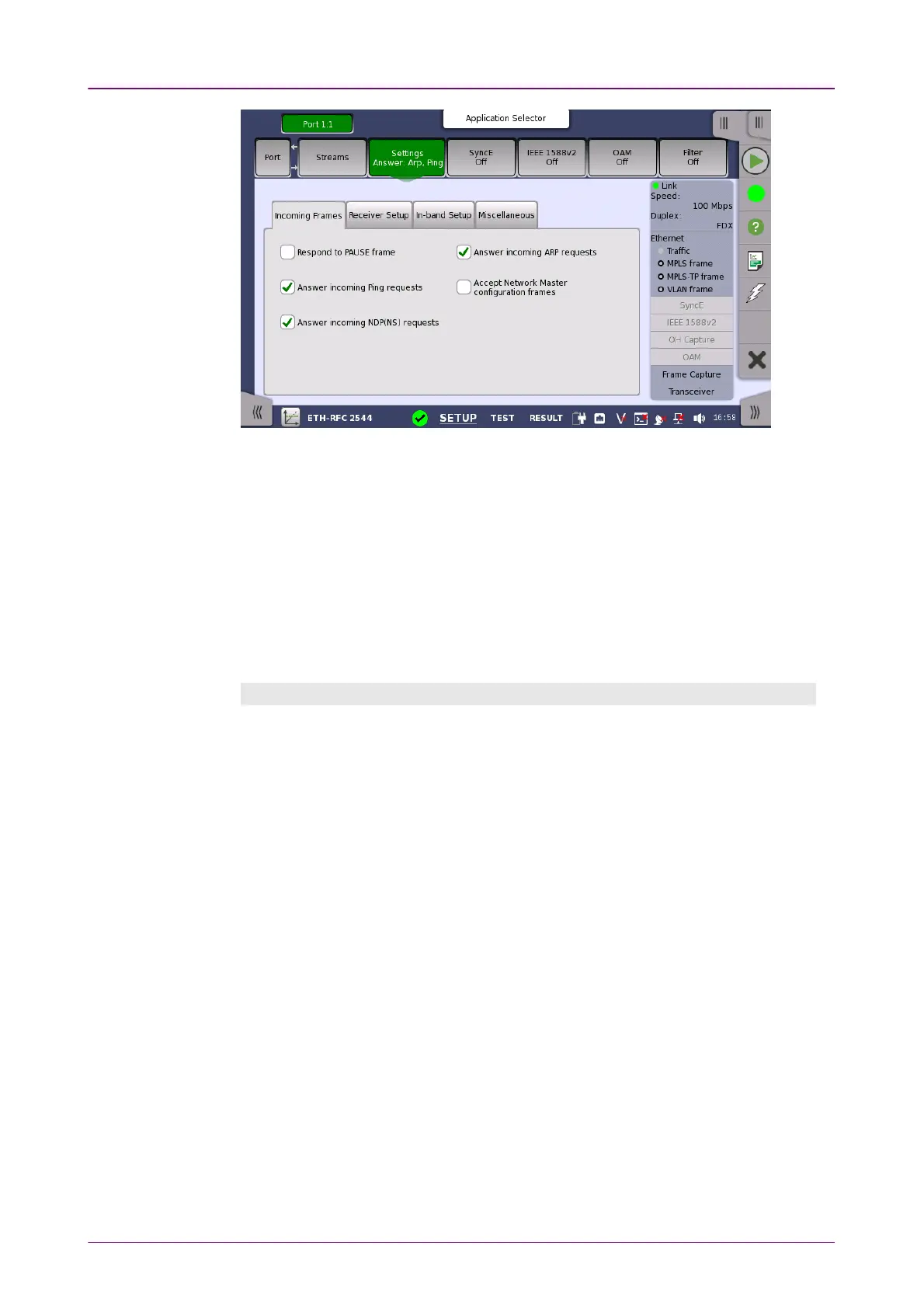
This screen allows you to specify how the Network Master handles incoming
frames on the currently selected Ethernet port. It can also be used to inspect
the current status of the selected port.
FollowsFollows
It is possible to let the Port 2 copy the setup from Port 1 by touching the
FollowsFollows button. This button appears when you can copy the Port 1 settings to
Port 2.
The configuration options available in the setup area of the screen are
described below. The status information is described in a separate section.
Incoming FramesIncoming Frames
Respond to PAUSE frameRespond to PAUSE frame
Selecting this check box will force the transmitter to pause for a short period of
time if a pause frame (defined in IEEE 802.3x) is received, e.g. in case of
congestion of the foreign receiver.
Answer incoming Ping requestsAnswer incoming Ping requests
When this function is
enabled
, the Network Master will reply to ping requests,
using the Source MAC and IP addresses in the replies.
Note that when using the Ping application, this setting is ignored, and replies
will always be sent - also from the passive port.
Answer incoming NDP(NS) requestsAnswer incoming NDP(NS) requests
When this function is
enabled
, the Network Master will reply to incoming NS
(Neighbor Solicitation) requests, using the Source MAC and IP addresses in
sending out replies.
NDP: Neighbor Discovery Protocol
Note that when using the Ping application, this setting is ignored, and replies
will always be sent - also from the passive port.
Answer incoming ARP requestsAnswer incoming ARP requests














 To Next Page