ZoomZoom
To zoom in, select a zoom area directly in the graph area by drawing a
rectangle with a finger or the stylus (delivered with the instrument).
When releasing the finger or stylus, the graph area zooms in to show the
selected part of the graph.
To zoom out, use the view settings below the graph.
View modeView mode
Used to set the x-scaling for the graph. The possible settings are:
Last 1000sLast 1000s, Last 100sLast 100s: Shows a sliding graph area with max. width of 1000
second and 1000 second.
View allView all: Shows a graph area with a width as the duration of the test.
CustomCustom: This is automatically selected when the graph area is
touchmanipulated.
Max vertical axisMax vertical axis
Used to set the y-scaling of the view. The maximum amplitude of the plot
always originates from the zero line.
In general, you use direct touch-manipulation of the graph area to zoom in and use the
controls to zoom out.
66..1313..33..33 OWDOWD
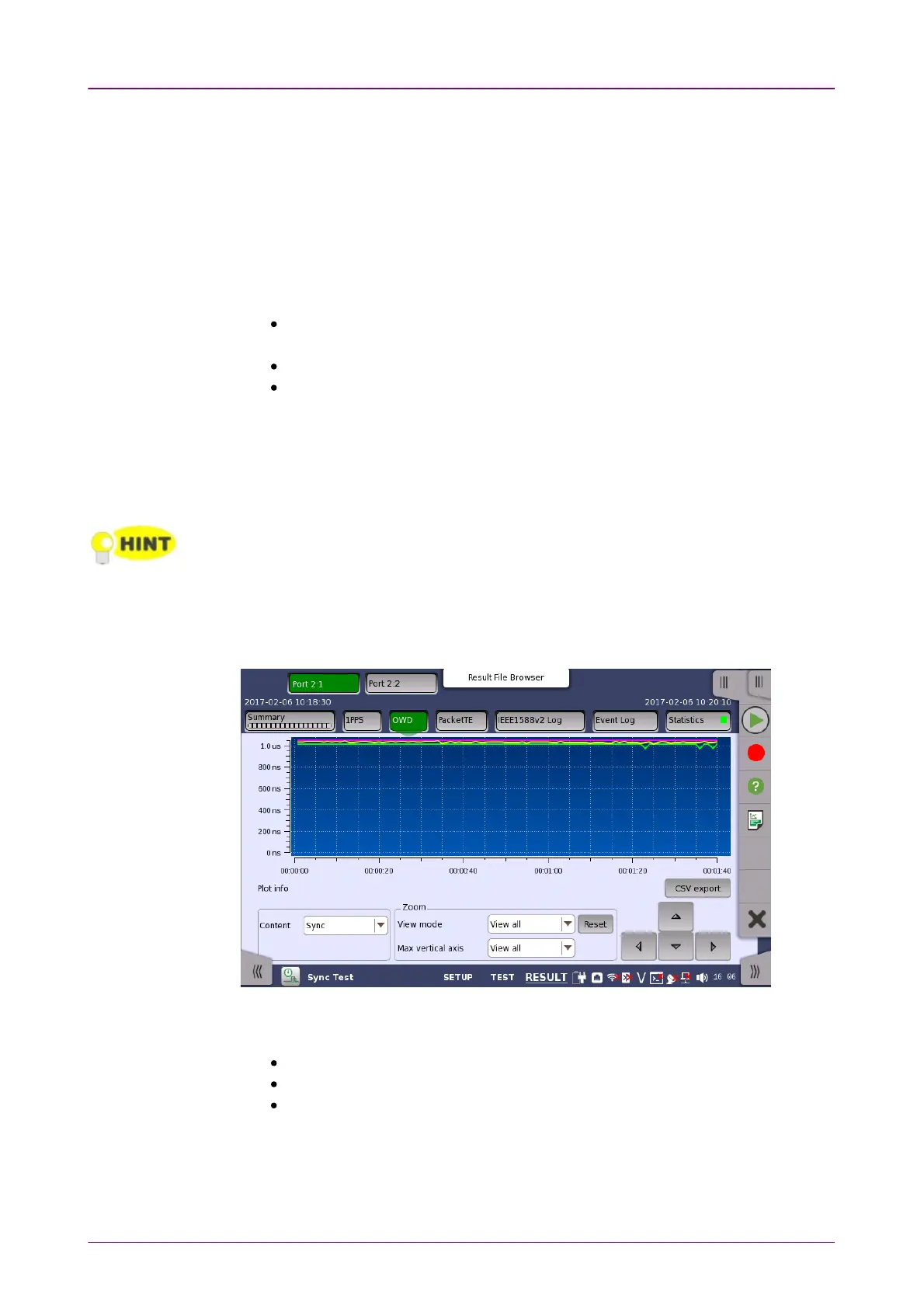
Touching the OWDOWD in the navigation area displays the screen shown below.
In this screen, the one way delay test results are displayed as a graph, showing
the positions of a time error over time.
Pink line shows maximum one way delay values during one second.
Yellow line shows average one way delay values during one second.
Light green line shows minimum one way delay values during one second.
CSV exportCSV export
Outputs measurement results in CSV format.
ContentContent














 To Next Page