FollowsFollows
Frame SetupFrame Setup
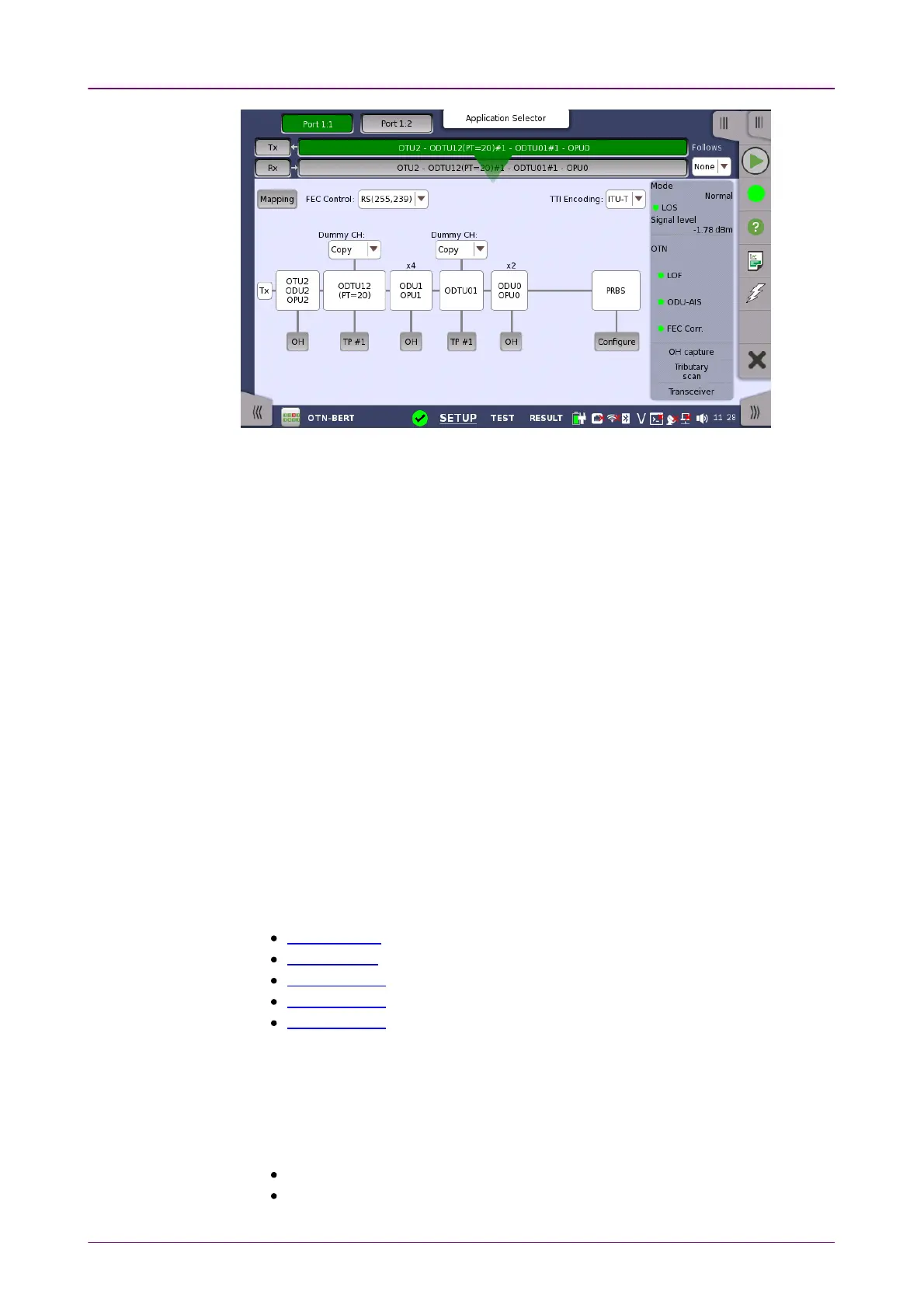
This screen allows you to configure OTUk frame of the currently selected
transmitter. It can also be used to inspect the current status of the selected port
in a separated screen.
The configuration options available in the setup area of the screen are
described below. The status information is described in a separate section.
To setting up the OTU frame, touch MappingMapping button at first. Then select the
relevant values for the various containers in the structure shown in the setup
area, either by opening a drop-down menu or by touching a button to launch
an editor dialog.
Note that the changes you make will be reflected in the text displayed in the
OTUk button in the navigation area.
To make the Port 2 transmitter follow the Port 1 transmitter (i.e. copy its
settings), touch the right-most button in the navigation area and select the Tx1Tx1
in the drop-down menu. The Port 2 settings continue to follow the Port 1
transmitter change. The default setting is NoneNone. Note that the Port 1 transmitter
cannot follow the Port 2 transmitter.
MappingMapping
Touch the MappingMapping button and use the launched dialog box to define the OTUk
frame mapping. The following settings are available:
Output Signal
Client Signal
Multiplexing 1
Multiplexing 2
Multiplexing 3
See a description of the setting options in the
Mapping Dialog
section below.
FEC ControlFEC Control
Use the drop-down menu to select whether or not to transmit FEC (Forward
Error Correction) data.
No FECNo FEC: OTUk data is transmitted without FEC encoding.
RS(255,239)RS(255,239): OTUk data is transmitted with FEC encoding. RS(255,239) code is














 To Next Page