See
Preparing for Receiving a Fax
.
You Pressed the Stop Button to Cancel Printing of a Fax
Press the
FAX
button to resume printing of the fax.
Note
The machine can store up to approximately 50 pages* (max. 20 documents) of faxes in memory.
* When using ITU-T No.1 chart (Standard mode)
If the machine's memory becomes full, the machine cannot receive any more faxes. Print or delete
the documents stored in memory, then have the sender resend the faxes.
See Printing Documents in the Machine's Memory
.
Printing Documents in the Machine's Memory
You can print all documents received in the machine's memory at once or select a document for printing
on the Memory reference screen. You can also save the documents on the USB flash drive.
This section describes the procedure to print all the received documents in the memory.
For details on Memory reference, refer to the on-screen manual:
Advanced Guide
.
Note
For the conditions of the faxes to be received in the memory, see
Receiving a Fax Temporarily in
the Machine's Memory (Memory Receiving)
.
1.
Load paper.
See
Loading Plain Paper / Photo Paper
.
Here we make sure that plain paper is loaded in the Rear Tray.
2.
Specify the paper settings as necessary.
If a page size other than A4, Letter, or Legal, or a media type other than Plain paper is selected, faxes or reports
cannot be printed. Confirm or change the paper settings.
See
Preparing for Receiving a Fax
.
3.
Display the Memory reference screen.
(1)
Press the
FAX
button, and press the
Menu
button.
(2)
Use the
(-) or (+) button to select Memory reference in the Fax settings
menu, and press the
OK
button.
4.
Print all the received documents in the memory.
(1)
Use the
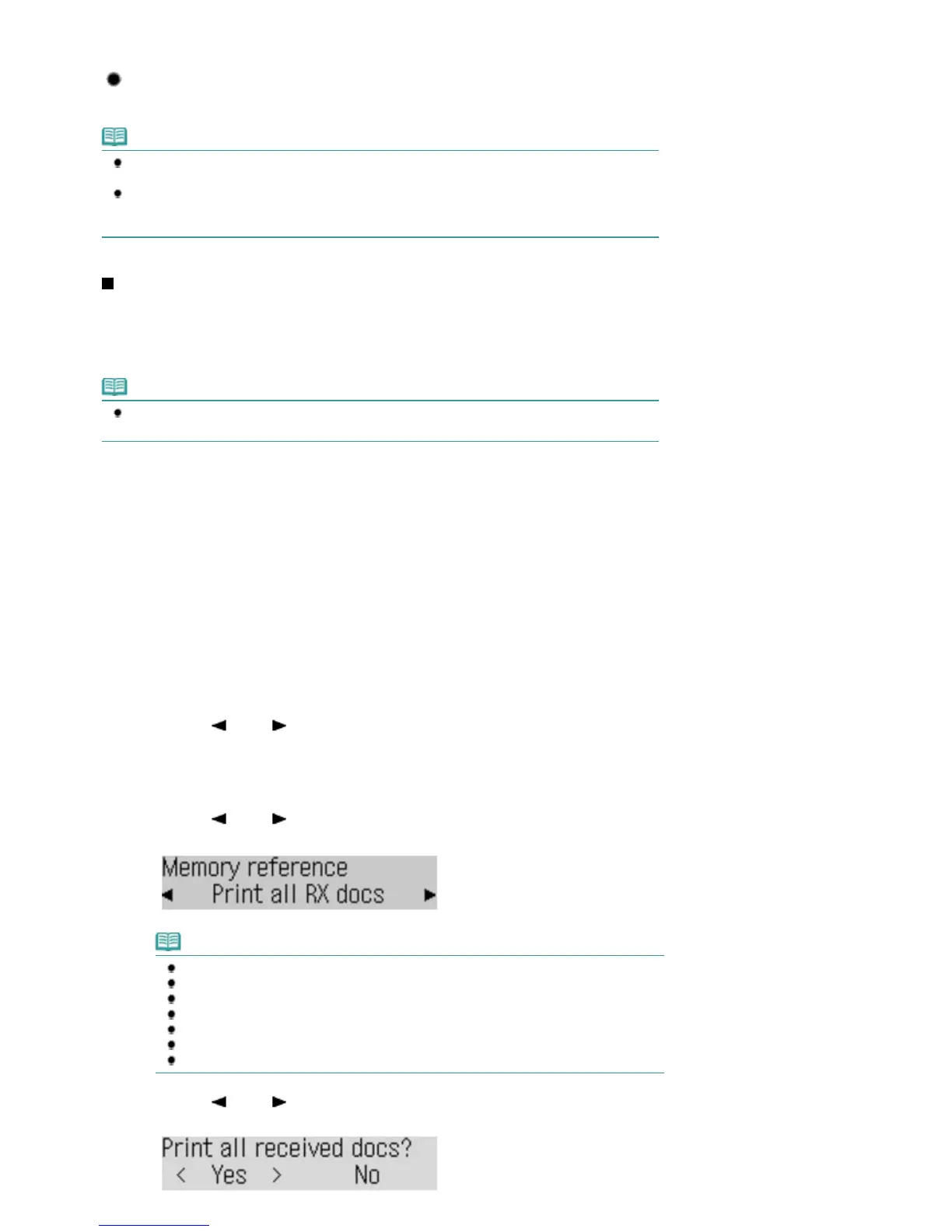
(-) or (+) button to select Print all RX docs, and press the
OK
button.
Note
Select Print memory list to print the list of documents in the memory.
Select Print specified doc. to print a specified document.
Select Delete specified doc. to delete a specified document.
Select Print all RX docs to print all documents in the memory at the same time.
Select Delete all documents to delete all documents in the memory at the same time.
Select Save specified doc. to save a specified document on the USB flash drive.
Select Save all documents to save all documents in the memory on the USB flash drive.
(2)
Use the
(-) or (+) button to select Yes, and press the
OK
button.
The machine starts printing documents in the memory one by one.
Seite 43 von 922 SeitenReceiving Faxes















 To Next Page