190-01263-01 Rev. A
Garmin G2000 Pilot’s Guide for the Cessna T240
227
Flight ManageMent
SYSteM
OVeRVieW
Flight
inStRUMentS
eiS
aUDiO Panel
& CnS
Flight
ManageMent
haZaRD
aVOiDanCe
aFCS
aDDitiOnal
FeatUReS
aPPenDiCeS inDeX
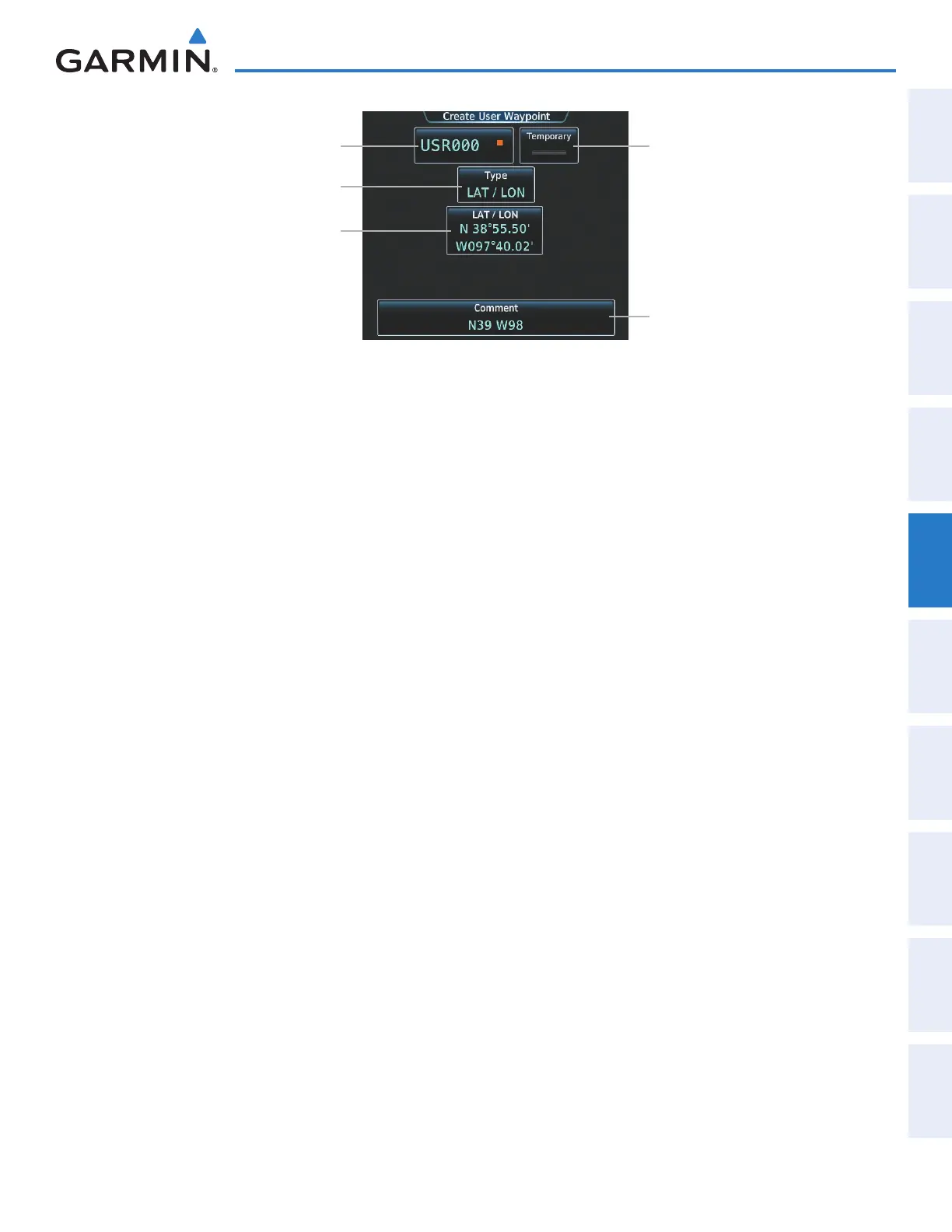
Figure 5-66 Create User Waypoint Screen (defined by latitude/longitude)
User Waypoint Name Button
LAT/LON Button
Comment Button
Temporary Button
Type Button
5) If desired, change the waypoint comment.
a) Touch the Comment Button to display the keypad.
b) Use the keypad and the Enter Button to select the comment.
6) If desired, touch the Temporary Button to change the waypoint storage method. When the annunciator on
the button is green, the waypoint is only stored until the next power cycle. When the annunciator is gray, the
waypoint is stored until manually erased.
7) Touch the Create Button to accept the new user waypoint.
Creating user waypoints from map pages:
1) Press the Joystick to activate the panning function and display the Map Pointer Options Screen on the
Touchscreen Controller.
2) Use the Joystick to pan to the map location of the desired user waypoint.
3) Touch the Create User Waypoint Button. The Create User Waypoint Screen is displayed with the captured
position.
4) Touch the user waypoint name button to display the keypad.
5) Use the keypad and the Enter Button to select a user waypoint name (up to six characters).
6) If desired, change the waypoint comment. The comment defaults to the abbreviated latitude/longitude of the
user waypoint.
a) Touch the Comment Button to display the keypad.
b) Use the keypad and the Enter Button to select the comment.
7) Press the Create Button to create the new waypoint.
8) Press the Joystick to deactivate the panning function and return to the previous display on the Touchscreen
Controller.
This manual downloaded from http://www.manualowl.com



 To Next Page