Garmin G2000 Pilot’s Guide for the Cessna T240
190-01263-01 Rev. A228
Flight ManageMent
SYSteM
OVeRVieW
Flight
inStRUMentS
eiS
aUDiO Panel
& CnS
Flight
ManageMent
haZaRD
aVOiDanCe
aFCS
aDDitiOnal
FeatUReS
aPPenDiCeSinDeX
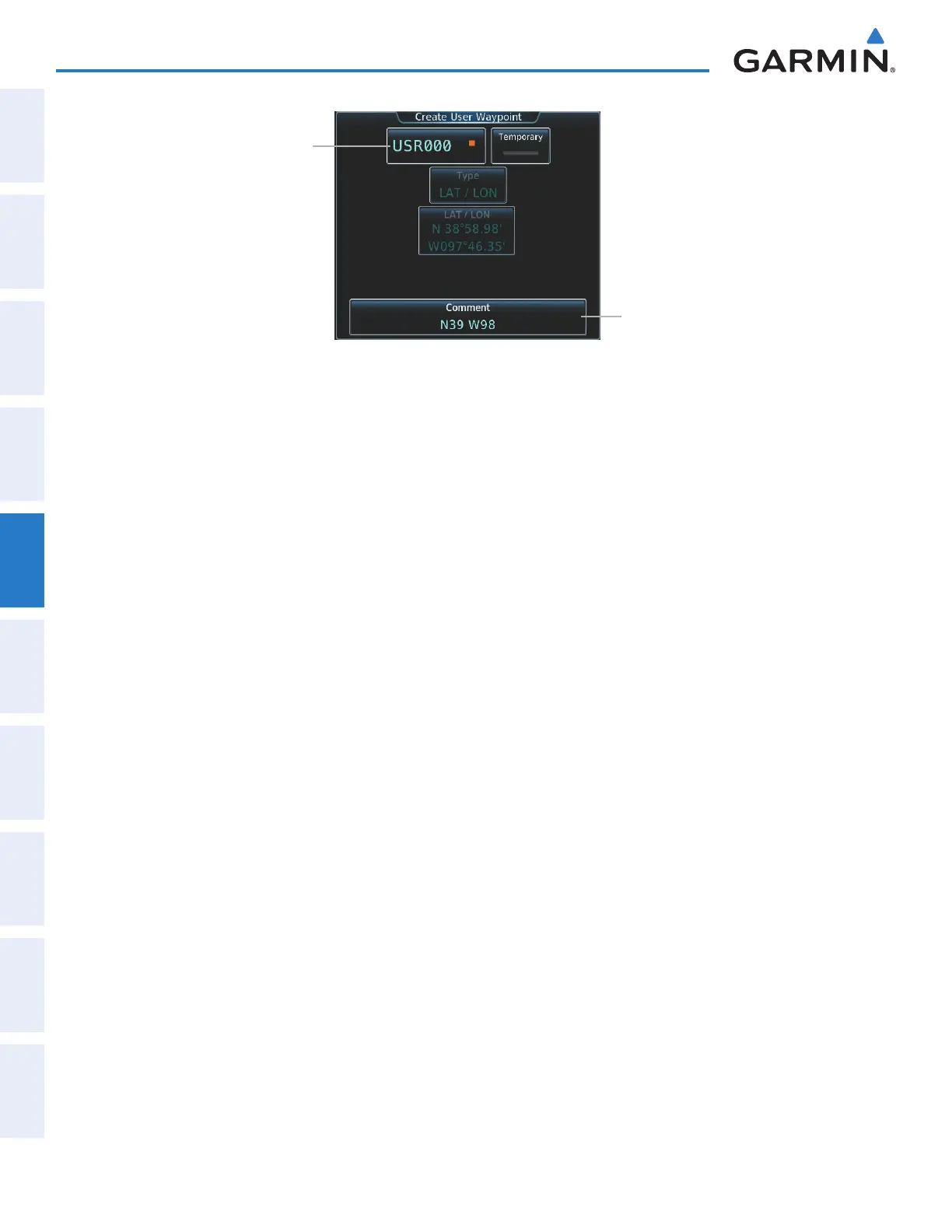
Figure 5-67 Create User Waypoint Screen (initiated from map page)
User Waypoint Name Button
Comment Button
EDITING USER WAYPOINTS
Editing a user waypoint comment:
1) From Home, touch Waypoint Info > User Waypoint.
2) If necessary, touch the WPT List Tab to display the list of user waypoints, and touch the desired user waypoint
selection button.
3) Touch the Waypoint Options Button to display the Waypoint Options Window.
4) Touch the Edit Button to display the Edit User Waypoint Screen.
5) Touch the Comment Button to display the keypad.
6) Use the keypad and the Enter Button to select a user waypoint comment (up to 25 characters).
7) Touch the Save Button to accept the new comment.
8) Touch the OK Button in response to the question “Are you sure you want to modify this waypoint?”.
Editing a user waypoint name:
1) From Home, touch Waypoint Info > User Waypoint.
2) If necessary, touch the WPT List Tab to display the list of user waypoints, and touch the desired user waypoint
selection button.
3) Touch the Waypoint Options Button to display the Waypoint Options Window.
4) Touch the Edit Button to display the Edit User Waypoint Screen.
5) Touch the user waypoint name button to display the keypad.
6) Use the keypad and the Enter Button to select a user waypoint name (up to six characters).
7) Touch the Save Button to accept the new name.
8) Touch the OK Button in response to the question “Are you sure you want to modify this waypoint?”.
Editing a user waypoint type and location:
1) From Home, touch Waypoint Info > User Waypoint.
2) If necessary, touch the WPT List Tab to display the list of user waypoints, and touch the desired user waypoint
selection button.
This manual downloaded from http://www.manualowl.com



 To Next Page