Garmin G2000 Pilot’s Guide for the Cessna T240
190-01263-01 Rev. A
432
Hazard avoidance
SYSTeM
overvieW
FLiGHT
inSTrUMenTS
eiS
aUdio & cnS
FLiGHT
ManaGeMenT
Hazard
avoidance
aFcS
addiTionaL
FeaTUreS
aPPendiceSindeX
Displaying the Traffic Map Pane:
From Home, touch the Traffic Button.
Or:
If
the PFD is operating in Split Mode, press the Traffic Softkey to show the Traffic Map Pane next to the PFD.
altitUDe range
The pilot can select the volume of airspace in which non-threat and proximity traffic is displayed. Note
the system will still show TAs occurring outside of these limits regardless of the altitude mode chosen.
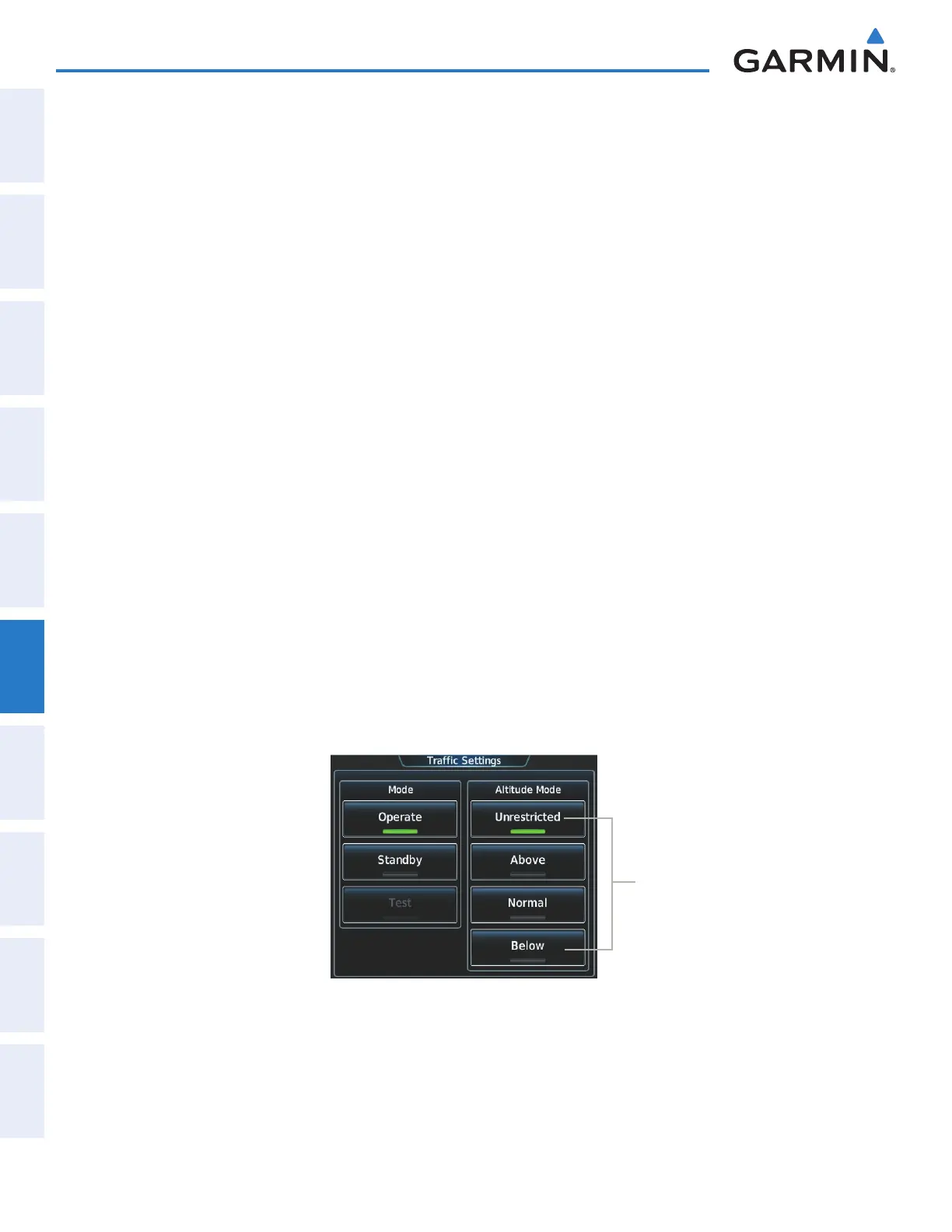
Changing the altitude mode:
1) From Home, touch Traffic > Traffic Settings.
Or:
a) From Home, touch Map > Map Settings.
b) If necessary, touch the Sensor Tab.
c) Touch the Traffic Settings Button.
2) Touch one of the following Altitude Mode Range Buttons:
• Unrestricted: All traffic is displayed from 9900 feet above and 9900 feet below the aircraft.
• Above: Displays non-threat and proximity traffic from 9000 feet above the aircraft to 2700 feet below the
aircraft. Typically used during climb phase of flight.
• Normal: Displays non-threat and proximity traffic from 2700 feet above the aircraft to 2700 feet below the
aircraft. Typically used during enroute phase of flight.
• Below: Displays non-threat and proximity traffic from 2700 feet above the aircraft to 9000 feet below the
aircraft. Typically used during descent phase of flight.
Figure 6-106 Traffic Settings Screen
Available Altitude
Mode Buttons
ADDITIONAL TRAFFIC DISPLAYS
The system can overlay traffic information on the navigation map panes as well as the PFD Inset Navigation
Map. Traffic information is also available on the PFD when the Synthetic Vision Technology (SVT) system is
enabled. See the Flight Instruments Section for details.
This manual downloaded from http://www.manualowl.com



 To Next Page