190-01263-01 Rev. A
Garmin G2000 Pilot’s Guide for the Cessna T240
433
Hazard avoidance
SYSTeM
overvieW
FLiGHT
inSTrUMenTS
eiS aUdio & cnS
FLiGHT
ManaGeMenT
Hazard
avoidance
aFcS
addiTionaL
FeaTUreS
aPPendiceS indeX
Enabling/disabling display of traffic information (Navigation Map Pane):
1) From Home, touch Map > Map Settings.
2) If necessary, touch the Sensor Tab.
3) Touch the Traffic Button.
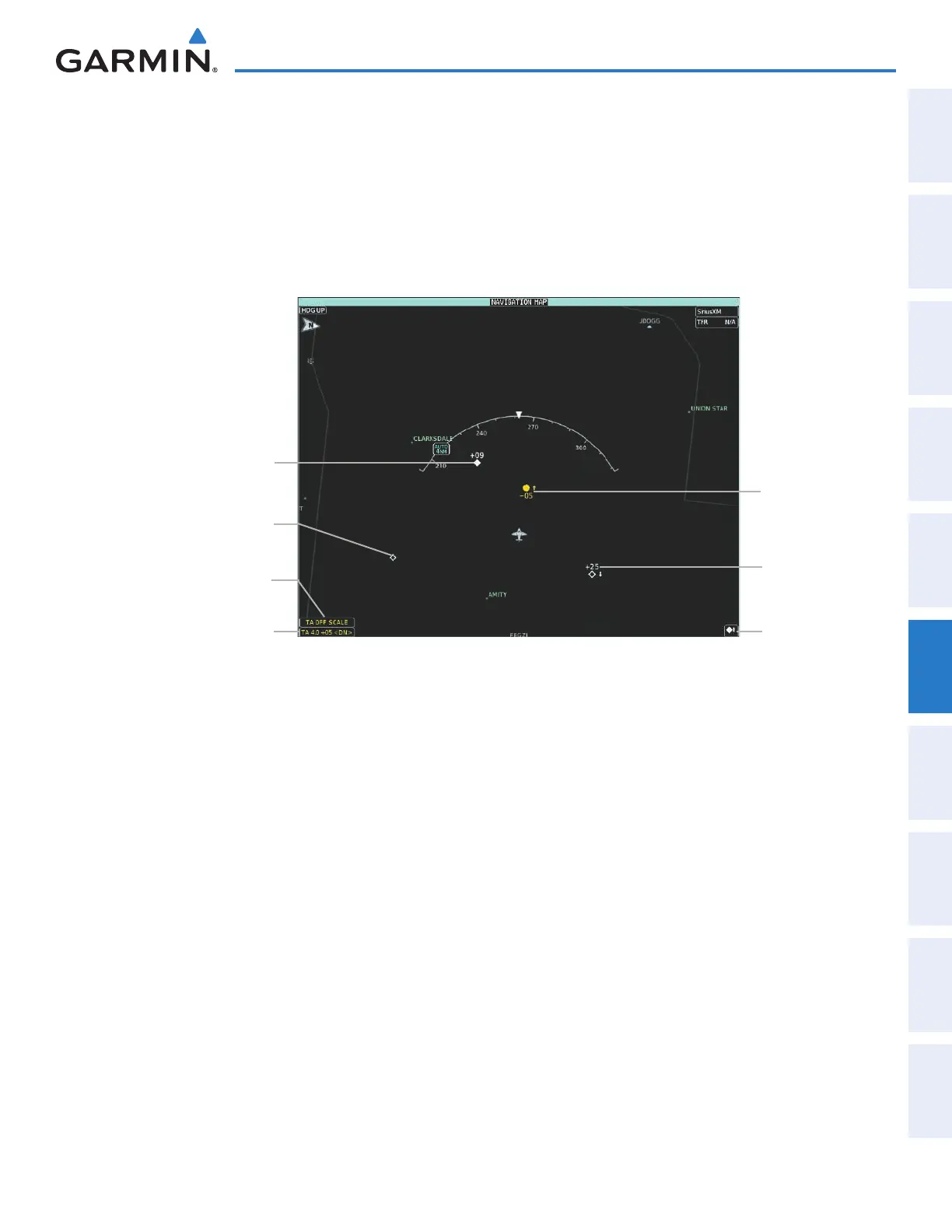
When traffic is selected on maps other than the Traffic Map Pane, the system shows a traffic status icon to
indicate traffic is enabled for display (Figure 6-107).
Non-Threat
Traffic, Altitude
Not Reported
TA Off Scale Banner
Annunciation
Non-Bearing Traffic
Advisory Banner
Annunciation
Traffic
Advisory,
500’ Below,
Climbing
Figure 6-107 TAS Traffic on Navigation Map Pane
Traffic
Enabled Icon
Non-Threat
Traffic, 2500
Above,
Descending
Proximity
Advisory, 900’
Above, Level
Displaying the Traffic Inset Map on the PFD (FULL Mode PFD):
Press the Traffic Inset Softkey to show or hide the PFD Traffic Inset Map.
Enabling/disabling traffic information on the PFD Inset Navigation Map (FULL Mode PFD):
1) Press the Inset Map Settings Softkey.
2) Press the Traffic Softkey to enable/disable the display of traffic information.
The system provides controls to customize the display of traffic information on navigation map panes
and on the PFD Inset Navigation Map. Traffic symbols and labels (such as up or down arrows and relative
altitudes) can be decluttered from the display when the map range exceeds a specified distance. In addition,
traffic labels may also be enabled or disabled, regardless of map range. These settings apply to both the
navigation map panes and the PFD Inset Navigation Map.
Customizing the display of traffic on the Navigation Map Panes:
1) From Home, touch Map > Map Settings.
2) If necessary, touch the Sensor Tab.
3) Touch the Traffic Settings Button.
This manual downloaded from http://www.manualowl.com



 To Next Page