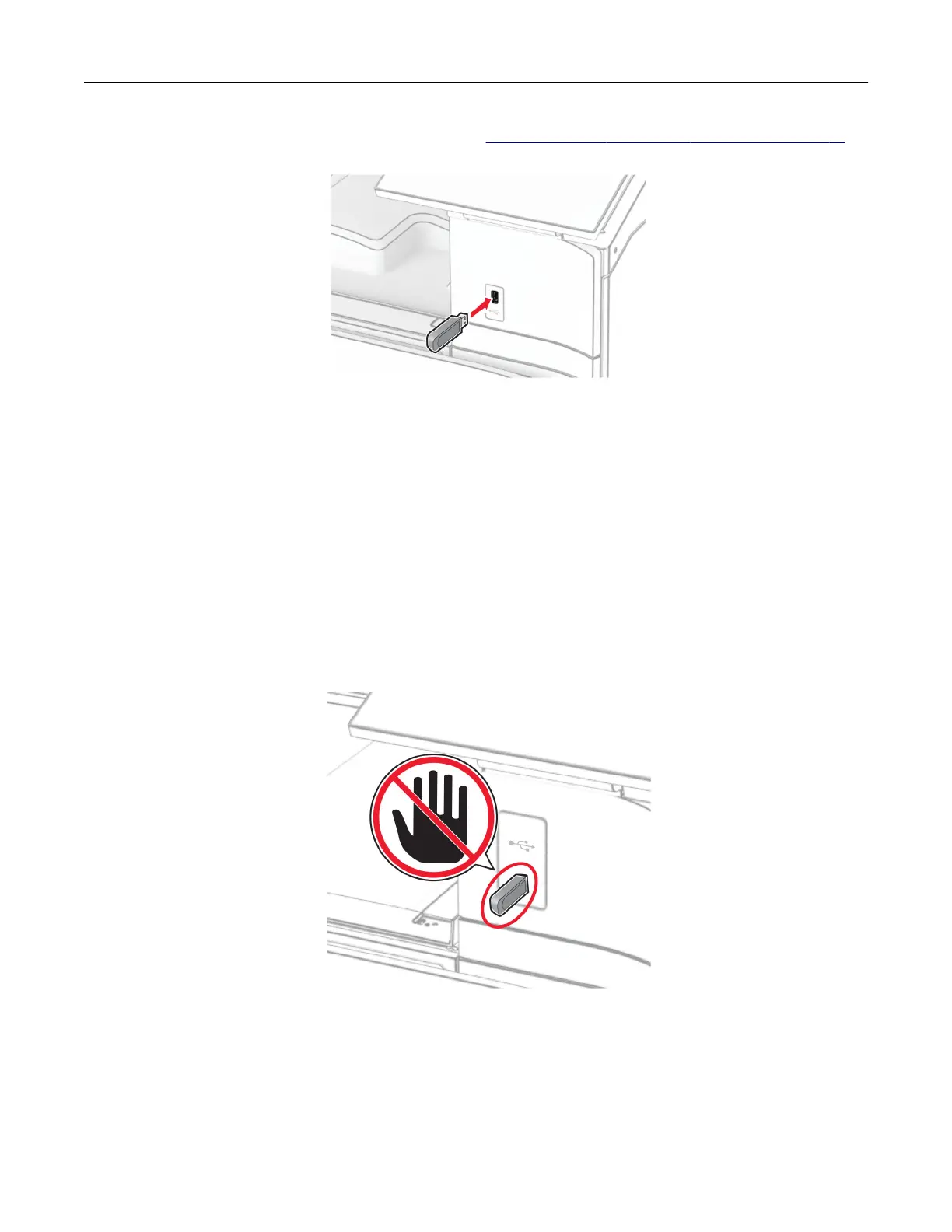
For more information on supported flash drives, see “Supported flash drives and file types” on page 61.
Notes:
• If you insert the
flash
drive when an error message appears, then the printer ignores the
flash
drive.
• If you insert the flash drive while the printer is processing other print jobs, then Busy appears on the
display.
2 From the control panel, select Print .
3 Select USB Drive, and then select the document that you want to print.
If necessary, configure the settings.
4 Print the document.
Warning—Potential Damage: To avoid loss of data or printer malfunction, do not touch the
flash
drive or
the printer in the area shown while actively printing, reading, or writing from the memory device.
Configuring confidential jobs
1 From the control panel, navigate to Settings > Security > Confidential Print Setup.
2
Configure
the settings.
Print 259



 To Next Page