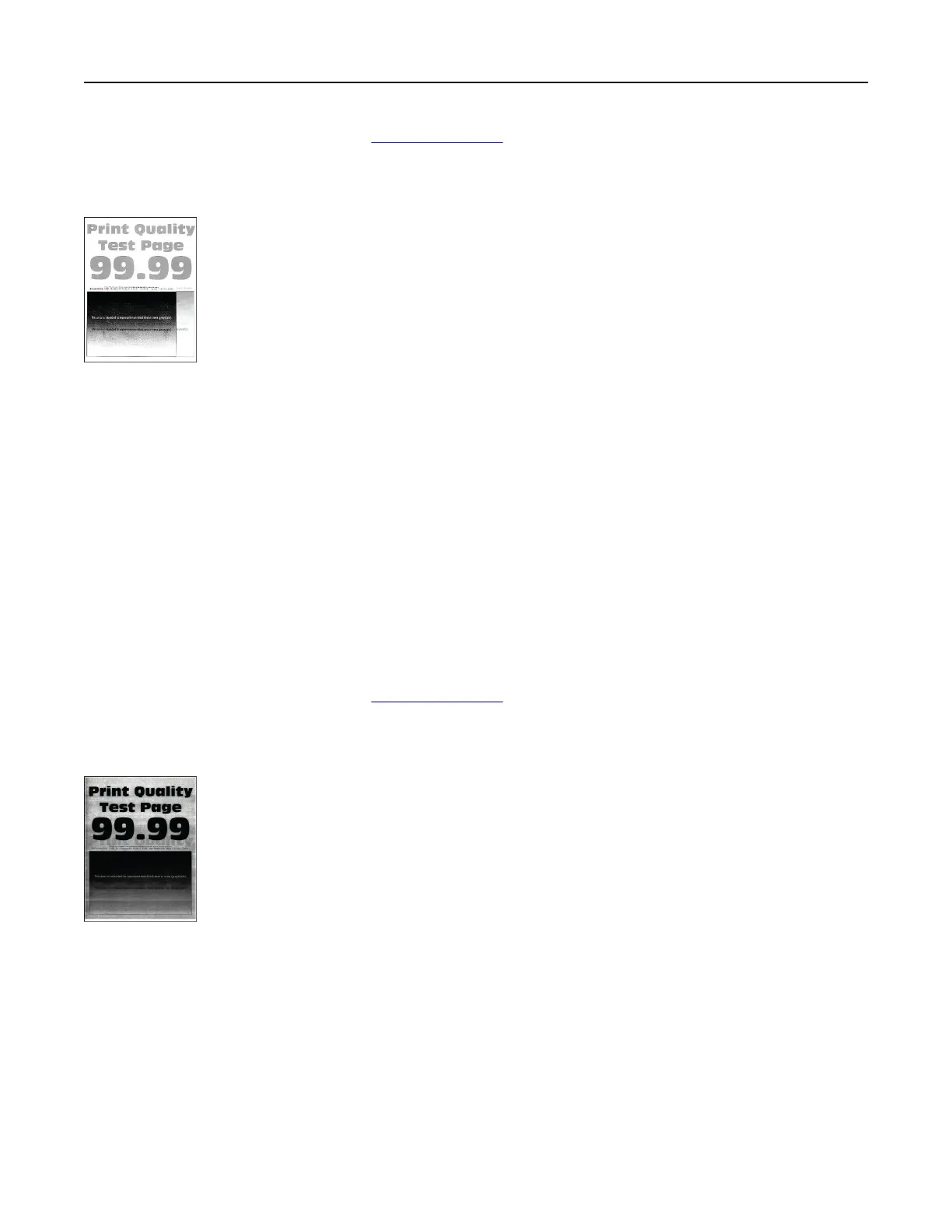
If the problem persists, then contact customer support.
Ghost images
Notes:
• Before solving the problem, print the Print Quality Test Pages. From the control panel, navigate to
Settings > Troubleshooting > Print Quality Test Pages.
• Use tray 1 to print the sample pages and make sure that the paper is loaded in the portrait orientation.
Try one or more of the following:
• Load the tray with the correct paper type and weight.
• Depending on your operating system, specify the paper type from the Printing Preferences or Print
dialog. Make sure that the setting matches the paper loaded in the tray.
Note: You can also change the setting on the printer control panel. Navigate to Settings > Paper >
Tray Configuration > Paper Size/Type.
• From the control panel, navigate to Settings > Print > Quality > Advanced Imaging, and then select
Color Adjust.
If the problem persists, then contact
customer support.
Gray or colored background
Notes:
• Before solving the problem, print the Print Quality Test Pages. From the control panel, navigate to
Settings > Troubleshooting > Print Quality Test Pages.
• Use tray 1 to print the sample pages and make sure that the paper is loaded in the portrait orientation.
Troubleshoot a problem 457



 To Next Page