• Make sure that the cables connecting the printer and computer are connected to the correct ports.
• Turn o the printer, install the hardware options, and then turn on the printer. For more information, see
the documentation that came with the option.
• Install the correct print driver.
• Turn o the printer, wait for about 10 seconds, and then turn on the printer.
If the problem persists, then contact
customer support.
Unable to read flash drive
Try one or more of the following:
• Make sure that the printer is not busy processing multiple jobs.
• Make sure that the
flash
drive is inserted into the front USB port.
Note: The flash drive does not work when it is inserted into the rear USB port.
• Make sure that the flash drive is supported. For more information, see “Supported flash drives and file
types” on page 61.
• Remove, and then insert the flash drive.
If the problem persists, then contact
customer support.
Enabling the USB port
1 From the control panel, navigate to Settings > Network/Ports > USB.
2 Select Enable USB Port.
Clearing jams
Avoiding jams
Load paper properly
•
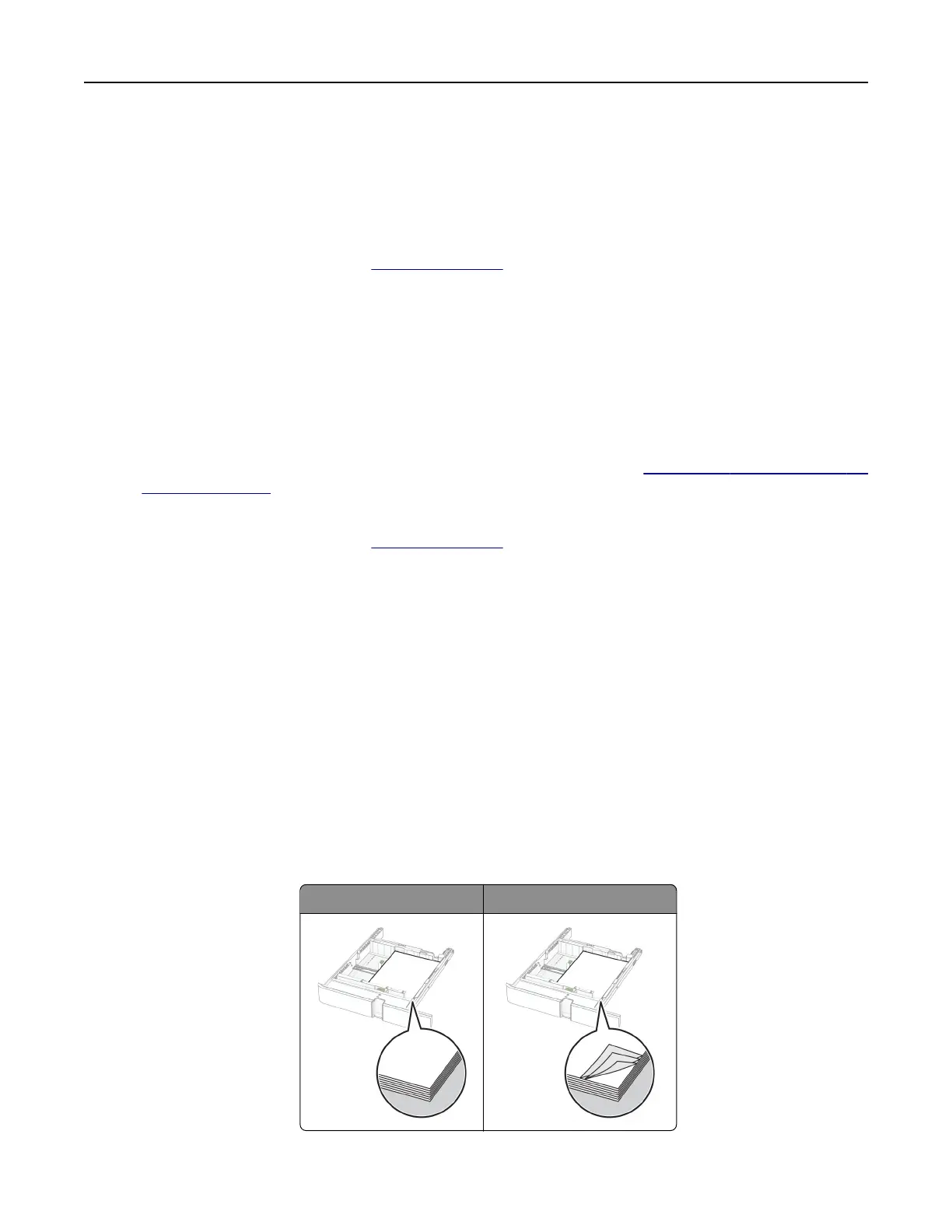
Make sure that the paper lies flat in the tray.
Correct loading of paper Incorrect loading of paper
• Do not load or remove a tray while the printer is printing.
Troubleshoot a problem 470



 To Next Page