Setting the size and type of the specialty media
For specialty media like labels, card stock, or envelopes, do the following:
1 From the control panel, navigate to Settings > Paper > Tray Configuration > Paper Size/Type.
2 Select a paper source, and then set the size and type of the specialty media.
Configuring Universal paper settings
Configuring Universal paper settings
The Universal Setup menu lets you set the width and height of a paper size that is not preset in the printer.
1 From the control panel, navigate to Settings > Paper > Media Configuration > Universal Setup.
2 Select All Input Trays, and then
configure
the settings for the paper size that you want to customize.
Loading the 550-sheet tray
CAUTION—TIPPING HAZARD: To reduce the risk of equipment instability, load each tray separately.
Keep all other trays closed until needed.
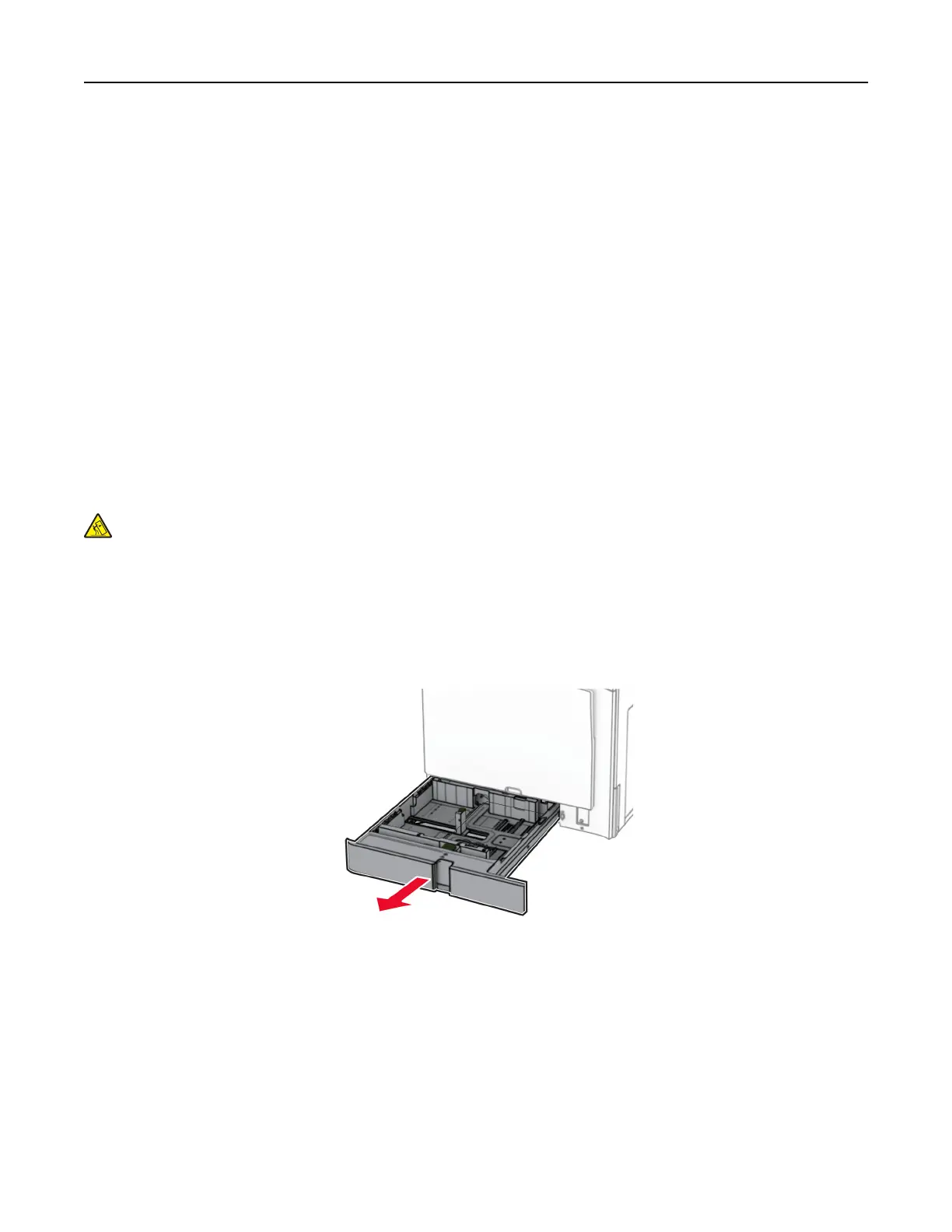
1 Open the tray.
Note: To avoid jams, do not open trays while the printer is busy.
2 Adjust the guides to match the size of the paper that you are loading.
Notes:
• Use the indicators on the bottom of the tray to position the guides.
• Prepunched paper is supported only in the standard 550-sheet tray.
• A3-size paper is supported only in the optional 550-sheet tray.
Set up, install, and configure 81



 To Next Page